Current Feature Guide
This page describes connected features, typical workflows and the boundaries of the current Alpha. Screenshots show the matching client's English interface; the Chinese manual uses Chinese UI screenshots.
Terminal and workspace
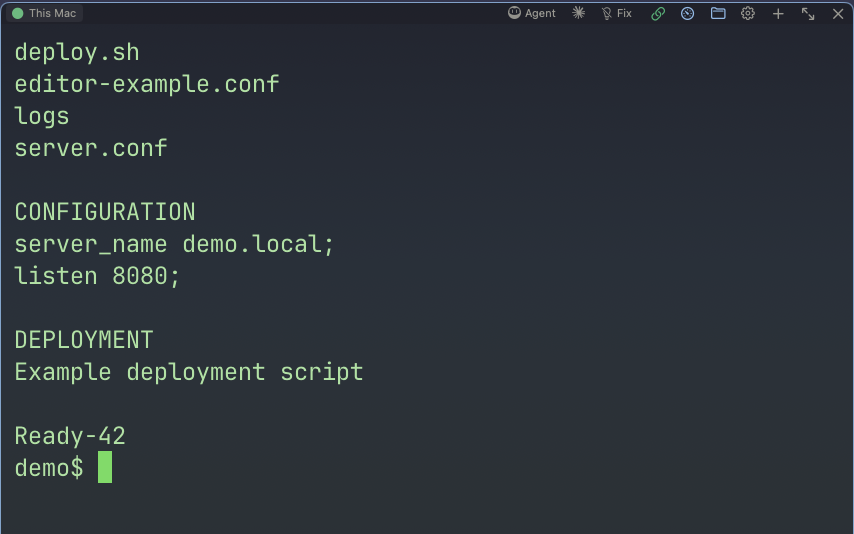
Terminals support search, selection, paste, scrollback, IME, themes and configurable shortcuts. Arrange several panes in a tab, resize them and move focus; workspaces separate groups of tabs. The native Mac client uses Ghostty and Electron uses xterm.js. Follow each client's manual for its settings and shortcuts.
Restoring a layout does not preserve a running remote process. Reconnecting starts a new shell; deliberately use tmux/screen on the server when a job must survive a disconnect.
Broadcast input is scoped to selected terminals in the current tab. New panes do not silently join. Disconnected or connecting members do not buffer and replay input. This is repeated interactive input, without per-host result aggregation, retries, rolling deployment or rollback.
Try a complete terminal task
- Open a local terminal and run a harmless command such as
pwdorls. - Add a file or monitor pane beside it. Check the pane connection before interpreting remote data.
- Search command output, move focus between panes, and give the tab a task-specific name.
- Save the workspace when you want to reopen its layout. Use server-side tmux/screen separately when the remote process must survive.
Check the result: The layout and labels should make it obvious which machine receives input; reopening a layout does not prove a job is still running.
Hosts and resource library
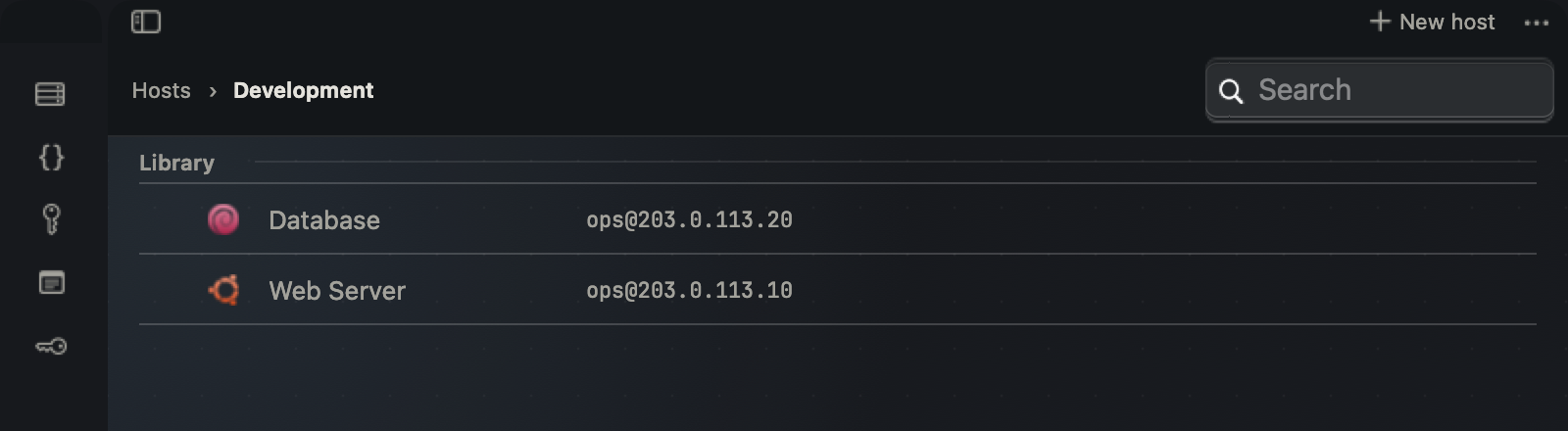
Create a host in the host library, enter its address, username, port and authentication, then connect. Folders, search, quick connect, ssh-agent/key/password authentication and ProxyJump are implemented. Match conditions are ignored; ProxyCommand and a user tunnel manager are not implemented. The host-library quick-connect validator currently limits IPv6 input; use a compatible connection entry point or system SSH.
Snippets, notes and environment variables reuse commands and context. Bindings are global or per-terminal, not automatically host/folder-specific. Inserting a snippet still leaves execution to you. If a saved password cannot be read, the host editor preserves its ciphertext and prompts you to re-enter it, avoiding accidental loss when editing another field; see sync and credentials.
Save a host, then connect
- Create an entry with your test server address, user and port. Keep a descriptive name so it can be found later.
- Choose a password, an identity file or a stored key. Confirm the host fingerprint through a trusted channel before accepting a new one.
- Connect and inspect the connection indicator in the resulting terminal.
- Apply a snippet, note or environment entry only after checking its global or current-terminal binding scope.
Check the result: A saved host should reopen with the intended identity and connection. Library bindings do not automatically follow a host folder.
Files and transfers
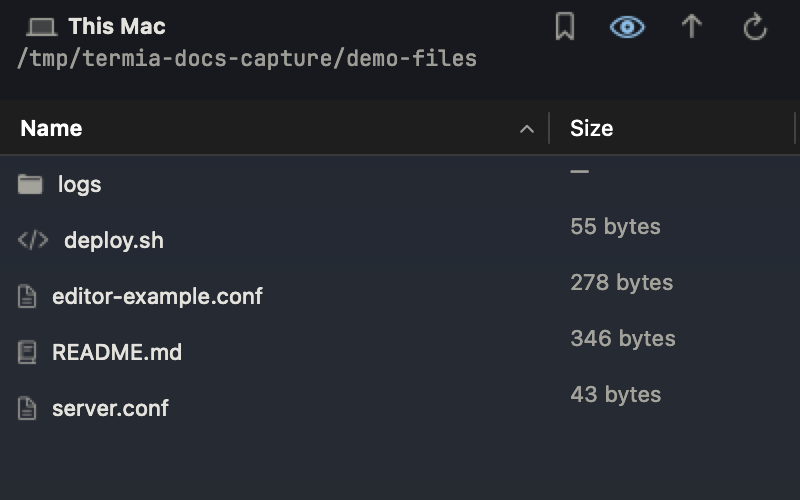
The dual-pane file UI, file pane and previews support local/remote browsing, creation, rename, deletion, upload/download and conflict decisions. The transfer centre shows progress, speed, cancel controls and failure reasons. Deletion generally removes files directly from disk; read the confirmation first.
The UI name “SFTP” uses the wsh helper over SSH, not a standalone standard SFTP client. SFTP-only hosts or hosts that prohibit the helper are unsupported. There is no byte-level resume or restart-restored transfer queue. Native Mac provides light text/code editing; Electron uses Monaco. Consult each client's file documentation for type and size limits.
Verify a file operation
- Choose the local and remote locations, and confirm that the remote helper is available.
- Preview a small file and check its path before editing or copying.
- Copy one file first. Decide explicitly whether an existing same-name destination should be overwritten, merged or skipped.
- Watch the transfer state and inspect the destination before relying on the result. Cancel or investigate a failure rather than assuming it resumed.
Check the result: A visible destination file and a completed transfer state are better evidence than merely clicking Upload. Large interrupted transfers do not resume by byte offset.
Monitoring and operations
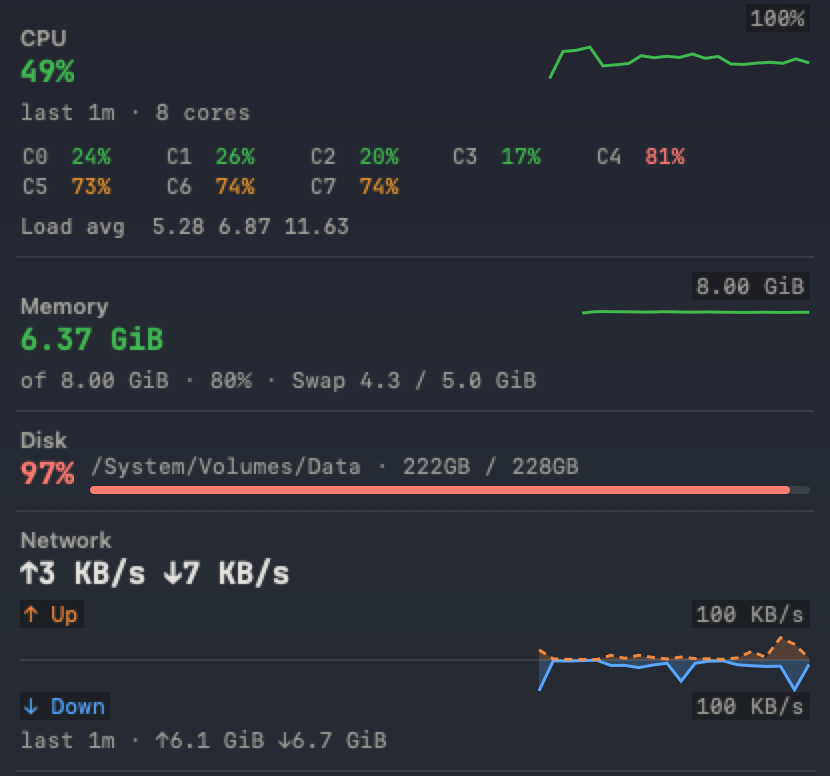
The monitor shows CPU, memory, disks, network, host facts and processes, with 1m/5m/30m/12h trends. Aggregate buckets preserve averages and peaks. The backend persists aggregate history every minute and on orderly shutdown, so reopening a pane can show already collected data. No new samples are collected with the app closed, without a collection subscription, or during disconnection. There is no background monitoring/alerting or team incident-management service.
The operations toolkit supplies command templates and structured service, Docker, port and process views. It is not a complete deployment, backup or rollback orchestrator. The plugin installer detects, installs and removes a fixed catalog of 11 CLI tools, not third-party extensions. External CLIs still require their own dependencies and authentication.
Investigate before making changes
- Select the intended connection and let actual resource samples arrive.
- Compare CPU, memory, disks and network; use the trend interval that fits the incident.
- Inspect processes or service/container information and read logs in a companion terminal.
- After a deliberate change, repeat the observation and compare the result.
Check the result: A chart requires real collected samples. Closing the application or losing the connection stops collection; it is not an unattended alerting system.
Keep the complete monitor beside your terminal
Narrow the pane for a vertical rail, reduce its height for a horizontal strip, or minimize it to the terminal bottom edge. Resource readings remain live, with hover details. See Monitor panel for the full overview, both complete strips and bottom-bar controls.


Agent and command correction
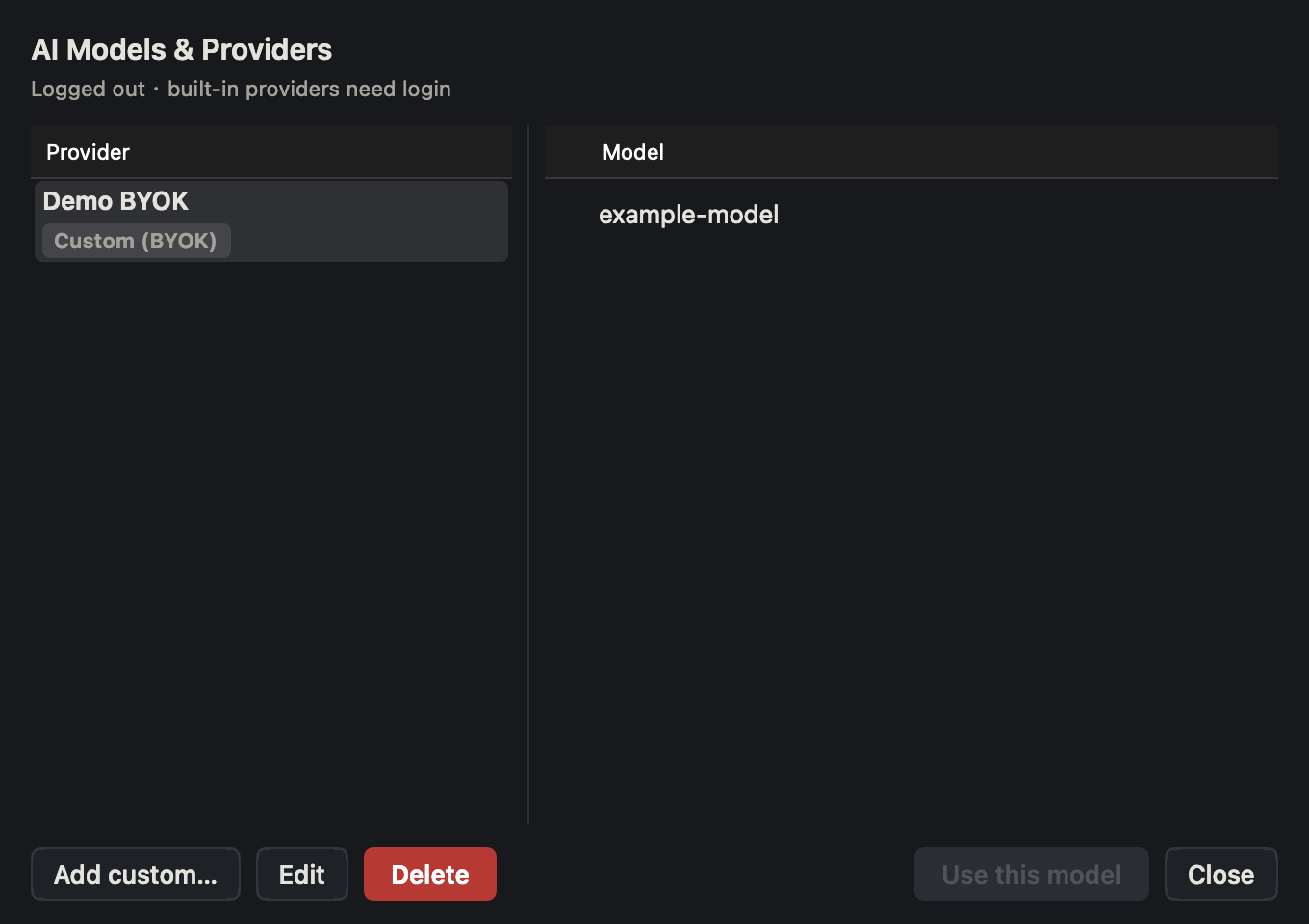
Select a provider/model, then start TT Agent in the terminal mode controls or type tt "Explain this service error log". This opens an interactive session with an initial prompt. The local Agent can operate a remote host through wsh; quitting the desktop does not leave a remote background Agent running. Custom OpenAI-compatible providers (BYOK) require no Termia login; built-in services require configuration and an account.
Command correction proposes a fix after a shell command fails; review and run it or dismiss it. It is not input-time completion or proactive incident detection. The Git panel operates local repositories; inspect remote Agent edits in the remote terminal.
Use an Agent with a bounded request
- Open the AI settings and choose a provider for the built-in TT Agent.
- Select a provider/model and enter your own credentials through the provider configuration.
- Choose local or remote target deliberately, then start TT Agent from the terminal mode entry.
- Begin with a read-only request, for example: “List the five processes using the most memory; do not change anything.”
- Review proposed commands and verify their outcome in the terminal. For remote code edits, use remote
git diff; the graphical Git view is local.
Check the result: The screenshots illustrate configuration and entry points. They do not claim that a model has run successfully or that an AI answer was independently verified.
Sync, export and recovery
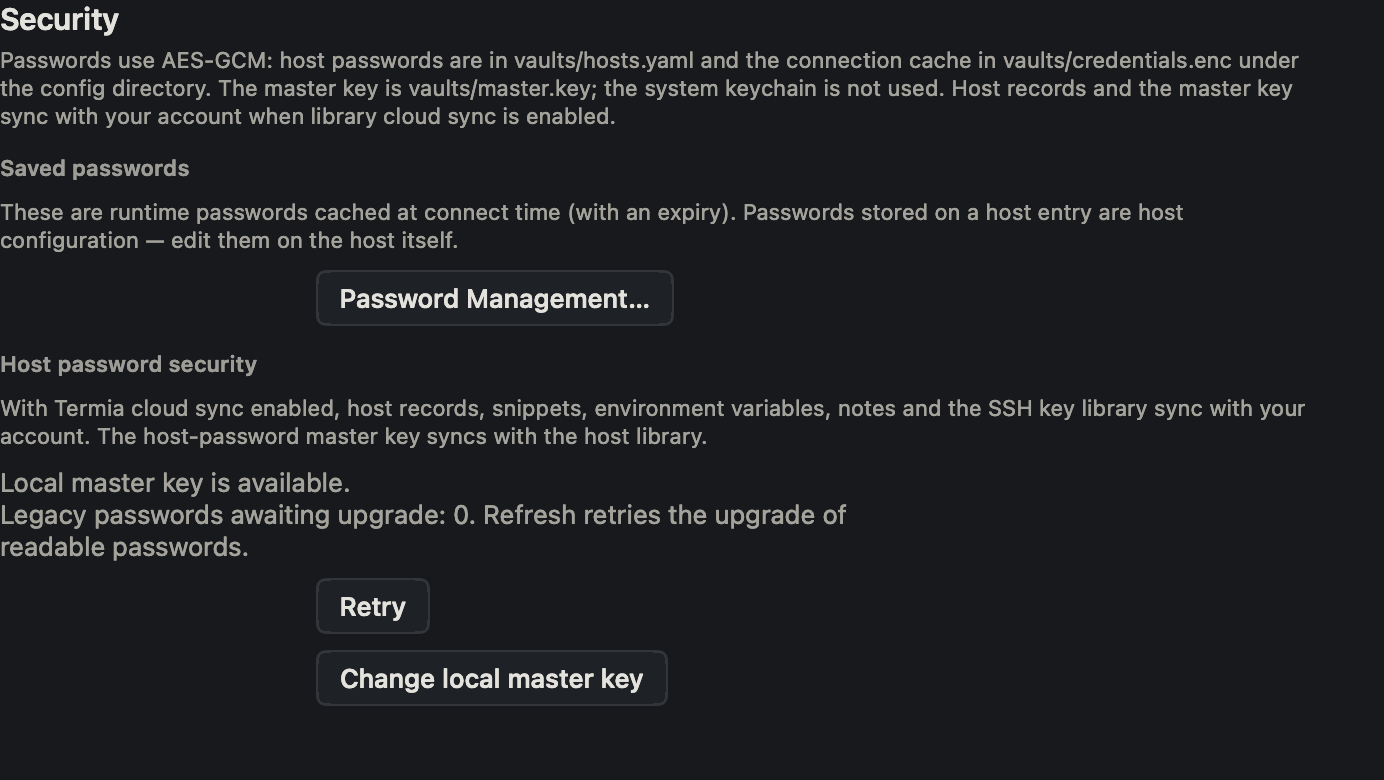
Cloud sync supports host records and their master key, snippets, notes, variables and the SSH key library sealed with its separate passphrase. Encrypted host passwords sync with the saved host records. Conflicts can be detected and listed, but the current UI cannot choose local/cloud versions or manually merge them. Repeated syncing does not resolve a conflicting item.
ZIP exports only hosts, snippets, variables and notes. Import adds or updates by ID and does not remove local-only entries. It excludes SSH keys, the master key, bindings, preferences and full workspaces, so it is not a complete backup. To reuse host passwords on another machine, securely migrate the required credentials or re-enter them. Never commit key files to Git or share them publicly.
Prepare recovery before synchronization
- Open Security and inspect migration/unavailable-credential status.
- Keep the local recovery key securely with encrypted host data; replace an individual unreadable password only when you know the replacement.
- Synchronize only supported document types and read any reported conflicts or failures.
- Treat ZIP export as selected library data, not a complete application backup; keep SSH keys, bindings and settings separately where needed.
Check the result: An updated client cannot revoke historical cloud or Git copies. Upgrade both clients together and do not open migrated data with an old release.