Migrating from the Electron App
If you used the older Electron-based version of Termia on this Mac, the native app can import your hosts, settings and workspaces from it. This page describes when that happens, exactly what is copied, and what is not.
When you are asked
Termia looks for Electron data the first time it starts on a machine, before it opens its own database. It only offers to import when both of these are true:
- This is a fresh install — the native app's own database does not exist yet.
- It finds an existing Electron installation's data: a database file and a configuration directory.
If it finds them, a dialog appears with three choices:
- Full migration — imports your configuration, your hosts library, and your data (database, agent settings and related files).
- Config & hosts only — imports just your configuration and hosts library, and leaves your data (database, agent settings) alone.
- Skip for now — starts the native app with nothing imported, and does not ask again on future launches. You can still bring the dialog back later — see below.
The dialog states plainly that the original Electron data is never modified, so choosing either import option is not a one-way door.
What gets imported
Configuration (in both "Full migration" and "Config & hosts only"): essentially everything in
the Electron app's configuration directory — your settings.json, keybindings.json, your
Vaults library (hosts, snippets, notes and environment variables), and files such as user.json
and connections.json.
Data (in "Full migration" only): the local database, plus a fixed set of data files — command monitor memory, TT Agent settings, agent attachments, environment-variable update history, and the Vaults working cache. Temporary SQLite journal files that Termia recreates on its own are skipped.
After copying, Termia checks the imported database's integrity and confirms the number of Vaults files matches what was in the source; credential-bearing files get their file permissions tightened as part of the import. If anything fails these checks, the import is reported as failed rather than left half-done.
What does not get imported
Only the fixed set of data files above is copied — anything else in the Electron app's data directory (browser cache, lock files, sockets, logs, and regenerable helper binaries) is left behind. Nothing about the two apps' data directories changes as a result of the import: your Electron install keeps its own data untouched, and the native app keeps its own — this is a one-time copy, not an ongoing link between the two.
Back up the Electron source and native target before migrating, including the full configuration/data directories and vaults/master.key. Upgrade both clients to this release first. After a profile upgrades to host-password format v2, an older client cannot read it and may clear unreadable credentials: do not reopen that profile in an older version. Downgrading requires a separate profile restored from a pre-upgrade backup. See host password upgrades.
Requirements to migrate
The Electron app must not be running when the import happens: its database is locked while it is open, and the import refuses to start against a locked source. Quit the Electron app first if you see an error mentioning this.
If the native app's target data already has something in it — for instance if you had already started using the native app before deciding to import — that existing data is backed up to a separate, timestamped directory before being replaced, so a full migration on top of existing native data does not silently discard anything.
Importing again later
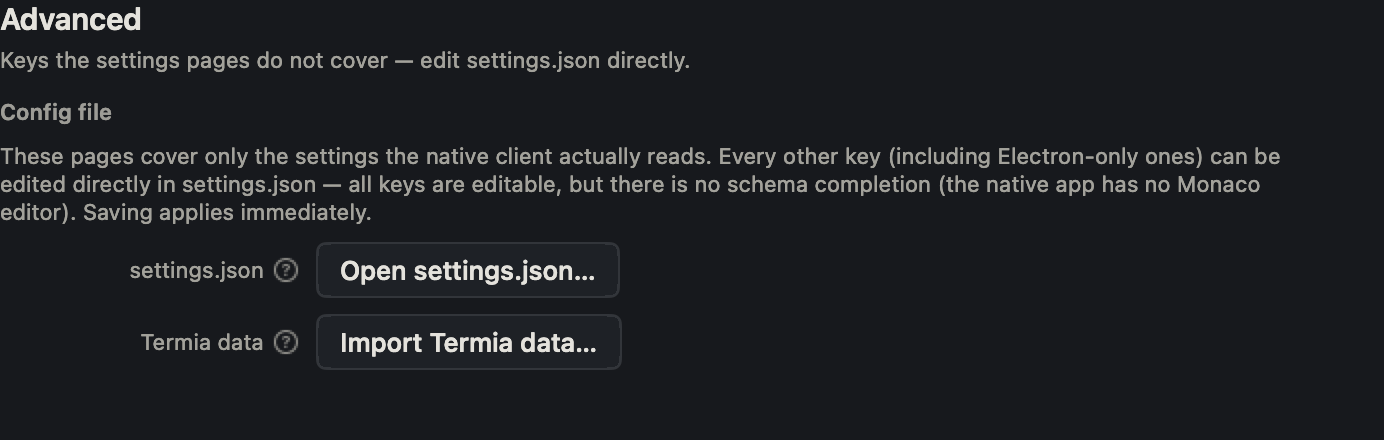
If you chose "Skip for now" and change your mind, or if you want to re-import after making more
changes in the Electron app, open Settings → Advanced and use the "Import Termia data…" button
under "Termia data". Because the import has to run before the database is opened, it is scheduled
for your next launch rather than running immediately; the settings page confirms once it is
queued. This path always backs up and replaces your current native data — it is meant for
starting over from the Electron side, not for merging changes in both directions.