Plugins
The plugin installer checks whether a fixed set of terminal tools are present on a machine and installs or removes them for you, so you don't have to remember each tool's package name and package manager.
The current catalog contains 11 fixed CLI tools. This is a tool installer, not a third-party extension marketplace. Installing another Agent does not share TT Agent's model configuration; its accounts, API keys and sessions follow that tool's own setup.
Opening it
Open it from the File menu's Plugins… item, or from the Command Palette
(⌘⇧P) by searching for "Plugins". There's no dedicated keyboard shortcut for it.
The installer targets whichever machine the currently focused pane is connected to: run
it from a terminal on this Mac and it checks and installs locally; run it from a terminal
connected to a remote host over SSH and it does the same thing on that host instead — the
dialog, the tool list, and the actions are identical either way. The panel's subtitle
names its target ("Target: This Mac" or "Target: <host>"), plus the operating system
family it detects once it starts probing.
What it can install
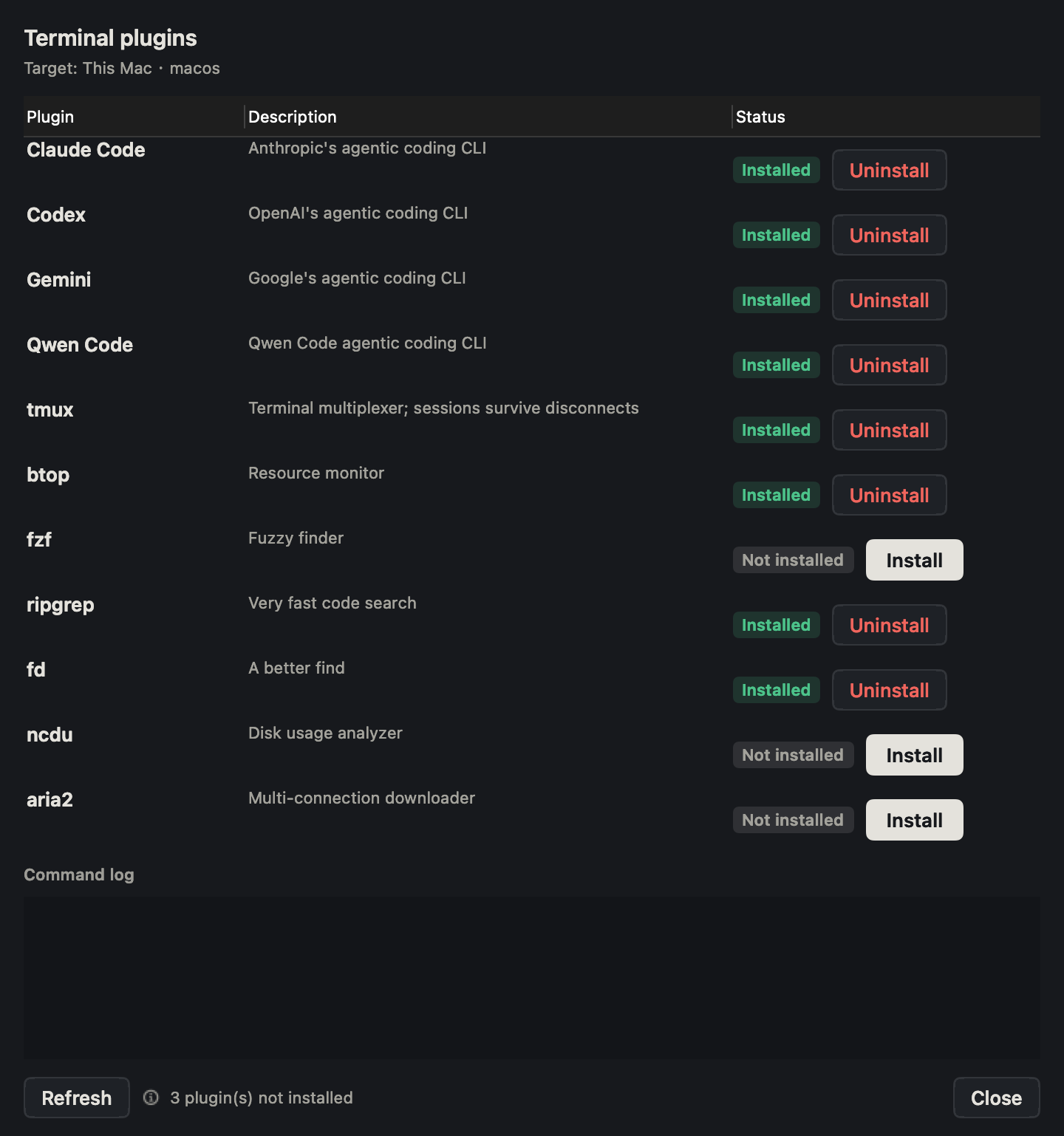
| Tool | What it's for | Installed via |
|---|---|---|
| Claude Code | Anthropic's agentic coding CLI | npm |
| Codex | OpenAI's agentic coding CLI | npm |
| Gemini | Google's agentic coding CLI | npm |
| Qwen Code | Qwen Code agentic coding CLI | npm |
| tmux | Terminal multiplexer; sessions survive disconnects | system package manager |
| btop | Resource monitor | system package manager |
| fzf | Fuzzy finder | system package manager |
| ripgrep | Very fast code search | system package manager |
| fd | A better find | system package manager |
| ncdu | Disk usage analyzer | system package manager |
| aria2 | Multi-connection downloader | system package manager |
The first four install as global npm packages, so the target machine needs Node.js and
npm already available — the installer doesn't set those up for you. The rest install
through whatever system package manager it detects on the target: Homebrew on macOS,
apt on Debian/Ubuntu, dnf (falling back to yum) on RHEL-family systems, pacman on
Arch, and zypper on openSUSE. The package name for the same tool can differ between
managers — fd, for instance, is packaged as fd-find on apt and dnf.
If the installer can't identify a supported package manager on the target, it reports "Automatic install not supported on this system" for that tool instead of guessing at a command.
How installing works
Opening the panel probes every tool in the list one at a time — not all at once, so it
doesn't hit a remote host with a burst of simultaneous commands — showing "Checking
<tool> (i/N)" as it works through them. When it finishes, the status line either
confirms every tool is installed or says how many are missing. A Refresh button
re-runs the whole check.
Installing or removing a tool runs the matching command (npm install -g …,
brew install …, and so on) over the same remote-execution path a terminal command uses,
which is why it behaves identically whether the target is this Mac or an SSH host. The
command runs non-interactively, so it first sources the setup a normal login shell would
load on its own — a Homebrew environment, an nvm-managed Node install, and
~/.local/bin — since none of that is picked up automatically outside a login shell.
Every command's output is appended to a log panel at the bottom of the sheet, so if something looks off you can see exactly what ran and what it printed, not just whether it succeeded.
Status of each entry
Each row carries a badge for its current state:
- Checking… — being probed right now, or not probed yet.
- Not installed — probed and missing; an Install button appears.
- Installed — probed and present; an Uninstall button appears instead.
- Working… — an install or uninstall for this tool is running.
Uninstalling asks you to confirm first, and notes that the tool is only removed from the target machine — you can reinstall it at any time.
When it fails
A failed install or uninstall doesn't just leave you to read the log — the status bar at
the bottom shows "<tool> failed — see the log below" with its own Retry button. If
the command's output mentions sudo, the log also gets a line telling you it needs a
password and to run the install command by hand in a terminal instead: the installer runs
everything non-interactively, so it has no way to answer a password prompt.
After every install or uninstall attempt, the panel checks again rather than trusting the
command's exit code alone — an npm install can exit successfully and still leave the
binary off your PATH, which would otherwise show as installed when it isn't actually
usable yet.
Every time you open the panel it probes the whole list again from scratch — nothing is carried over from the last time you had it open, so it always reflects the machine's current state.
Claude Code and TT Agent prerequisites
Installing Claude Code updates the separate Claude mode availability on terminals connected to the same machine. TT Agent's runtime is bundled with the desktop application and operates remote shells through wsh. See TT Agent setup.