Files and Transfers
Termia moves files two ways: a dedicated two-pane SFTP view for copying between this Mac and a remote host, and a file pane that browses one location (local or remote) as a layout leaf next to your terminals. Both open files with the same preview and editing tools.
The UI keeps the name “SFTP”, but remote file access uses the wsh helper over the SSH connection, not a standalone standard SFTP protocol client. SFTP-only servers, network devices and environments that prohibit installing or running the helper cannot use this file channel. A plain SSH terminal can still connect with the helper disabled; files and monitoring cannot.
The transfer centre supports progress, cancellation and overwrite/merge/skip decisions. It does not provide byte-level resume or an automatically restored queue after restarting the app. Use a dedicated resumable transfer tool for large files that require this guarantee.
The two-pane SFTP view
Open it from the Add Pane menu — the + on a pane's title bar, the tab bar's toolbar dropdown, or
right-click on a terminal or pane — and choose "SFTP files (takes over this tab)". Unlike other
panes, SFTP is not a layout leaf: it replaces the whole tab's layout. Opening it again while it is
already showing turns the menu item into "Close SFTP (back to pane layout)", with a checkmark
next to it.
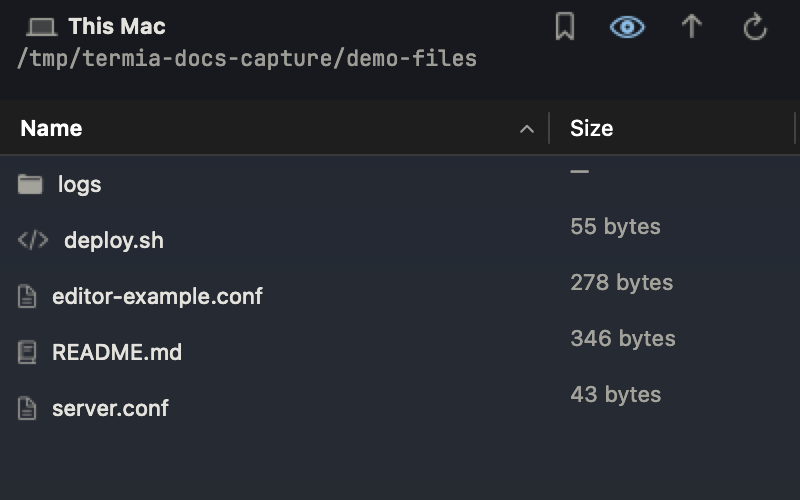
The left pane is always this Mac, starting in your home folder. The right pane is the remote host:
- If the tab you opened SFTP from is already connected to a host, that connection fills the right
pane automatically, starting at
~on that host. - If the tab is local (or has no connection), the right pane shows "Pick a connection" with a Choose Connection… button. Picking one attaches it to the right pane.
- If there are no saved hosts at all, the placeholder instead reads "No hosts to connect to" with an Open Hosts button that takes you to the hosts library, plus a secondary Choose Connection… link once you have added one.
A toolbar above both panes has Back to Terminal, Upload, Download, New folder, Delete and Transfers. Back to Terminal is the only way out of SFTP mode — it returns the tab to its previous pane layout. Upload and Download move whatever is selected in one pane into the other's current folder; both are disabled while the remote side is disconnected.
Navigating a pane
Each pane has its own header: the connection name, the current path, and four buttons — a bookmarks menu, a hidden-files toggle, up-one-level, and refresh. The bookmarks menu jumps to Home, Desktop, Downloads, Documents or the root folder (root and the remote home are resolved by the host, not assumed locally). Double-click a folder to enter it; double-click a file to preview it. Multi-select works with the usual click and Shift/Command-click combinations. Click the Name or Size column heading to sort by it, and again to reverse the order; folders always sort ahead of files.
| Action | Shortcut |
|---|---|
| Open selection (enter folder / preview file) | Return |
| Go up one level | ⌘↑ |
| Delete selection | ⌘⌫ |
| Refresh | ⌘R |
| Quick Look (this Mac's pane only) | Space |
Filtering and the folder/file breadcrumb only exist in the file pane described below — the SFTP panes keep the simpler path-and-buttons header.
Creating, renaming and deleting
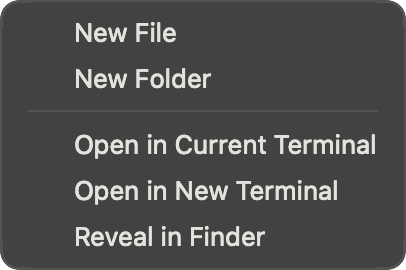
Right-click inside a pane for New File and New Folder, available even on empty space. Both ask for a name in a small sheet; New File refuses to create a file that already exists rather than silently emptying it. The toolbar's New folder button targets the remote pane by default, unless only the local pane currently has a selection.
Rename is a right-click action on a single item. Renaming a folder shows an extra confirmation — "Renaming a directory requires the recursive flag. Proceed?" — because moving a directory on the remote side has to walk its contents.
Delete (right-click, or the toolbar's Delete button, or ⌘⌫) always asks first, listing up to
five of the selected names. If any selected item is a folder, the confirmation adds that the
folder and everything inside it will be deleted. Either way, deletion is immediate: files are
removed from disk, not moved to a Trash, and cannot be undone.
Uploading and downloading
The toolbar's Upload and Download buttons transfer the local pane's selection to the remote pane's current folder, or the reverse. Every transfer goes through the transfer centre, so you get real progress and can cancel mid-copy — nothing is a single blocking wait.
You can also skip the panes entirely: right-click a remote file or folder and choose "Download to This Mac…" to pick a destination folder with a save panel, without first navigating the local pane there.
Drag and drop
Drag files or folders from Finder onto either pane to copy them in — onto empty space copies into the current folder, onto a specific folder row copies into that folder. The same targeting applies if you drag a selection from the local pane onto the remote pane: it uploads, dropped onto a folder row to copy into that folder or dropped elsewhere to copy into the remote pane's current folder. It only works in that direction — dragging a remote row onto the local pane does nothing; use Download (the toolbar button or the right-click "Download to This Mac…") for that direction instead. Local files can also be dragged out of the local pane into Finder or another app.
Name conflicts when copying
The first attempt at any copy never overwrites silently. If the destination already has a file with the same name, Termia asks whether to continue, offering Delete then Copy or Cancel. If the destination already has a folder with that name, you additionally get Merge, which keeps what is already there and only adds what is missing (Delete then Copy empties the folder first). Choosing Cancel does not count as a failure — the item is marked "Already exists, not overwritten" in the transfer centre rather than showing an error.
Renaming does not go through this dialog: renaming onto an existing name simply fails with an error message.
The transfer centre
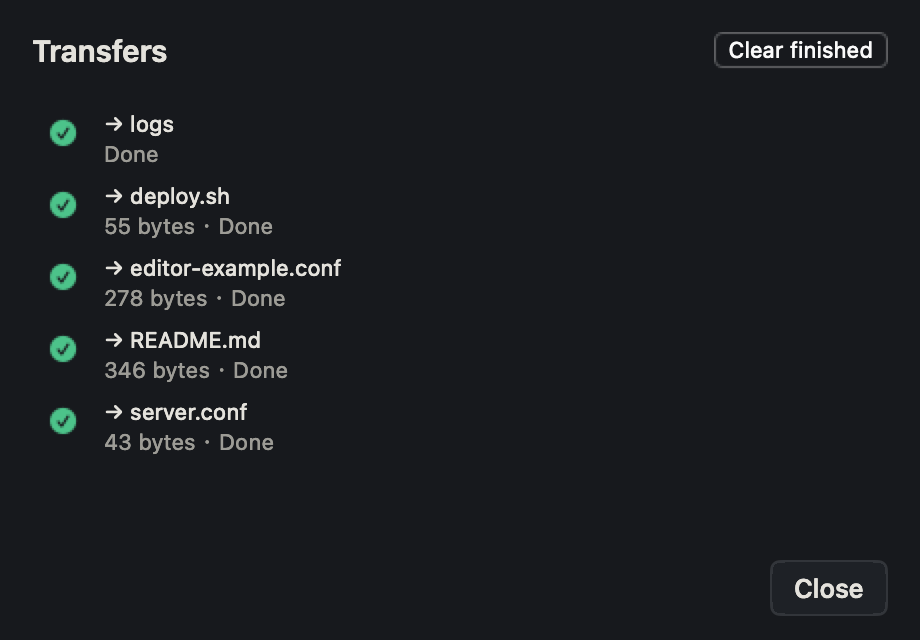
Open it from the SFTP toolbar's Transfers button. Each row shows the direction (upload or download), the file name, and its state: Queued, Transferring…, Done, a failure reason, "Already exists, not overwritten", or Canceled. While a transfer is running the row instead shows bytes copied, total size, percentage and current speed. Only the most recent 50 entries are kept — active transfers are never dropped, only finished ones roll off. Clear finished removes everything that is done, failed, skipped or canceled, but leaves active transfers alone.
Each active row has a cancel button. Canceling marks the item immediately, then asks the host to stop; if that request doesn't get through (for example a dropped connection), the item quietly goes back to "Transferring…" and a warning notification says the cancel failed — the copy is still running in the background.
A finished transfer's size is corrected once the copy completes: for a single file, Termia checks the destination's real size rather than trusting the last progress update, because progress ticks roughly twice a second and can lag noticeably behind on a large file. Folder copies keep the size the folder listing reported when you started — there is no single "final size" to re-check for a directory.
Files you started together share a single notification rather than one per file — it updates as each one finishes, and offers a Reveal in Finder button if the destination is on this Mac. When a transfer fails, its row turns into an error icon with the reason as its subtitle, and a separate notification names the file and the reason. If several transfers in a batch fail, the transfer centre also shows a one-line banner summarizing how many.
The file pane
A file pane is a normal layout leaf: add one from the Add Pane menu ("New file pane") or with
⌘⇧O (the same shortcut under both keymap presets), and it can be split, resized and closed like
any terminal or web pane. It shows one folder or file at a time — local or on a host, depending on
where you opened it — and remembers its last location, so reopening the same pane later returns to
where you left it.
If a file pane shares a pane group with a terminal, navigating to a folder in either one updates the other automatically; this is skipped while the pane has unsaved edits open, or when the terminal is connected to a different machine.
The navigation bar
The file pane's header adds what the SFTP panes don't have:
- Back and Forward chevrons, tracking every folder and file you have visited in this pane (separate from the browser-style Up button, which just goes to the parent folder).
- A breadcrumb of clickable path segments; when the pane is too narrow to show them all, the earliest ones collapse into a "…" button that lists them in a menu. Click any empty space on the breadcrumb (not a segment) to type a path directly — press Return to go there, Escape or click away to cancel.
- A filter field that narrows the current folder's listing by name as you type; typing anywhere in the list itself (without a modifier key) jumps straight into this field. Escape clears it.
- Hidden-files toggle, refresh and the same bookmarks menu as the SFTP panes.
The listing itself adds two sortable columns the SFTP panes don't show — Modified and Kind — along
with a .. row at the top of the list that goes up a level (the SFTP panes rely on the Up button
for that instead). Both extra columns hide automatically as the pane narrows.
Right-clicking an entry in a file pane adds terminal integration on top of the SFTP context menu:
Open in Current Terminal and Open in New Terminal (cd a terminal to the item's folder), and for
files, Open in New File Pane. "Open in Current Terminal" can decline and tell you why — the
terminal is busy running a command, has a half-typed command, is connected to a different
machine, has multi-terminal broadcast turned on, or the path can't safely become a one-line cd
— and suggests Open in New Terminal instead.
Previewing a file
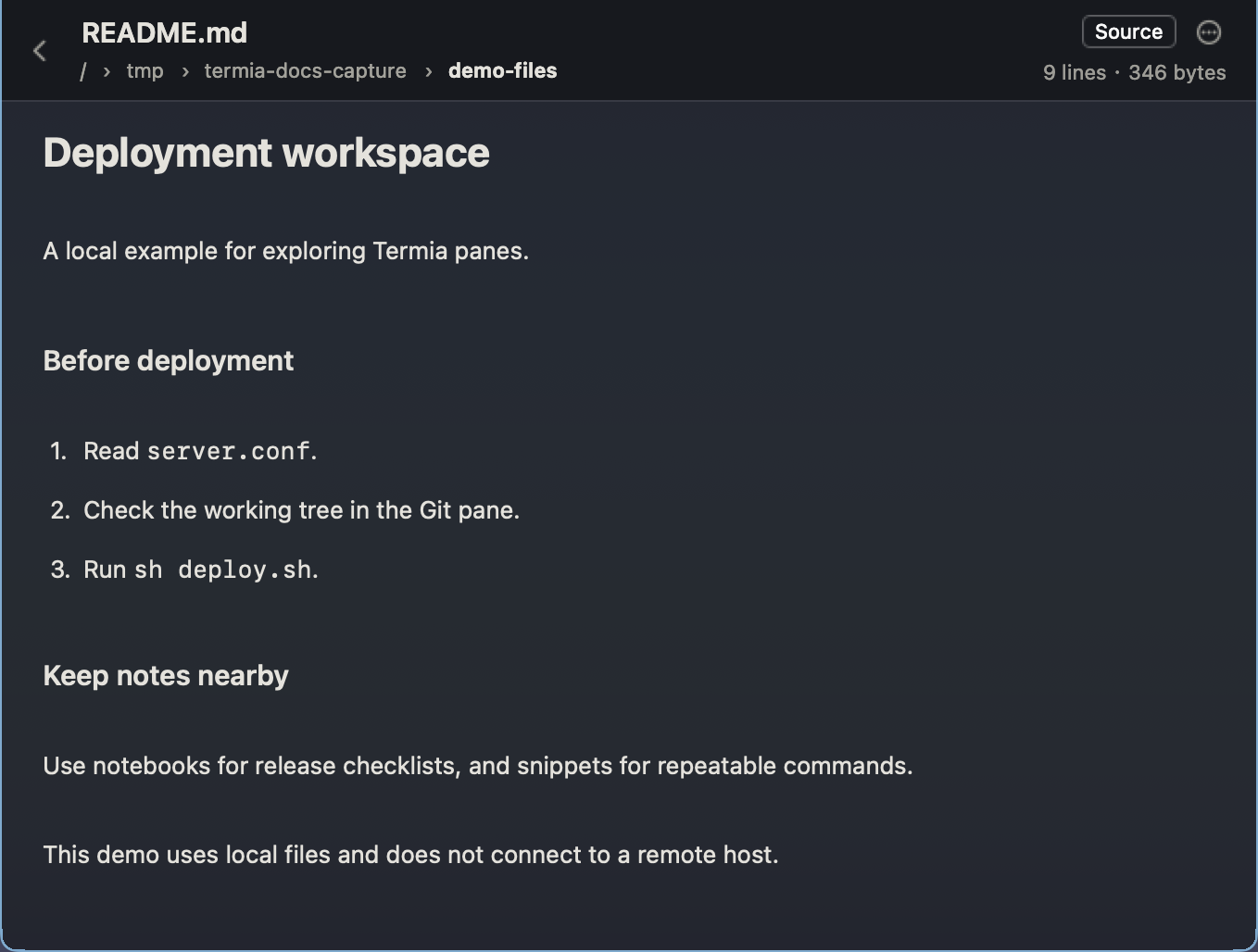
Double-clicking a file — in either an SFTP pane or a file pane — opens it in the built-in preview. What you get depends on the extension:
| Kind | Extensions | What you see |
|---|---|---|
| Image | png, jpg/jpeg, gif, bmp, tiff/tif, webp, heic, ico | Zoomable, pannable image view with a Fit/Actual Size toggle and a zoom percentage |
Page-by-page PDF view with zoom controls, a page indicator, and ⌘F search that highlights every match | ||
| CSV / TSV | csv, tsv | A sortable table (numeric-aware column sort), paginated at 5,000 rows per page |
| Markdown | md, markdown | Rendered by default (headings, lists, quotes, code fences, rules, bold/italic/inline code/links), with a Source/Rendered toggle |
| Audio / video | mp4, mov, m4v, mp3, m4a, aac, wav, aiff/aif, flac, caf | An inline player with standard playback controls and a fullscreen toggle |
| Plain text or code | everything else recognized as text, including most programming languages, JSON/YAML/TOML, config and shell files | The built-in code editor if the extension has syntax support and the file is small enough (see below); otherwise plain text |
Anything with an unrecognized extension shows "Cannot preview" instead of guessing. Images, PDFs, CSV/TSV and audio/video are view-only — there is nothing to save, lock or edit for those. Plain text, Markdown and code files are editable, and their header adds a lock button (toggle between editable and read-only without losing your changes; disabled if the file itself is read-only on the host) and a Save button once there is something to save.
Every kind's header also has a More menu with Open Folder in Current/New Terminal, Reveal in
Finder / Open with Default App (local files), Copy Path, and, for the editable kinds, Discard
Changes (only enabled when there is something to discard). ⌘S saves and ⌘E toggles the lock
where they apply; ⌘←/⌘→/⌘↑ move through history and back to the folder, and are ignored
while you are actively typing in an editable text view so they never hijack cursor movement.
The code editor
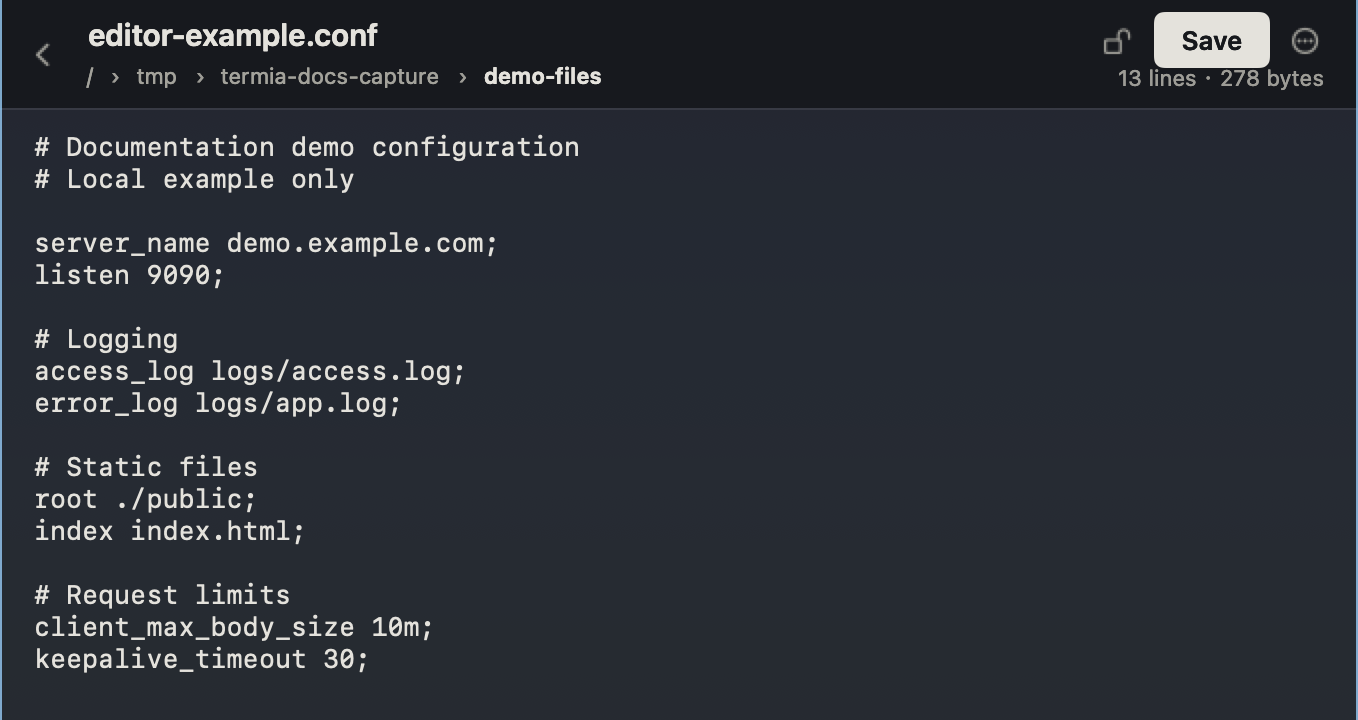
Files with a supported language extension — Swift, Go, JavaScript/TypeScript (including jsx, tsx, mjs, cjs), Python, common shells (sh, bash, zsh), JSON, YAML/YML and TOML — open in the built-in editor instead of plain text, as long as the file is 2 MB or smaller. It shows line numbers and per-line syntax highlighting for keywords, strings, comments and numbers; the highlighting is line-by-line and doesn't try to track constructs that span multiple lines, such as block comments or triple-quoted strings.
Editing uses standard text-view behavior with full Undo; automatic quote/dash substitution and
spell-checking are turned off so code is never silently "corrected". ⌘F opens a find bar with
Previous/Next (also ⌘G / ⇧⌘G), Replace and Replace All — matching is a plain case-insensitive
literal search, not a regular expression. Escape closes the find bar.
Saving (⌘S or the Save button) first checks whether the file changed on the host since you
opened it (by size and modification time). If it did, you're asked to confirm — overwriting
discards the outside change — before the write goes through. A file with a code extension larger
than 2 MB never opens in the editor: it falls back to a read-only plain-text view instead, with a
note that it is too large to edit (this 2 MB ceiling is lower than, and separate from, the general
8 MB text limit below).
Size and type limits
- Files up to 8 MB are fetched in a single request; larger files (where a type allows it at all) are downloaded in 4 MB chunks to a temporary file, with a "Downloading X / Y…" progress state.
- Plain text and Markdown files over 8 MB are not opened at all — "File larger than 8 MB — no preview" — since they load fully into memory for editing.
- CSV/TSV has its own cap of 64 MB; above that it is refused outright.
- Images and PDFs are capped at 500 MB.
- Audio and video always download to a temporary file regardless of size (players need a real file on disk), also capped at 500 MB.
- The code editor's own limit is 2 MB, independent of and lower than the general text limit — see above.
Downloaded temporary files are cached by content (path, size and modification time together), so reopening the same unchanged file doesn't re-download it, and they are cleaned up automatically when the preview or pane closes.
Opening a directory into a new terminal
Outside the app, three entry points open a directory straight into a new local terminal tab or window:
- Finder services — right-click a file or folder in Finder, then Services → "New Termia Tab Here" or "New Termia Window Here". Enable them once in System Settings → Keyboard → Keyboard Shortcuts… → Services → Files and Folders; only a packaged, installed copy of the app appears in the Services menu.
- The command line —
open -a "Termia" /path/to/dir. - A deep link —
open "termia://open?dir=%2Fpath%2Fto%2Fdir&target=window"(targetistaborwindow).
In every case the path is treated strictly as a path: choosing a file opens its containing folder,
symbolic links resolve to their real location, and a directory that doesn't exist reports an error
instead of opening anything. Spaces, quotes, $() and similar characters in a directory name are
always literal — they are never interpreted or executed.