Troubleshooting
The backend status banner
Termia's terminal, host and file features are all served by a local background process. A window shows a status banner between its tab bar and its content the moment that process isn't fully connected; while everything is fine, the banner takes up no space at all and shows nothing. It has two states:
- Reconnecting — a spinner and "Reconnecting to backend…". This is automatic (after your Mac sleeps and wakes, for example) and needs nothing from you.
- Backend stopped — a warning icon and a message reading "The backend stopped (
<reason>) — terminals no longer accept input," with two buttons: Restart backend, which relaunches the local process and reconnects your open windows without closing them, and Quit.
While the banner is showing either state, a terminal still looks focused and still accepts keystrokes, but every one of them is dropped — none of them are queued up to send once the connection returns. The first keystroke you type into any terminal during a given outage raises a notification, "Backend offline — keystrokes dropped," explaining exactly that, so you don't keep typing into a dead terminal without knowing why. It only fires once per outage — it won't repeat while you keep typing, and it fires again the next time a new outage starts.
Every open window shows the same state at the same time, since they all watch the same backend connection.
Notifications
A bell icon lives in the tab bar; it fills in with a badge the moment there's anything unread. Clicking it opens the Notifications panel — a list you can scroll, with a Clear read button and, on each entry, a dismiss button and sometimes an action button (Retry, Show in Finder, Sign in, and so on, depending on what the notification is about).
The same events also pop up as a bubble in the top-right of the window they happened in, for about five seconds, before joining the list. A few notifications are marked "Needs attention" and don't disappear on their own — they represent something still waiting on you, like an expired sign-in. If you dismiss a bubble and the same problem happens again, it pops up again even though it's "the same" notification underneath — that's deliberate, not a bug: the point is telling you it's still happening, not just that it happened once. On a very small window, bubbles step aside entirely and only the bell's badge updates.
Whatever text ends up in a notification — including error text passed straight through from a
failed connection or command — is scanned for anything that looks like a password, API key,
bearer token, JWT or long hex string and replaced with ••• before it's shown or copied
anywhere.
A connection that fails or drops
A failed or dropped SSH connection shows a plain-language reason (refused, unknown host, timeout, authentication failed, and so on) with the raw error text underneath, plus a way to retry or fix the address without retyping it — see Hosts for the full breakdown of what each message means and where the Reconnect and Edit address buttons take you.
The one setting that changes this behavior lives outside Hosts: whether a remote tab restored
from your last session tries to reconnect automatically, which you turn on or off in
Settings under General → Startup. Either way, a dropped remote connection never
keeps its remote process running — reconnecting always starts a fresh shell unless you were
running tmux or screen on that host.
A terminal that exits
Typing exit — or a shell ending on its own — closes that pane; if it was the only pane in its
tab, the tab closes too. This happens immediately and without asking, unless Confirm before
closing running sessions is on (it is by default) and something is still running in that pane
— a command, an SSH connection, TT Agent, or an unsaved full-screen program — in which case
closing that pane, its tab, its window, or quitting the app asks first. An idle terminal always
closes without a prompt. See Settings → Window → Opening and closing for that
toggle.
An unreadable or invalid config file
settings.json lives in the app's config folder next to connections.json, termthemes.json
and presets.json — see Getting Started for where that folder is, or open
Settings → Advanced → Open settings.json… and use its Reveal in Finder
button to see it directly.
If you (or another tool) edit that file outside Termia and leave it syntactically broken, the backend can't parse it and ignores the entire file — every setting silently falls back to its default rather than the app crashing or showing an error at startup. The fix is the same built-in editor: reopen it from Advanced, and its syntax check will point at the exact line and column that's wrong before it lets you save over it again. Saving inside that editor can't produce a broken file in the first place — every save is checked first, and a syntax problem stops the save and moves your cursor to it instead of writing anything. It also warns you, without blocking the save, about a key repeated twice (only the last value counts) or a key Termia doesn't recognize (saved, but silently ignored).
If the Settings window itself can't load your configuration at all — most often because the backend isn't reachable — every page shows "Couldn't load settings" with a Retry button instead of quietly falling back to defaults. That's deliberate: showing you default-looking values and letting you save over your real configuration would be worse than telling you it failed to load.
Diagnostics for a bug report
Help → Export Diagnostics… asks where to save, then writes a zip named
termia-diagnostics-<timestamp>.zip containing:
summary.txt— app and OS version, architecture, the config and data folder paths, memory use, and the backend's version.settings.json,connections.json,termthemes.jsonandpresets.json, with every sensitive-looking value inside them masked.recent.log— the app's own recent internal log lines.- up to the three most recent crash reports it finds for this app under
~/Library/Logs/DiagnosticReports.
Passwords, tokens, API keys, Vaults contents and terminal text are never included: anything that looks like one of those, wherever it shows up in the files above, is masked the same way notifications are. After it finishes, a notification with a Show in Finder button appears so you can attach the zip to a bug report; if exporting fails, you get a persistent error notification instead.
Getting back to a clean state
- The app won't start at all — an alert titled "Termia can't start" explains why (a missing or non-executable core binary, a damaged installation, or a failed session restore) and offers Retry, which repeats the same startup steps, and Quit. You are never left with a running app, no window, and no way to act.
- The backend is running but stuck — try the status banner's Restart backend before quitting the app; it restarts the local process in place and reconnects your open windows without closing them.
- Settings look wrong and you can't tell why — open Settings → Advanced → Open settings.json…, select everything in the editor, delete it, and save. An empty file is valid, and every setting resets to its default in one step.
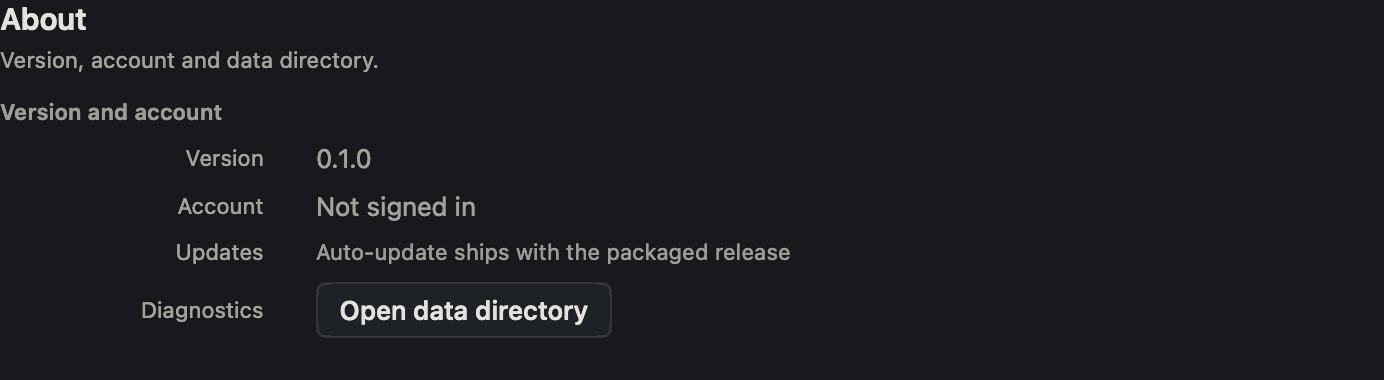
- You need to see what's actually on disk — Settings → About → Diagnostics → Open data directory opens the folder holding your local database, Vaults library and logs directly in Finder.