Keyboard Shortcuts
Termia's keyboard shortcuts come from a single table shared by the menu bar, the Command Palette and the Settings window — there is no separate "menu shortcuts" and "app shortcuts" list. Open Help → Keyboard Shortcuts…, or go to Settings → Terminal and scroll to the Keyboard section, to see the live table for your machine.
Presets
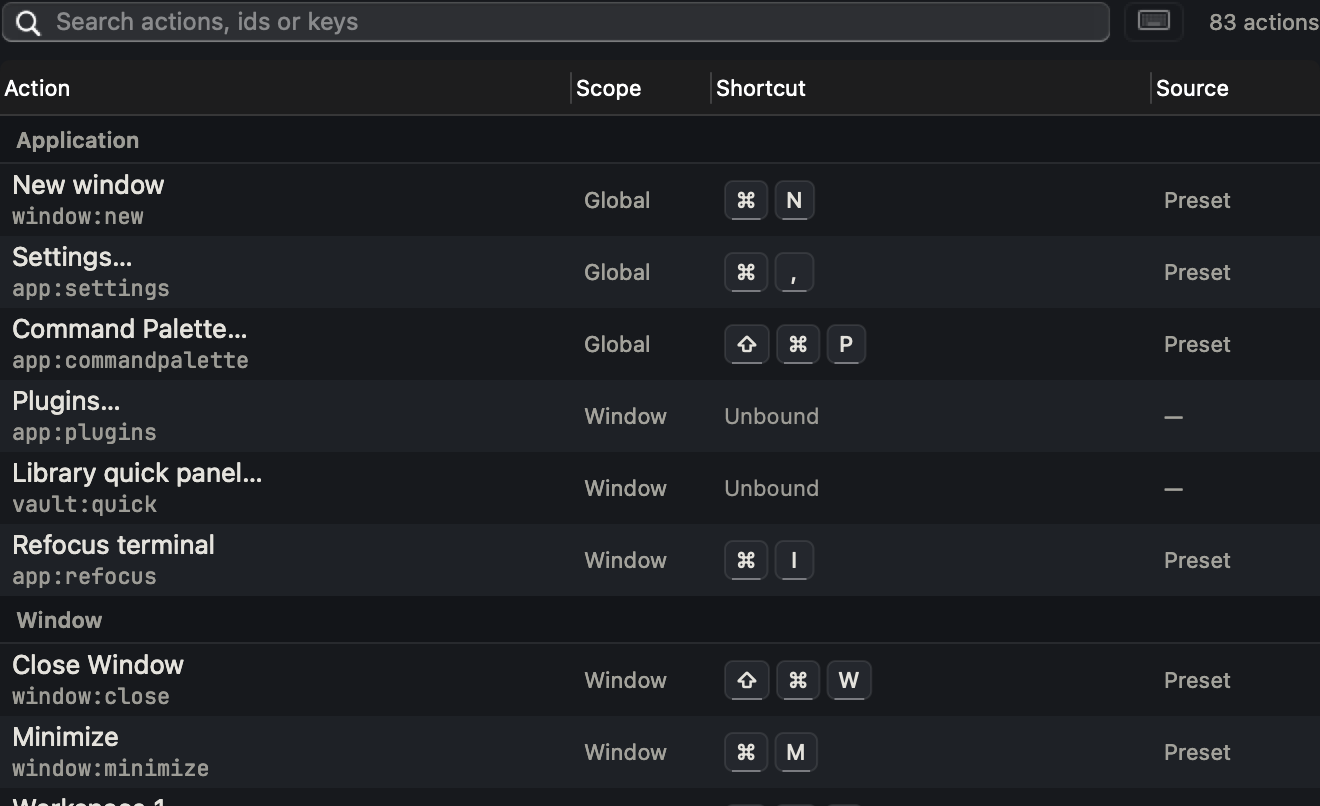
A preset is the base table of default keys. Termia ships two:
- macOS / Terminal (recommended) — the default for new installs. Aligned with
Ghostty and Apple's Terminal:
⌘Nnew window,⌘Thosts,⌘Llocal terminal,⌘Wclose pane,⌘⇧Wclose window,⌘Mminimize,⌘0reset font size,⌘9last tab,⌘[/⌘]switch tabs,⌥⌘[/⌥⌘]switch panes. - Termius Ops — for people coming from Termius:
⌘Llocal terminal,⌘Tnew connection,⌘Wclose tab,⌘Kcommand palette,⌘Jjump to tab,⌘Bbroadcast controls,⌘[/⌘]switch tabs.
Switch presets from the Keymap preset dropdown at the top of the Keyboard
section. Switching only swaps the base table — any key you have customized in
keybindings.json keeps working exactly as you set it, on either preset.
If you have an older config file with a preset value that no longer exists, Termia
falls back to the recommended preset the first time it starts and silently rewrites
the setting; your keybindings.json overrides are untouched. You will not see a
prompt for this — check the key table if a shortcut looks unfamiliar after an update.
Every action, and its key in each preset
The action id in parentheses is what you write on the left-hand side of a
keybindings.json entry (see below). A dash means the preset gives that action no
key at all — it is still reachable from the menu bar or the Command Palette.
Actions are grouped the same way the Settings table groups them.
Application
| Action | macOS / Terminal | Termius Ops |
|---|---|---|
New window (window:new) | ⌘N | ⌘N |
Settings… (app:settings) | ⌘, | ⌘, |
Command Palette… (app:commandpalette) | ⇧⌘P | ⌘K (alias ⇧⌘P) |
Plugins… (app:plugins) | — | — |
Vault quick panel… (vault:quick) | — | — |
Refocus terminal (app:refocus) | ⌘I | ⌘I |
Window
| Action | macOS / Terminal | Termius Ops |
|---|---|---|
Close Window (window:close) | ⇧⌘W | ⇧⌘W |
Minimize (window:minimize) | ⌘M | ⌘M |
Workspace 1 – Workspace 9 (workspace:1 … workspace:9) | ⌃⌘1 … ⌃⌘9 | ⌃⌘1 … ⌃⌘9 |
Tabs
| Action | macOS / Terminal | Termius Ops |
|---|---|---|
New Local Terminal (tab:new) | ⌘L | ⌘L |
New Connection… (conn:new) | — | ⌘T |
Switch connection… (conn:switch) | — | — |
Close tab (tab:close) | ⌥⌘W | ⌘W |
Previous tab (tab:prev) | ⌘[ (aliases ⇧⌘[, ⌃⇧⇥) | ⌘[ (alias ⇧⌘[) |
Next tab (tab:next) | ⌘] (aliases ⇧⌘], ⌃⇥) | ⌘] (alias ⇧⌘]) |
Last Tab (tab:last) | ⌘9 | — |
Hosts (tab:home) | ⌘T | — |
Jump to Tab… (tab:jump) | — | ⌘J |
Tab 1 – Tab 8 (tab:1 … tab:8) | ⌘1 … ⌘8 | ⌘1 … ⌘8 |
Tab 9 (tab:9) | — (⌘9 is Last Tab instead) | ⌘9 |
Panes
| Action | macOS / Terminal | Termius Ops |
|---|---|---|
New pane (pane:new) | — | — |
New web pane (pane:new:web) | ⇧⌘B | ⇧⌘B |
New Git pane… (pane:new:git) | — | — |
New monitor pane (pane:new:sysinfo) | ⇧⌘E | ⇧⌘E |
New file pane (pane:new:preview) | ⇧⌘O | ⇧⌘O |
Split right (pane:splitright) | ⌘D | ⌘D |
Split down (pane:splitdown) | ⇧⌘D | ⇧⌘D |
Split Left (pane:splitleft) | via the ⌃⇧S chord only | via the ⌃⇧S chord only |
Split Up (pane:splitup) | via the ⌃⇧S chord only | via the ⌃⇧S chord only |
Close pane (pane:close) | ⌘W | — |
Magnify / restore pane (pane:magnify) | ⇧⌘↩ | ⇧⌘↩ |
Previous Pane (pane:prev) | ⌥⌘[ | — |
Next Pane (pane:next) | ⌥⌘] | — |
Focus pane above (pane:focusup) | ⌥⌘↑ | ⌥⌘↑ |
Focus pane below (pane:focusdown) | ⌥⌘↓ | ⌥⌘↓ |
Focus pane left (pane:focusleft) | ⌥⌘← | ⌥⌘← |
Focus pane right (pane:focusright) | ⌥⌘→ | ⌥⌘→ |
Grow pane up (pane:resizeup) | ⌃⌘↑ | ⌃⌘↑ |
Grow pane down (pane:resizedown) | ⌃⌘↓ | ⌃⌘↓ |
Grow pane left (pane:resizeleft) | ⌃⌘← | ⌃⌘← |
Grow pane right (pane:resizeright) | ⌃⌘→ | ⌃⌘→ |
Equalize panes (pane:equalize) | ⌃⌘= | ⌃⌘= |
Move focus to the tab bar (pane:focuschrome) | ⌃F6 | ⌃F6 |
Type into all panes (pane:multiinput) | ⌃⇧I | ⌃⇧I |
Broadcast Controls… (pane:broadcast) | — | ⌘B |
Focus Pane 1 – Focus Pane 9 (pane:1 … pane:9) | ⌃⇧ + physical digit key 1–9 | ⌃⇧ + physical digit key 1–9 |
The pane-number keys (pane:1 … pane:9) match by physical key position, not by
the character your keyboard layout produces — they work the same on a non-US
layout.
Terminal
| Action | macOS / Terminal | Termius Ops |
|---|---|---|
Find… (app:find) | ⌘F | ⌘F |
Find Next (search:next) | ⌘G | ⌘G |
Find Previous (search:prev) | ⇧⌘G | ⇧⌘G |
Clear Scrollback (term:clear) | ⌘K | — |
View
| Action | macOS / Terminal | Termius Ops |
|---|---|---|
Zoom In (view:zoomin) | ⌘= (alias ⇧⌘=) | ⌘= (alias ⇧⌘=) |
Zoom Out (view:zoomout) | ⌘− | ⌘− |
Actual Size (view:zoomreset) | ⌘0 | ⌘0 |
How a key is resolved
When you press a key, three tables are checked in order, and the first hit wins:
- The preset — the base table above for whichever preset is selected in
Settings (
native:keymapinsettings.json). keybindings.json— your overrides, layered on top of the preset. An override replaces the whole binding for that action, aliases included.- The terminal engine's own built-in keys — only reached if neither the preset nor your overrides claim the key. Termia's key handler sees every keystroke before the terminal view does; if it matches a bound action, it consumes the event and the terminal never sees it. A key with no app-level binding (or one you have explicitly unbound) falls through to the terminal engine, and from there to the shell exactly as if you had typed it.
This is why unbinding a shortcut (see below) is different from never binding it: unbinding it on purpose is what lets the terminal engine or the shell get that key back.
The keybindings.json file format
keybindings.json lives in the same config directory as settings.json. It only
needs entries for the actions you want to change — anything you don't mention
keeps the preset's key.
{
  "tab:new": "Cmd:Shift:l",
  "pane:splitright": ["Cmd:d", "Cmd:Option:d"],
  "pane:close": null
}
- A single string (
"Cmd:Shift:l") sets that action's only key. - An array of strings sets several: the first entry is the primary key (the one shown in menus and tooltips), the rest are aliases — they trigger the action but never appear in a menu.
null,"", or[]unbinds the action entirely: no key triggers it, and the key becomes free for the terminal engine or the shell.
Setting an override for an action replaces its preset aliases too — if you
override tab:new, its entire binding becomes the key or keys you supplied. The recommended preset uses ⌘L for this action and ⌘T for Hosts.
Action ids are case-insensitive and match the ones printed in parentheses in the
tables above (e.g. pane:splitright, view:zoomin). An id Termia doesn't
recognize, or a key string it can't parse, is ignored — see Hot reload below.
Key description syntax
A key description is colon-separated modifiers followed by a key name:
- Modifiers:
Cmd(orMeta),Shift,Ctrl,Option(orAlt) — any combination, in any order, e.g.Cmd:Shift:d,Ctrl:Shift:ArrowUp. - A single uppercase letter implies Shift:
"D"means the same as"Shift:d". - Named keys:
ArrowLeft,ArrowRight,ArrowUp,ArrowDown,Escape,Enter,Tab,Backspace,Space,Home,End,PageUp,PageDown, andF1–F12. - Everything else is matched as the literal character your keyboard sends for
that key, e.g.
"Cmd:,". - Physical key codes —
c{Digit1}…c{Digit9},c{Digit0},c{Numpad1}…c{Numpad9},c{Numpad0}— match by the key's position on the keyboard instead of the character it produces, so they work the same on any layout. Example:"Ctrl:Shift:c{Digit1}"is how the pane-number shortcuts are defined.
Hot reload
keybindings.json takes effect immediately when you save it — you don't need to
restart a terminal or the app. Termia doesn't watch the file directly: the
config-file watcher that already covers settings.json fires on any *.json
change in the config directory, and Termia compares the file's bytes to catch
only real edits to keybindings.json.
- A single bad entry — an action id it doesn't recognize, a key string it can't parse, or a value that's neither a string nor an array — is skipped and logged. Every other entry in the file still applies. The Keyboard section lists what was ignored.
- A broken file — invalid JSON, or a top level that isn't an object — is rejected as a whole: Termia keeps the last table that loaded successfully and shows a persistent notice ("keybindings.json could not be parsed") with a Show File action, so you don't lose your keys mid-edit. The notice clears itself once you save a file that parses again.
- Switching presets, editing
keybindings.json, restoring defaults or importing a file all cancel any keyboard shortcut chord that's currently waiting for its second key (see the split chord below) — the table underneath it just changed.
Conflicts and reserved keys
Two bindings conflict when the same key is assigned to two different actions whose scopes overlap (a key used for "find next" inside the search bar and for something else in the terminal view don't conflict, since they never compete for the same keystroke). Neither shipped preset has an internal conflict; this only happens once you add your own overrides. When it does, the action that appears earlier in the tables above wins, and the Keyboard section marks both rows and shows which one is active on hover.
Reserved keys are keys that mean something else already — you can still bind them, but Termia warns you because doing so shadows their original use:
- Shell / TUI control keys:
⌃C,⌃D,⌃Z,⌃R,⌃W,⌃A,⌃E,⌃U,⌃K,⌃L. - macOS system shortcuts:
⌘Q,⌘H,⌥⌘H,⌘⇥,⌘␣,⇧⌘3,⇧⌘4,⇧⌘5.
These are warnings, not blocks — Termia doesn't stop you from using them, because
the terminal engine may still need the underlying control character to reach the
shell (⌃C to interrupt a running command, for instance) even if you've also
bound an app action to it.
Restore defaults, import and export
The Config file menu at the top of the Keyboard section has four actions:
-
Restore Defaults — backs up your current
keybindings.jsontokeybindings.json.bak(overwriting any previous backup), then deletes it. You are back to the selected preset with no overrides. If you had no custom file, this is a no-op and says so. -
Export… — writes your current setup to a JSON file (
termia-keymap.jsonby default) shaped like:{ "format": "termia-keymap/1", "preset": "macos-terminal", "overrides": { "...": "your keybindings.json entries" }, "effective": { "...": "every action's fully resolved key, for reference" } }The
effectivesection is informational only — re-importing this file readsoverrides(andpreset), nevereffective. -
Import… — validates the whole file first. If even one entry is unrecognized or unparsable, the entire import is rejected and your existing file is left untouched — an import never applies "the good half" of a broken file. On success, it backs up your existing
keybindings.json, writes the new one, and applies it immediately. Importing an exported document that names a different preset also switches your preset to match. -
Show File — reveals
keybindings.jsonin Finder (or the config directory, if the file doesn't exist yet).
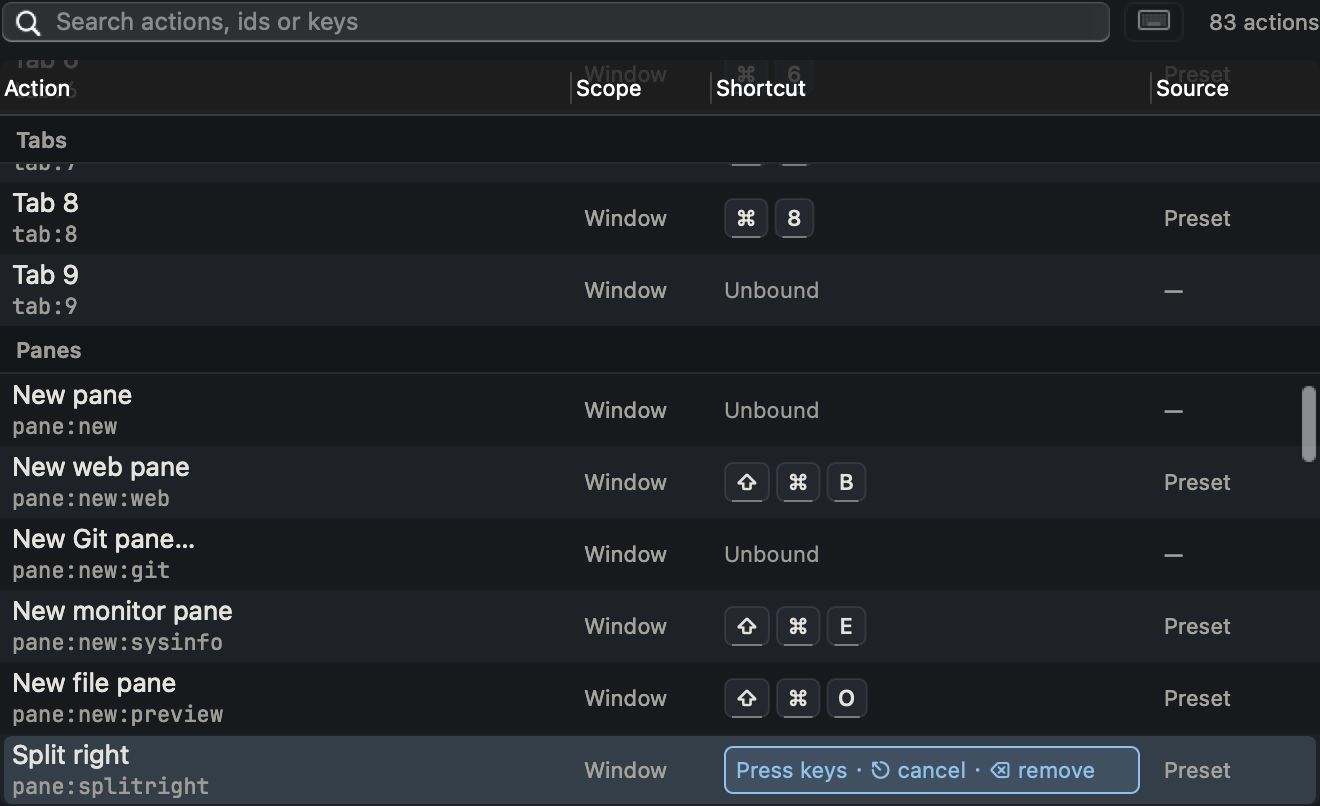
You can also edit a single action from the Keyboard table itself: double-click
its key cell (or press Return with the row selected) to record a new key, press
Backspace while recording to clear it, or press Escape to cancel without
changing anything. Right-clicking a row offers Change Shortcut…, Remove
Binding, Restore Preset, and Copy Action ID (the id you'd use in
keybindings.json). The table's search box matches action names, ids and key
text, or click the keyboard icon next to it and press a combination to list only
the actions bound to that key.
The ⌃⇧S split chord
Splitting a pane in a direction that doesn't have its own single shortcut — or
in the direction that never has one, since pane:splitleft and pane:splitup
only exist as the second step of this chord — works as a two-key sequence:
- Press
⌃⇧S. Termia swallows the keystroke and shows a hint bar at the bottom of the window ("⌃⇧Ssplit: press ← → ↑ ↓ for direction · Esc cancels …"). - Press an arrow key:
←splits left,→splits right,↑splits up,↓splits down. The split happens immediately.
What cancels it:
- Escape cancels and is swallowed — it does not reach vim or anything else in the terminal.
- Any other key cancels the chord too, but is passed through normally: if
you pressed
⌃⇧Sby accident and kept typing, nothing you typed is lost. - 2 seconds of inactivity cancels it silently, the same as pressing an unrelated key.
- Switching windows, the window losing focus, or the keyboard table reloading
(preset switch,
keybindings.jsonedit, restore, import) all cancel an in-progress chord.
The chord's prefix key and which arrow maps to which direction are fixed and are
not configurable through keybindings.json. pane:splitright and
pane:splitdown additionally have their own direct default keys (⌘D,
⇧⌘D), so those two directions are reachable either way.
The Keyboard section of Settings
Settings → Terminal ends with a Keyboard section, which has two parts:
- Option key as Alt — controls what the Option key sends to the shell.
Options are Not Alt (default; keeps macOS's international character
input, e.g.
⌥efor an accent), Left Option only, Right Option only, or Both Option keys. When a key acts as Alt,⌥+ a letter sends anEscprefix instead (the Meta key that Emacs and readline-based shells expect), and accented input through that key stops working. - Key table — the preset dropdown, the Config file menu, and the full searchable, sortable table of every action described above, with columns for Action, Scope, Shortcut and Source (Preset, Custom, Removed, or blank for actions with no default key). Rows for actions that depend on an unfinished feature are greyed out and never respond to a key press — the tables in this page only list actions that are fully available.