Overview
Termia for macOS is a native terminal client built with Swift and AppKit. It uses ghostty to
render the terminal itself and talks to a local background process (wavesrv) that manages your
connections, your saved hosts, and the rest of your data. Everything runs on your Mac; the app
does not require an account to use a local terminal.
This page is a map. It describes the handful of surfaces you will meet the first time you open the app, and links to every other page in this manual.
The current feature guide summarizes implemented workflows and their boundaries.
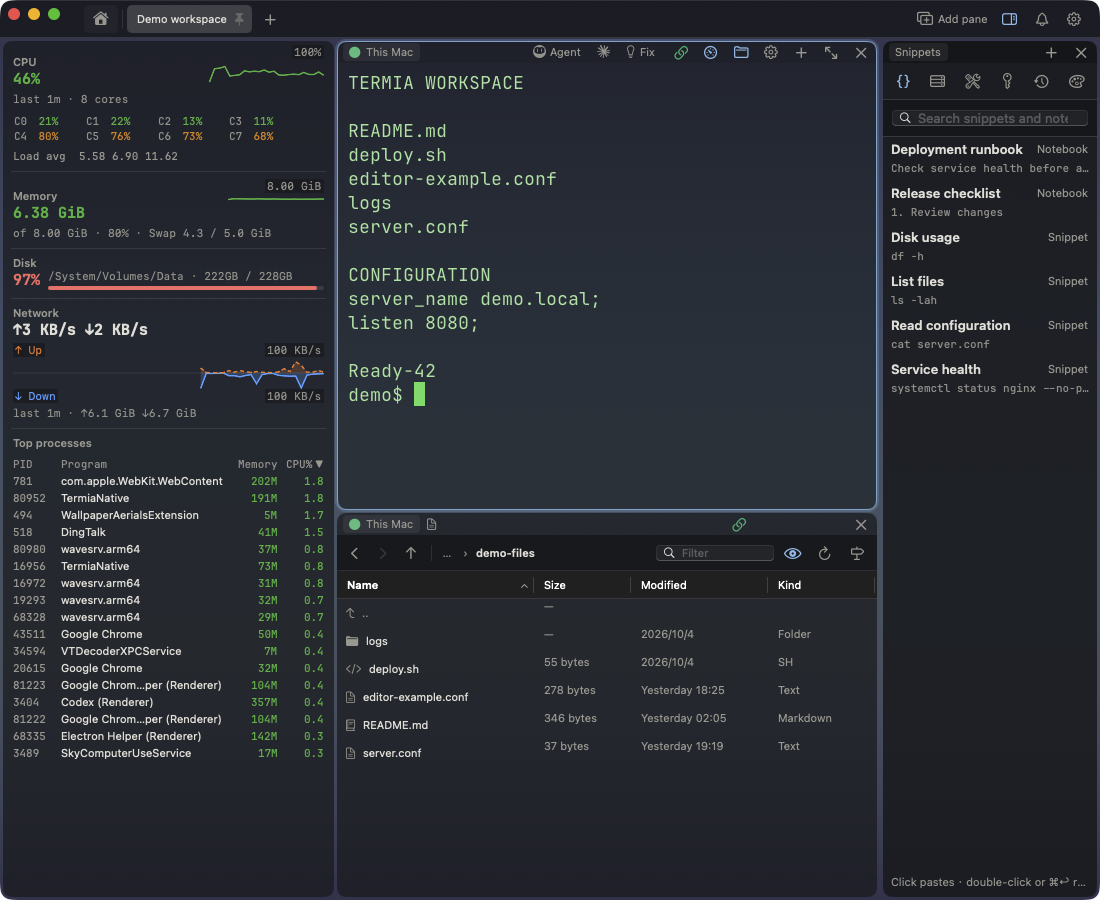
The surfaces
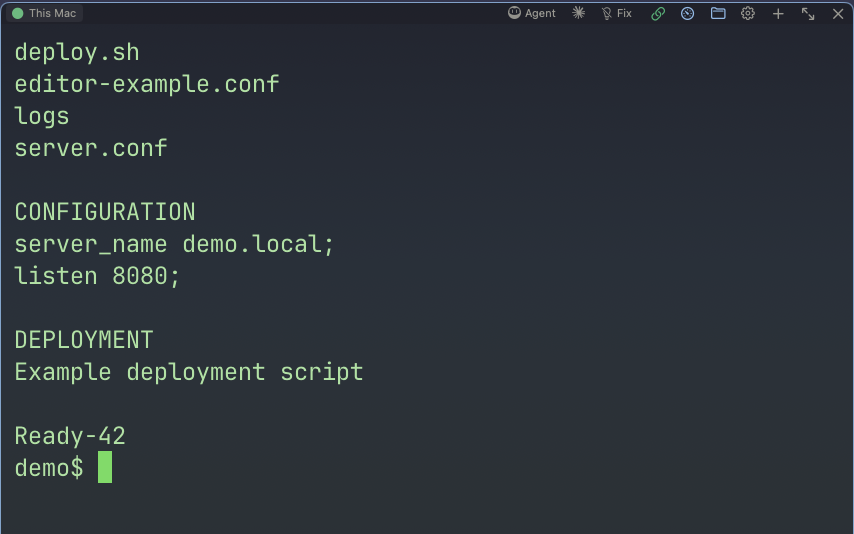
1 · Run a terminal task
Open a local terminal or select an SSH connection, then run your command in the active pane. Keep the connection indicator visible when switching between hosts; the same layout can contain local and remote terminals.
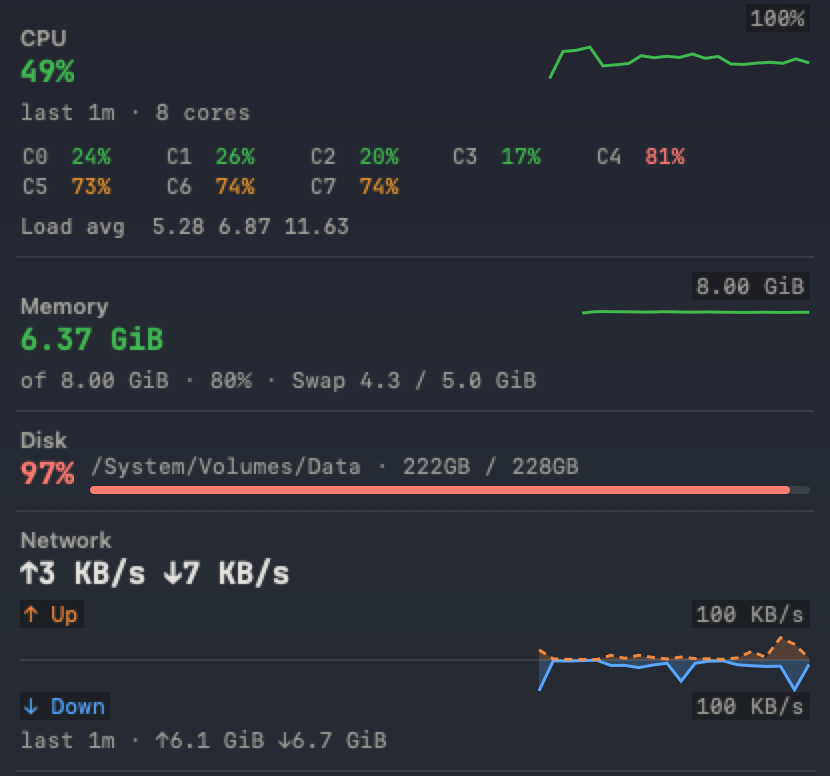
2 · Inspect resource usage
Place a monitor beside the terminal to read CPU, memory, disk and network usage while investigating a problem. Current samples and persisted trends help compare what changed; data is collected while Termia is running.
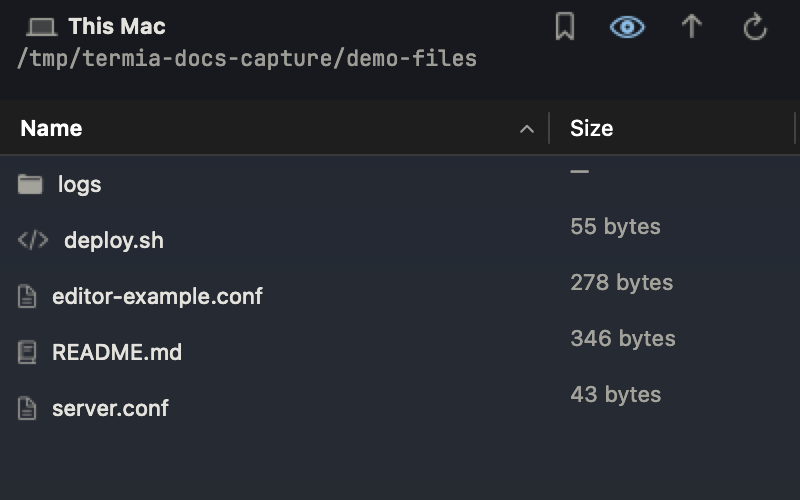
3 · Work with files
Browse the directory associated with the selected connection, choose a file, then preview, edit or transfer it. Confirm the target host and path before saving or copying; a file preview itself does not modify the file.
4 · Reuse saved resources
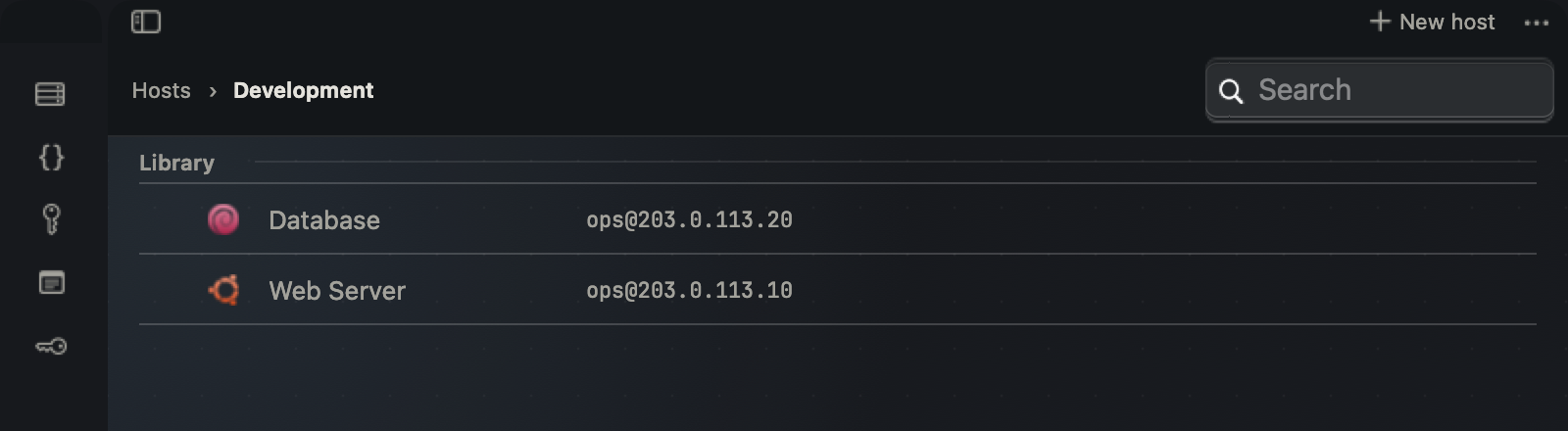
Use the library to select saved hosts and organize command snippets, notes and environment entries. Save a repeatable command once, then choose it for the appropriate terminal instead of retyping it across hosts.
5 · Configure an Agent deliberately
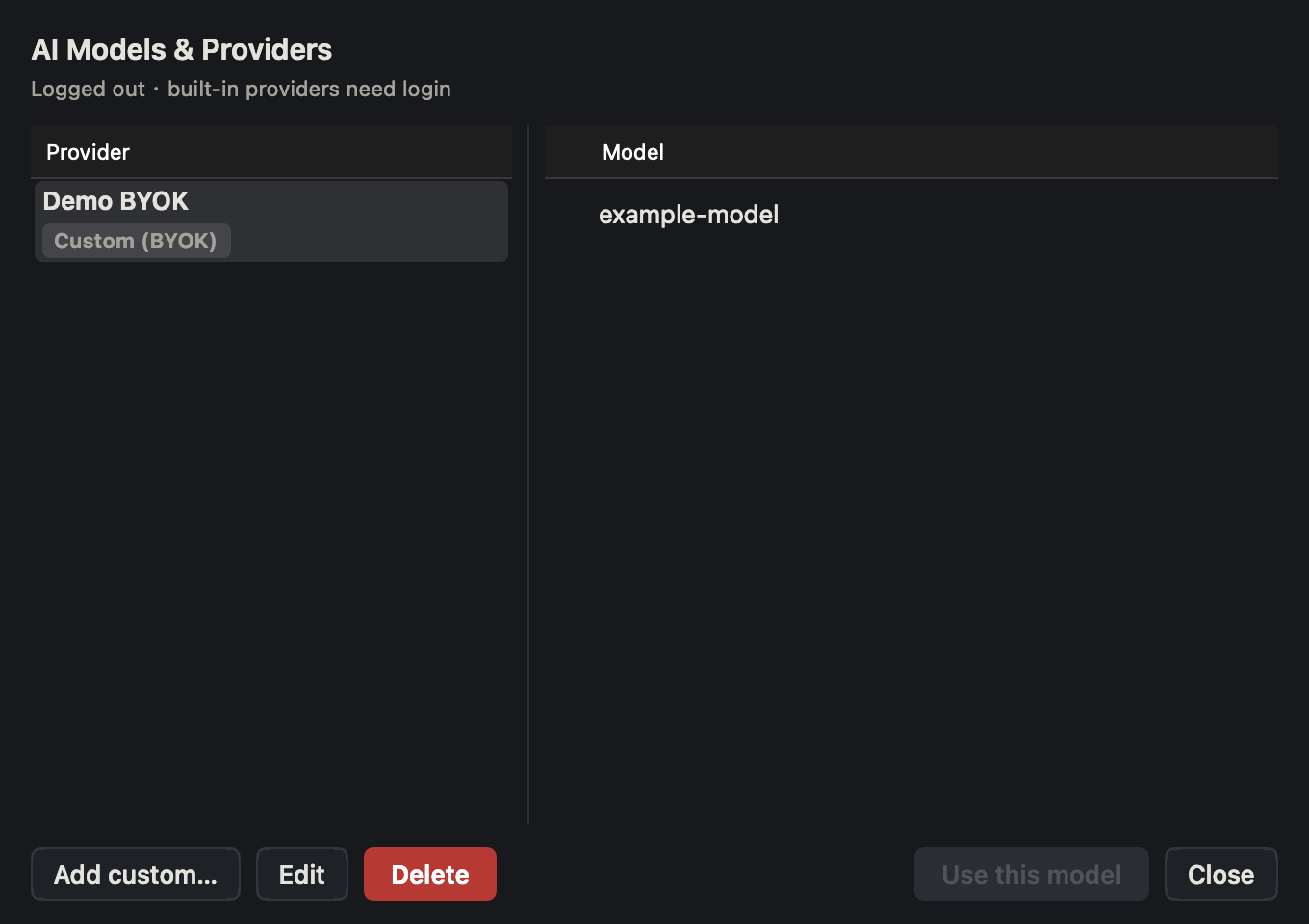
TT Agent is built into Termia. Configure its provider and model, then choose the Agent terminal mode. The screenshot shows the entry or configuration surface; it does not show a running task.
Navigate the rest of the app
Hosts library
When a window opens to your host list, you see a sidebar with your saved hosts, snippets, notes
and environment variables, plus a search field that also accepts user@host and connects
directly when you press Return. Double-click a host card (or press Return on it) to connect;
Termia opens the connection in a new tab. See Hosts and
Snippets, Notes and Environment Variables.
Tab bar
Each window has a tab bar across the top. Tabs hold your open terminals and other panes — a local shell, an SSH connection, a file browser, a web page, and so on. You can rename a tab, drag it to reorder it, pin it, or drag its title bar out to split it into a new tab. See Tabs, Panes and Windows.
Panes
A tab can hold more than one pane side by side. Each pane has its own title bar with a connection
indicator and a settings button; the tab bar's toolbar area and the pane title bar's + both let
you add another pane — a terminal, a web page, a Git view, a monitor, or a file browser. See
The Terminal and Git, Monitor and Web Panels.
Settings window
A single settings window (⌘,) collects every configurable option, grouped into three sections:
Basics (General, Appearance, Terminal, Window), Capabilities (Web, AI, Sync) and System
(Security, Privacy, Updates, Advanced, About). Changing a value writes it immediately; some
options only take effect for the next terminal, the next window, or after a restart, and the
settings window says which. See Settings.
Everything else in this manual
| Page | What it covers |
|---|---|
| Getting Started | First launch, requirements, the start page setting, your first terminal and host, language and appearance, where your data lives, signing in |
| Hosts | Saving, organizing and connecting to SSH hosts |
| SSH Keys | Managing SSH keys used by your hosts |
| Snippets, Notes and Environment Variables | The other kinds of entries in your library |
| The Terminal | Terminal behavior: input, selection, search, scrollback |
| Tabs, Panes and Windows | Organizing your work across tabs, panes and windows |
| Keyboard Shortcuts | The full shortcut reference and keymap presets |
| Command Palette | Fuzzy-searching commands, hosts and open tabs |
| Files and Transfers | SFTP and moving files to and from a host |
| Git, Monitor and Web Panels | The non-terminal pane types |
| TT Agent | Running an AI coding agent inside a terminal block |
| Plugins | Installing command-line tools onto a host |
| Account and Sync | Signing in and syncing your library across devices |
| Settings | The full settings reference |
| Troubleshooting | Diagnosing problems and exporting a diagnostics bundle |
| Migrating from the Electron App | What moves over from the older Electron-based Termia |
On Windows and Linux
This documentation covers the macOS client only. Windows and Linux are served by a separate desktop app built on Electron, which has its own windows, shortcuts and settings — its documentation is a separate set, starting at Termia for Windows and Linux. Use the Windows & Linux link in the top navigation bar to switch between the two.