Command Palette
The Command Palette is a single search field with three views — Commands, Hosts and Open Tabs — for running an action, connecting to a saved host, or switching to a tab without touching the mouse.
Opening it
The keyboard shortcut depends on which keymap preset you use (see Keyboard Shortcuts for switching presets):
- macOS / Terminal (recommended), the default preset —
⇧⌘P. - Termius Ops —
⌘K(⇧⌘Pstill works too, as a second shortcut for the same action).
It opens from almost anywhere in the app — inside a terminal, inside a text field, from
another window such as Settings — the only times it won't respond are while another sheet or
dialog is open, or while you're mid-composition with an IME. Pressing the shortcut again while
the palette is already open on the same view closes it; pressing it while a different view is
showing switches to that view instead. Esc also closes it and returns keyboard focus to
wherever it was before you opened the palette.
Two File-menu items open it directly on a specific view instead of Commands:
- New Connection… opens straight to the Hosts view. It has no shortcut in the recommended
preset; in Termius Ops it is
⌘T. - Jump to Tab… opens straight to the Open Tabs view. It has no shortcut in the recommended
preset; in Termius Ops it is
⌘J.
Switching views
A segmented control at the top of the palette shows the three views: Commands, Hosts, Open Tabs. You can switch with:
Tab/⇧Tabto cycle forward or back through the three.- Clicking a segment directly.
- Typing a prefix as the very first character of your search:
>for Commands,@for Hosts,#for Open Tabs. The segmented control follows whatever prefix you type; clicking a segment instead strips any prefix already in the field.
Picking New Connection… or Jump to Tab… from inside the Commands view itself just switches the palette to that view — it does not connect or jump to anything yet.
Commands view
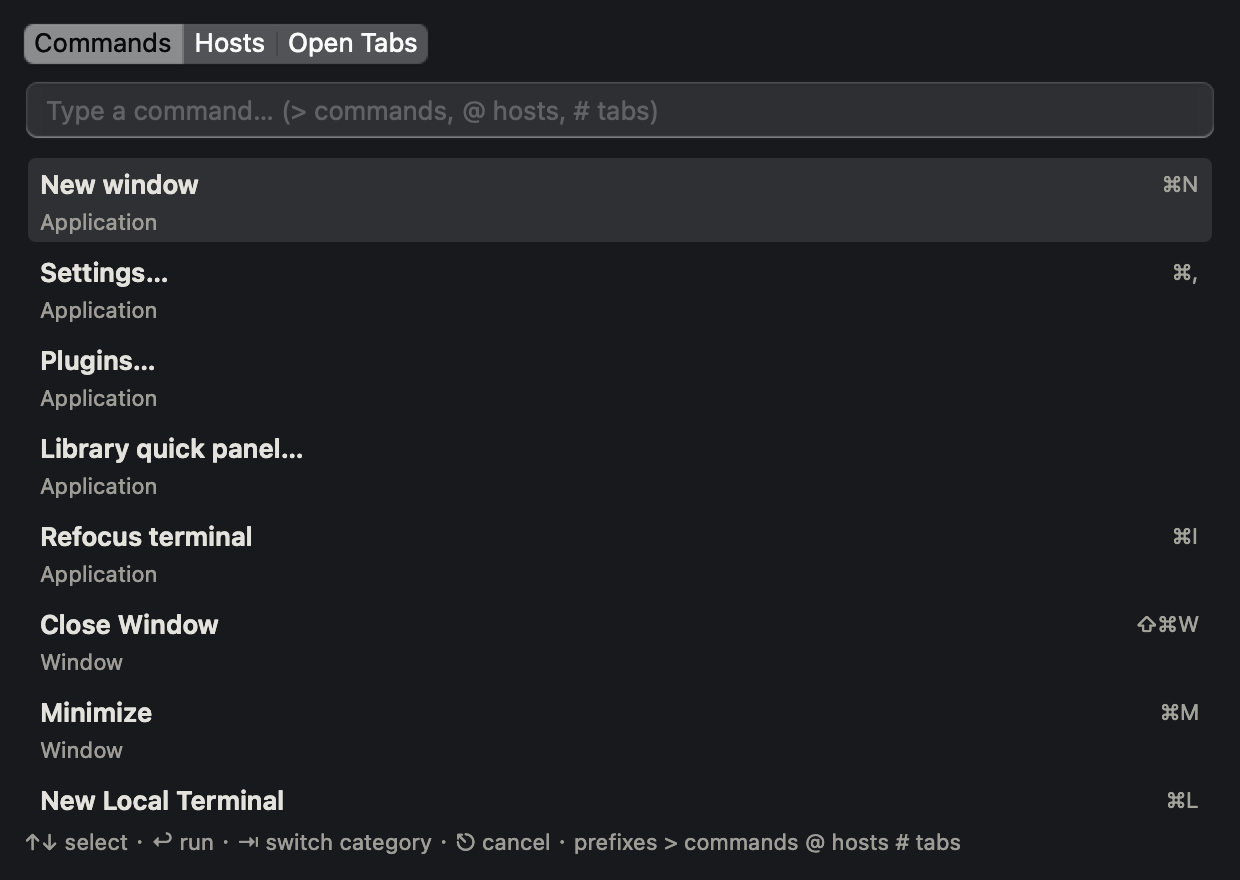
Lists every available keyboard action (except the palette's own shortcut), with its group as
the subtitle and its current shortcut on the right — blank if that action has no shortcut
assigned in your preset. Type to filter by title, group or internal name. Return runs the
selected command, exactly as if you had pressed its shortcut.
Hosts view
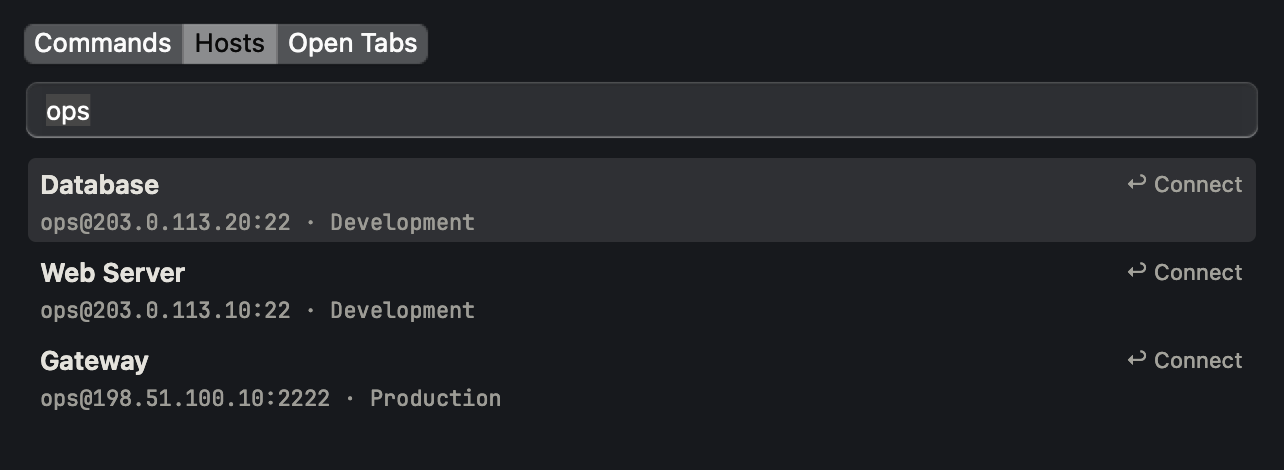
Lists every saved host. A row's subtitle is always its full identity, user@host:port, with
the folder it's saved in appended when it isn't at the top level. The port is always written
out and the folder is always shown, so two hosts that share a name — or even share an address
on different ports — still read as distinct rows.
Type to filter; a word can match the name, the user@host:port identity, the connection
string, the folder, the host, the user, or the port, and words can be in any order — searching
gateway 2222 finds the same row as 2222 gateway.
If a host already has one or more terminals open, its row gets a badge such as "2 open" and its action line changes to ↩ New connection · ⌘↩ Switch to open:
Returnalways opens a brand-new connection to that host.⌘Returninstead jumps to the most recently used tab already connected to it — checking the current window first, then other windows, bringing the other window to the front if needed.
A host picked up from your local SSH config, rather than saved in the library, shows Local SSH config in place of a folder path — that's how you tell it apart from a saved host with the same name.
If your search doesn't match a saved host but reads like an address (it contains an @, a
., or a :), one extra row appears at the bottom for that exact text, badged Unsaved
address; press Return to connect to it directly without saving it to the library. A saved
host that also matches still takes priority on Return.
Nothing is created while you're just looking — a tab and its connection are only opened once
you press Return. If the connection then fails, a notification names the host and offers
Retry, which reopens the palette with the same search and the same host selected.
Open Tabs view
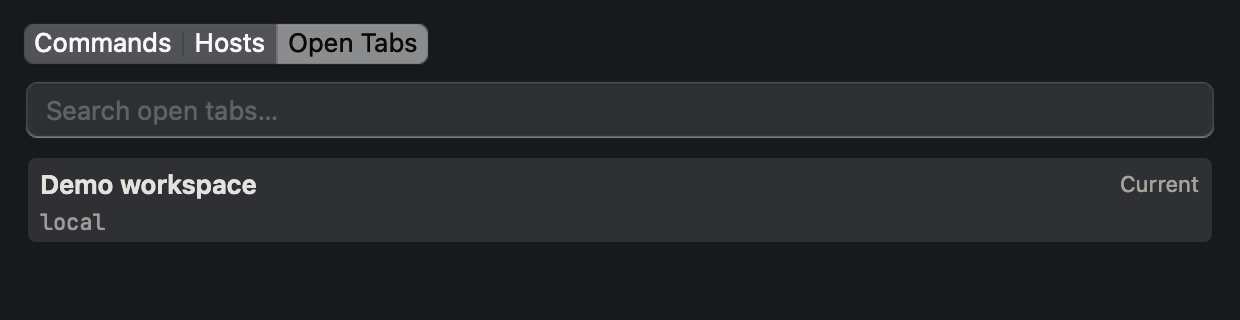
Lists every open tab across every window, with the current window's tabs listed first. Type
to filter by tab title, connection name, or position. Each row's trailing text is ↩
Switch, or Current for the tab you're already viewing; if more than one window is open,
it's prefixed with Window N. Return switches to that tab, bringing its window to the
front first if it isn't the one you're in.
Matching
Typing splits your search into words, and every word has to match something for a row to show
at all — gateway 2222 only matches a host whose fields contain both "gateway" and "2222",
in either order. Matches rank above each other by how good they are: a row where your text
appears as one continuous run scores highest, a match at the very start of a field or right
after a separator (a space, -, _, ., @, :, /) scores next, and a scattered match
still counts but ranks lower. With an empty search, rows keep their natural order instead —
commands by group, tabs by tab-bar position, hosts by library order.
Full keyboard operation
↑/↓move the selection.Returnruns the selected row's action: run a command, connect to a host (or an ad-hoc address), or switch to a tab.⌘Returnis the alternate action — it only does something different on a host row that already has open tabs, where it switches to one instead of opening a new connection.Tab/⇧Tabmove to the next / previous view; typing>,@or#as the first character jumps straight there.Esccloses the palette.
Keyboard focus always stays in the search field — clicking a row with the mouse does not move
focus there, so the arrow keys and Return keep working immediately afterward.