Tabs, Panes and Windows
The tab bar
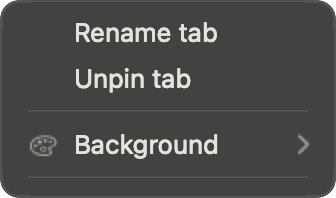
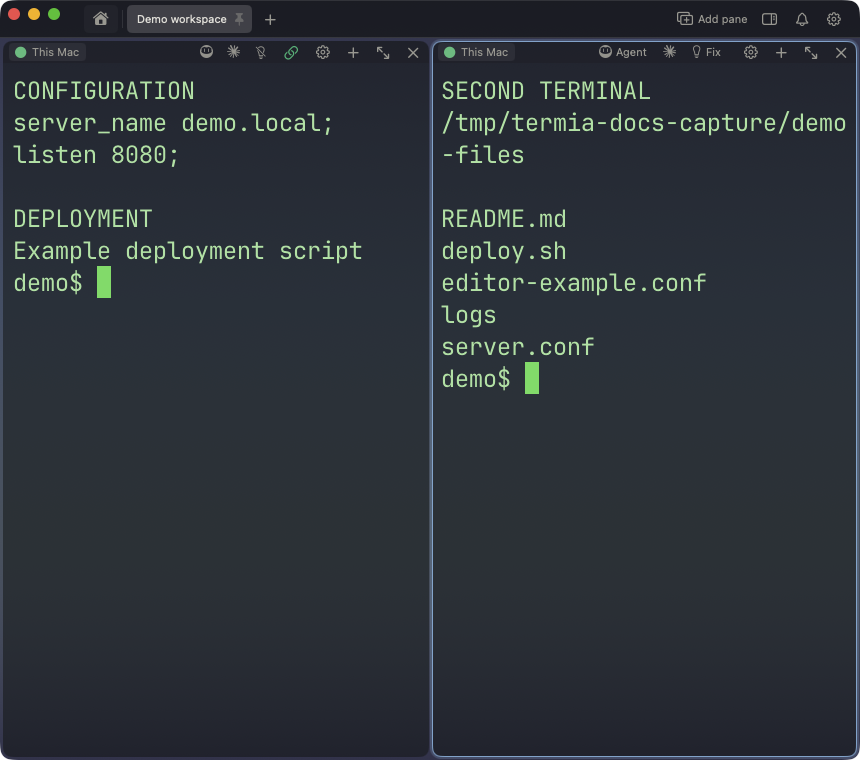
Each window has a tab bar across its top. A house icon on the left opens Hosts; each tab to its right is one terminal (or a small group of panes) you're working in.
Creating a tab
⌘L creates a new local terminal tab immediately, using whatever new-tab layout
is configured. The + at the end of the tab strip, and "New Tab" in the tab overflow menu, don't
create a tab directly — they take you to Hosts, where you pick what to open. To open a tab for a
specific host, double-click its card on Hosts.
The tab naming rule
A tab that has been named — because you renamed it, or because it was opened for a host (its
alias, or user@host if it has none) — keeps that name no matter what the shell inside it does
afterward. What the shell reports as its own title (an OSC title, or the directory-based title
ghostty synthesizes when the shell doesn't send one) becomes the tab's tooltip instead: hover the
tab to see it. Only a tab nobody has named yet — a plain local terminal you haven't renamed — takes
the shell's reported title as its name, and keeps following it as you cd around.
Renaming a tab
Double-click a tab, or right-click it and choose "Rename tab", to open a small dialog with a
"Name" field. The name can't be empty; save with the button or Return, or cancel to leave the
tab as it was.
Reordering tabs
Drag a tab left or right to reorder it within the tab bar. Dragging a tab across the boundary between pinned and unpinned tabs pins or unpins it as part of the same drop.
You can also drag a tab onto a different window's tab bar to move it there, or drag it out past the edge of any tab bar to tear it off into a brand-new window. Both are blocked for a pinned tab, and tearing off is also blocked when it's the only tab left in its window — that would just leave an identical, empty window behind. Dropping a tab that holds exactly one pane onto the center of another tab merges that one pane into the target tab's layout, and the source tab disappears; this only works for single-pane tabs, and you'll see a highlighted outline around the target tab instead of the usual insertion line while you're over its center.
Pinning a tab
Right-click a tab and choose "Pin tab" (or "Unpin tab" on a pinned one). A pinned tab shows a pin icon instead of a close button — there is no close button on a pinned tab, so unpinning it is the way to make it closable again.
Status dots
A remote tab shows a small dot before its name: amber while it's connecting, green once it's connected, and red once it's disconnected. Local tabs and the Hosts entry show no dot.
When tabs don't fit
Tabs shrink evenly to fit the window down to a minimum width. Once even the shrunk tabs don't fit,
the strip scrolls and a » button appears at its end. Click it for a menu listing every tab in the
window (the active one checked, pinned ones marked with a pin) plus a "New Tab" entry at the top —
useful because once tabs overflow, the trailing + button can scroll out of view.
Closing a tab
Close a tab with its close button, ⌘⌥W (in the default keymap — see
shortcuts that differ by preset), "Close tab" from the
File menu, or "Close" from a tab's right-click menu. If a command, an SSH connection, a TT Agent, or an unsaved
full-screen program is still running in that tab, you're asked to confirm before Termia closes it —
this also lists every affected session by host and what it's doing, and closing terminates them.
Idle terminals close without asking. You can turn this confirmation off entirely, or turn off just
the "still running" check — see window lifecycle settings below.
New-tab layout
Settings ▸ Window ▸ New tab ▸ "Default content" controls what a brand-new tab starts with —
⌘L, opening a tab from Hosts, and the tab bar's + (via Hosts) all use it:
- Terminal + monitor + files (default) — a terminal, with a monitor pane along the left and a file pane underneath the terminal. The three panes are grouped: they share one connection, and the file pane's path follows the terminal's current directory both ways.
- A single terminal — just the terminal, with no companion panes.
Changing this setting only affects tabs created afterward; tabs already open are not rearranged.
Splitting a pane
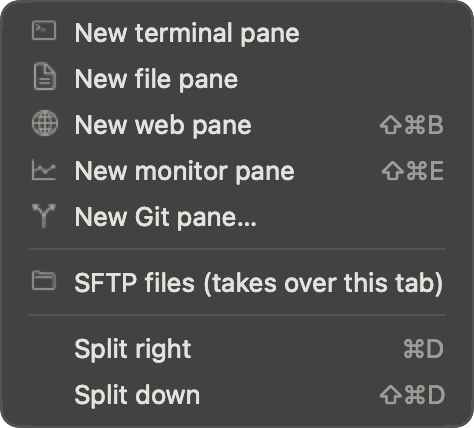
Split the focused pane with ⌘D (right) or ⇧⌘D (down), or use the tab bar's add-pane button, a
pane's right-click menu, or the File ▸ Panes menu. Whichever entry you use, the split direction is
decided at the moment you click: it splits right by default, or down if you're holding ⌥ when you
click.
The add-pane menu
The add-pane menu lists every leaf type you can add to a tab's layout:
| Leaf | Adds |
|---|---|
| Terminal | A new terminal pane |
| Web | A new web pane |
| Git | A new Git pane (asks for a repository first) |
| Monitor | A new monitor pane |
| Files | A new file pane |
It also lists an SFTP entry, but SFTP isn't a layout leaf — picking it swaps the whole tab into a full-tab SFTP file browser instead of adding a pane; picking it again while SFTP is showing closes it and returns you to the pane layout. See Files and Transfers for that view.
Moving focus between panes
⌘⌥ plus an arrow key moves focus to the neighboring pane in that direction. Move focus back to
the tab bar itself with ⌃F6. Exact chords, plus the cyclic previous/next-pane shortcut and the
hold-then-press-a-number jump, can differ by keymap preset — see below.
Resizing and equalizing panes
Drag the divider between two panes to resize them. Double-click a divider to reset just that split back to equal sizes; to reset every split in the tab at once, use "Equalize Panes" (see the preset table below for its shortcut). Dividers also respond to the keyboard once focused, and the four "Grow Pane" actions (Up / Down / Left / Right) in the File ▸ Panes menu nudge the focused pane's edge outward by one step.
Magnifying a pane
"Magnify / restore pane" temporarily expands the focused pane to fill most of the tab's content area, animating in and fading the rest of the layout out; running it again restores the normal layout. Magnifying only does anything when the tab has more than one pane. How much of the tab area a magnified pane fills is a setting — see window appearance and layout settings.
Closing a pane
"Close pane" removes the focused pane. If it's the tab's last remaining terminal, the whole tab closes instead — companion panes (monitor, files) never end up on their own without a terminal. Closing the last pane in a layout falls back to closing the tab the same way. The same running-session confirmation described for closing a tab applies here.
Broadcasting input to multiple terminals
Broadcasting sends the same keystrokes and pastes to several terminals in the same tab at once — useful for running the same command on a handful of hosts side by side.
Turning it on. With two or more terminals open in a tab, use "Type into all panes" (see the preset table for its shortcut). Every terminal that's in the tab at that moment becomes a member; panes you split off after that don't join automatically. With fewer than two terminals in the tab, nothing happens and you get a notification saying broadcast needs at least two.
What it shows. Once it's on, a "Broadcast x/y" badge appears in the tab bar's tool area (x members currently receiving, out of y total) — click it to open the controls. Each member's title bar also shows which other hosts it's currently sending to.
Choosing members. Open "Broadcast Controls…" from the tab bar badge, a terminal's right-click menu, or its shortcut in the Termius preset, for a checklist of every terminal in the tab with "Select all" / "Select none" and a "Stop" button. A terminal's own right-click menu also offers "Join broadcast" / "Leave broadcast" for just that pane.
Connection state. A member can be receiving, disconnected, or connecting / waiting for a password. Input meant for a disconnected or connecting member is dropped, never buffered — a password should never end up replayed into a pane that wasn't ready for it. When a member comes back, you get a notification with how much was dropped while it was out.
Leaving. Toggle "Type into all panes" off again to stop the whole group, press "Stop" in the controls or a pane's right-click menu, or just close/remove members: once fewer than two are left, broadcasting stops on its own and you're notified.
Only terminal panes can be broadcast members — web, Git, monitor and file panes never appear in the member list.
Multiple windows
⌘N opens a new window with its own tab bar and its own unnamed workspace. Tabs can
be dragged between windows, or torn off a tab bar into a new window of their own — see
reordering tabs above for the rules around pinned tabs and single-tab windows.
Workspaces
A workspace is the name, icon and color attached to a window — one workspace per window. Window ▸ Workspaces lists every workspace and lets you:
- New workspace… — opens a small dialog to name the new workspace and pick a color and icon; saving it creates the workspace and opens a new window for it.
- Pick a workspace from the list to switch to it: if its window is already open, that window comes
to the front; otherwise it opens.
⌘⌃1through⌘⌃9jump straight to the first through ninth workspace in that same list, in both keymap presets. - Edit current workspace… — change its name, color, or icon.
- Delete current workspace… — closes every tab and pane in it and deletes it; this cannot be undone, though saved files and host entries elsewhere are unaffected. If that leaves you with no windows at all, Termia opens a new one so you're never left without one.
A workspace name can't be empty and is limited to 40 characters; a custom color must be a hex value
like #RRGGBB.
Window lifecycle settings
These live in Settings ▸ Window ▸ "Opening and closing":
| Setting | Default | What it does |
|---|---|---|
| Confirm before closing | On | Asks before closing a window whose workspace is unnamed and has more than one tab open. |
| Remember the last window | On | Closing your only window hides it instead of deleting it — everything is still there next launch. Turn it off and closing the last window ends the session for good. |
| Confirm before closing running sessions | On | Asks before closing a pane, tab or window — or quitting — if a command, SSH connection, TT Agent, or unsaved full-screen program is still running inside it. Idle terminals close without asking either way. |
| Default window size | Empty (uses the system default) | A size like 1600x1000. Applies to windows opened after you set it, not the current one. |
Window appearance and layout settings
These affect how panes are laid out and how the window itself looks; find them in Settings ▸ Appearance:
Window surface (applies to the whole window shell — tab bar and sidebar included; a terminal's own background transparency is a separate setting on the Terminal page):
- Opaque / Background blur / Transparent window — a single three-way choice.
- Opacity (0.1–1, default 0.8) — only takes effect when Background blur or Transparent window is chosen; the lower the value, the more of the desktop shows through.
- Interface transparency (0–1, default 0.5) — only takes effect when the window is Opaque; leaves a little transparency in its otherwise solid backing.
Pane layout:
- Gap between panes (0–20px, default 4) — the spacing between split panes.
- Magnified size (0.5–1, default 0.9) — how much of the tab's content area a magnified pane fills; 1 fills it completely.
Shortcuts that differ by keymap preset
Termia ships two keymap presets — macOS / Terminal (recommended), the default, and Termius Ops — plus whatever you override yourself. Most tab, pane and window shortcuts (focus by direction, resize, equalize, magnify, new window, switching workspaces) are identical in both. The ones below are not; see Keyboard Shortcuts for the complete table.
| Action | macOS / Terminal (recommended) | Termius Ops |
|---|---|---|
| New local terminal | ⌘L | ⌘L |
| New connection | (menu / command palette only) | ⌘T |
| Close tab | ⌘⌥W | ⌘W |
| Close pane | ⌘W | (menu / command palette only) |
| Previous / next pane (cyclic) | ⌘⌥[ / ⌘⌥] | (not bound; use focus-by-direction) |
| Jump to tab… | (not bound) | ⌘J |
| Broadcast Controls… | (menu / command palette only) | ⌘B |
⌃⇧I ("Type into all panes") and ⌘⌃= ("Equalize Panes") are the same in both presets.