Snippets, Notes and Environment Variables
The resource library (Vaults) keeps four kinds of entries: hosts, snippets, environment variables and notes. This page covers the three non-host kinds. For saving and connecting to servers, see Hosts.
Where they live
Open the library from the home view. The left sidebar lists all four kinds — Snippets, Env vars, Notes (alongside Hosts) — each with a count of how many items it holds. Selecting one of these kinds switches the content area to that kind's items and, below the kind list, shows a Folders section with that kind's folder tree. Folders are not shared between kinds — a Snippets folder and a Notes folder are entirely separate trees, even if they have the same name.
Creating an item
Click the create button at the top of the toolbar. Its label follows whichever kind is selected: New snippet, New env group or New note. This opens a draft in the inspector panel on the right.
Every kind shares the same General section:
- Name — required for all three kinds.
- Description — optional.
Below that, the inspector shows one of two sections depending on the kind:
- Snippets and Notes get a Content field: a plain multi-line text box (snippets use a monospace font, notes use the regular body font).
- Env vars get a Variables section: one row per variable, each with a
KEYfield and aVALUEfield. Click Add variable to add another row. The minus-circle button next to a row removes it; removing the last remaining row just clears it instead, so there is always at least one row to fill in.
A name is required for all three kinds ("Enter a name" if you try to save one blank), and an
environment variable group cannot have two rows with the same key ("Duplicate variable name:
<key>").
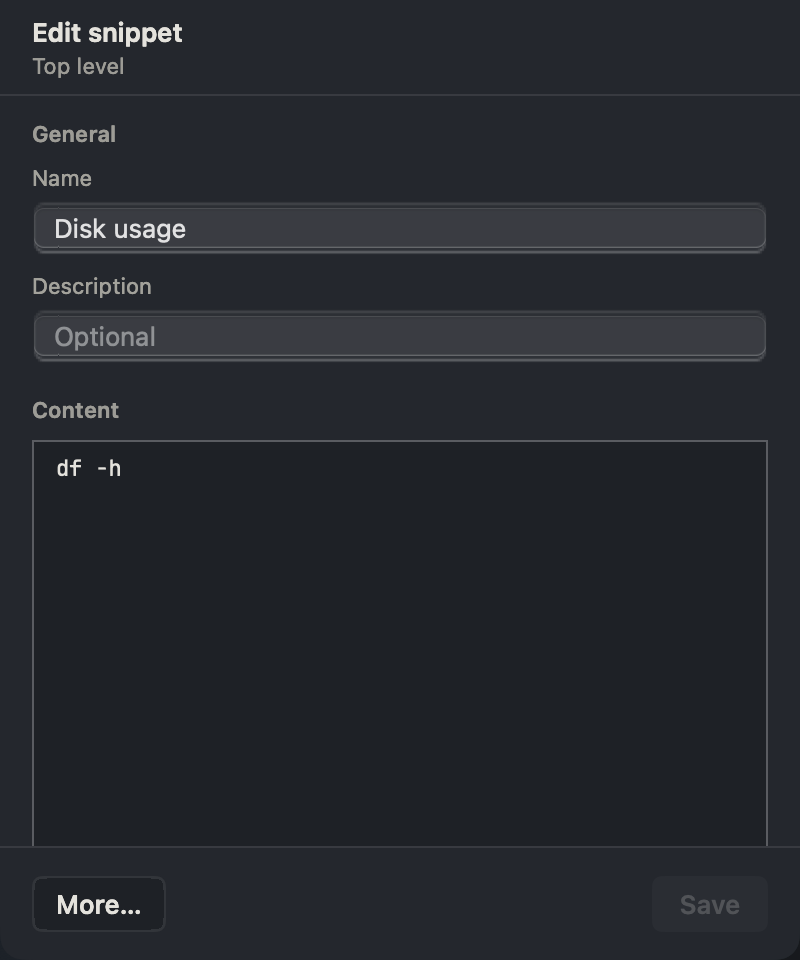
Snippet draft
Name the reusable command and fill in its content. Save, then focus the intended terminal before inserting and reviewing it.
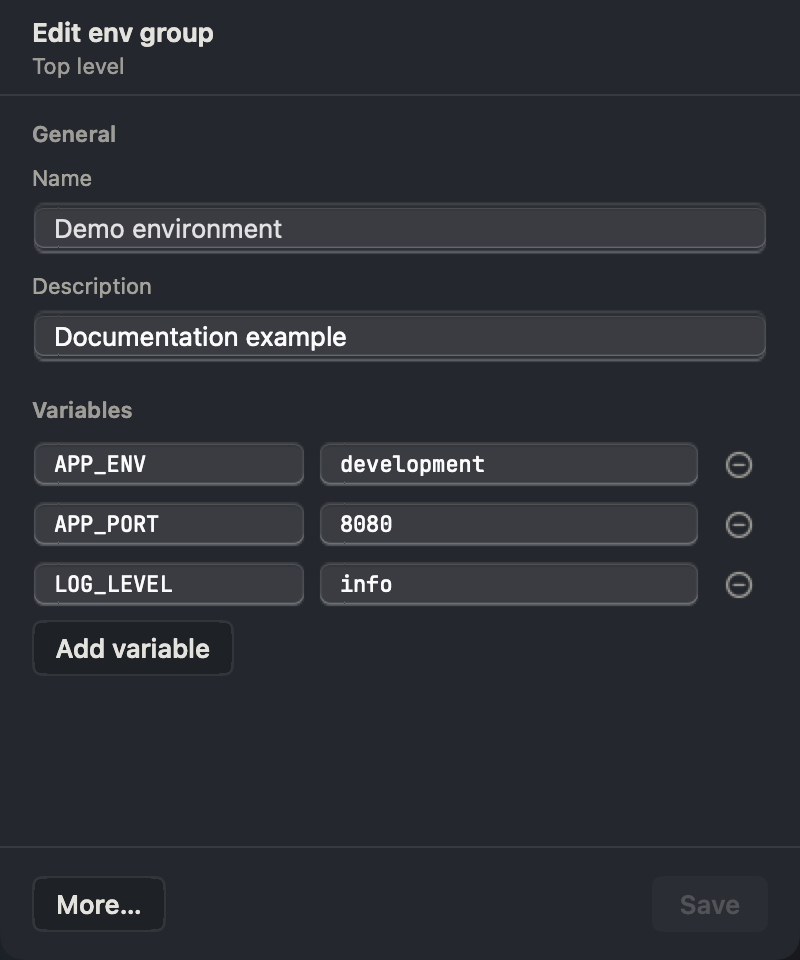
Environment draft
Add distinct variable keys and their values, then save the group. Confirm the target terminal before applying it; these stored values are not automatically encrypted.
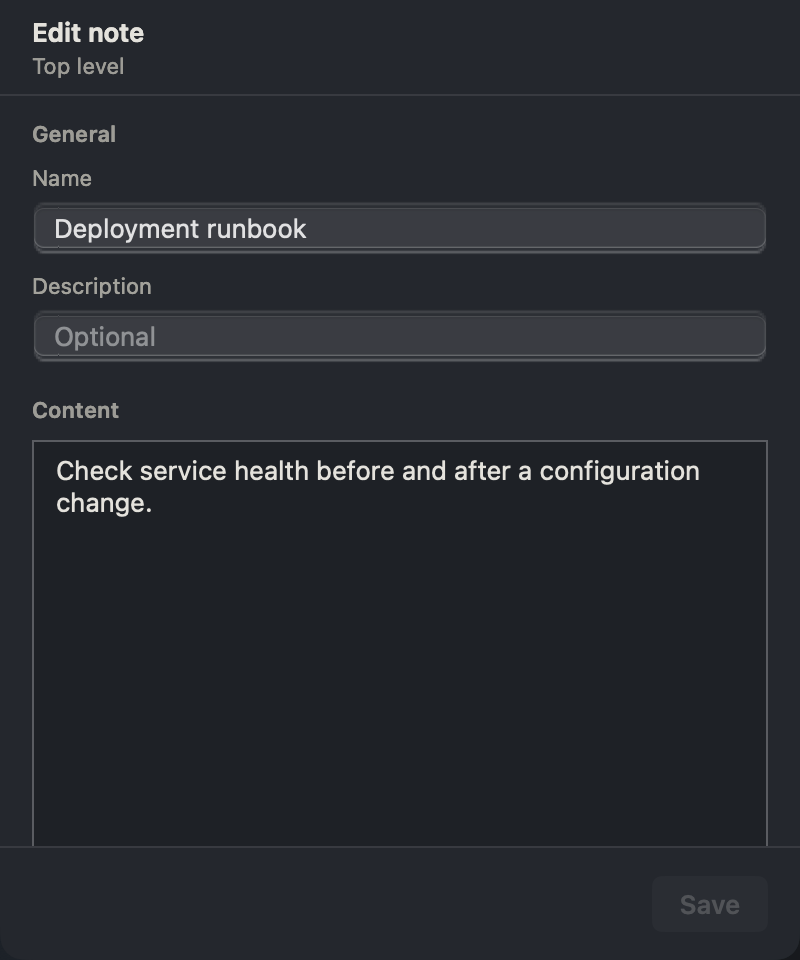
Note draft
Give operational context a name and content, then save it for later reference or binding. A note is text rather than a command to execute.
Saving
The Save button is enabled once the draft is valid and either brand new or changed since
it was opened. Next to the title, a status label tracks the draft: Unsaved, Saving…,
Saved, or a failure message naming what went wrong. If you close the inspector (or press
Esc) with unsaved changes, you are asked whether to discard them.
The inspector's More… menu adds:
- Discard changes — reverts every field back to what it was when you opened the item (or closes a brand-new draft).
- For an already-saved snippet: Insert into the current terminal.
- For an already-saved environment variable group: Apply to the current terminal.
These are the same actions as the card's primary button and the right-click menu, described below.
Items you cannot edit
An item delivered by the server shows as Read-only. Trying to open it for editing tells you it comes from the server and cannot be changed locally; it also cannot be moved, deleted, or dragged onto a terminal.
Folders
Right-click a folder in the sidebar for:
- New Folder — creates a subfolder inside it.
- Rename Folder, Move to… — not offered for read-only folders.
- Delete Folder — also not offered for read-only folders. Deleting asks you to confirm first and tells you how many items inside it will be deleted along with it; this cannot be undone.
To add a folder at the top level of the current kind, open the More menu at the right of the toolbar and pick New Folder.
An item's own right-click menu has Move to…, which opens a picker listing every folder of that kind (indented by depth) plus the top level; picking one moves the item there.
Search, sort and view
The toolbar's search field filters the current kind. Its placeholder names what it searches — for example, snippets search name, description and content; environment variables search name, description and variable names; notes search title, description and content. In a narrow window this shortens to a plain "Search" placeholder.
Typing a search flattens the list across every folder of that kind, and each matching item shows the folder path it lives in so you can still find it. Clear the field to go back to browsing folder by folder.
The sort control offers By name, By last updated, and By address (address sorting is meant for hosts; for snippets, environment variables and notes it falls back to name). The view switch toggles between a card grid and a denser list.
Card and list actions
Each card or list row has one clear primary action, shown as its own button:
| Kind | Primary button |
|---|---|
| Snippet | Insert into the current terminal |
| Env var | Apply to the current terminal |
| Note | Open for editing |
Double-clicking a card, or pressing Return on a selected one, always opens it for
editing instead — including for snippets and environment variables. Sending a snippet's
text or an environment variable's export line into a terminal is a deliberate act that only
the primary button (or the matching menu item, drag-and-drop, or the quick panel) performs;
double-click never fires it by accident.
Right-clicking an item opens a menu grouped by purpose (a separator line divides each group):
- The primary action, plus a separate Open for editing item for snippets and environment variables (notes skip this — their primary action already opens them for editing). Neither appears for read-only items.
- Bind globally (inject into new terminals) / Remove global binding — environment variables only.
- Bind to current terminal / Unbind from current terminal — snippets, environment variables and notes.
- Move to…
- Delete — shown in a warning color and kept in its own group so it is never next to another item by accident.
Deleting asks you to confirm, then removes the item from the list immediately and shows an Undo banner; the delete only reaches the server a few seconds later, so Undo can still cancel it.
Read-only items drop the "open for editing", move and delete items from this menu, but keep the primary action and the binding toggles — binding does not change the item itself.
Applying an item to a terminal
What "insert" or "apply" actually does depends on the kind:
- A snippet types its content into the terminal. It does not press
Returnfor you — you confirm the command yourself. - An environment variable group builds one line of
export KEY="VALUE"statements (joined with;, quotes inside a value escaped) and types that line the same way. - A note has no insert/apply behavior; its primary action opens it for editing instead.
Because the library is a home view rather than a terminal, applying, inserting or binding an item needs to pick which terminal to act on:
- If no terminal is open at all, one is opened for you and the action waits for its shell prompt before running, so nothing is typed into a shell that is not ready yet.
- If there is exactly one candidate terminal, it is used without asking.
- If there are several — several tabs, or several panes in a tab — a menu lets you choose, with the most recently used one checked as the default. Panes in the currently focused tab are listed first.
A notification confirms the result, naming the item and which terminal it went to. If a step fails, the notification says which step failed (opening a terminal, inserting, applying, or binding) instead of just showing a raw error.
Dragging an item onto a terminal
You can drag a card or list row (read-only items cannot be dragged) straight onto a terminal pane. While you drag over a pane, its border highlights to show it as the drop target; nothing happens until you release.
Dropping applies the same rule as the primary action: a snippet or note inserts its content, an
environment variable group inserts its export line. Dropping a host is ignored — connecting
to a host always opens a new pane instead of writing into an existing one.
You can also drop an item onto a tab in the tab bar itself; the window switches to that tab and applies the item to its terminal.
Binding scopes
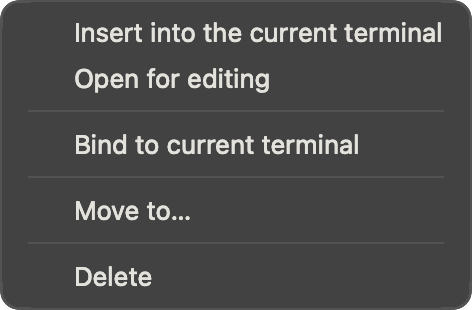
Binding remembers that an item belongs to a terminal (or to every terminal), independently of one-off inserting or applying. There are two scopes, both toggled from the right-click menu:
- Global (environment variables only) — injects that variable group into every terminal you open from then on. Toggle with Bind globally (inject into new terminals); the label switches to Remove global binding once it is bound.
- Per-terminal — available for snippets, environment variables and notes. Bind to current terminal / Unbind from current terminal attaches or detaches the item from one specific terminal, resolved the same way as apply/insert above (a terminal is opened for you if none exists, or you are asked to pick one if there are several).
Binding and unbinding both show a confirmation naming the item and the terminal it was bound to or removed from.
Quick panel
The quick panel is a fast way to reach your snippets and environment variables without leaving the terminal you are working in. Open it from either:
- The Snippets and env vars quick panel button in the tab bar's per-tab toolbar (its tooltip shows the current shortcut, if you have set one — neither keymap preset assigns it a shortcut by default; see Keyboard Shortcuts).
- The File menu's Vault quick panel… item.
The panel lists snippets and environment variables only — no notes, no hosts. Type in its search field to filter by name, description, content or variable name; each row shows its kind (Snippet or Env var) on the right.
Keyboard: keep typing to filter, ↑/↓ move the selection, Return sends the selected item
to the current terminal (the same insert/apply behavior described above), Esc closes the
panel. A hint at the bottom of the panel repeats these keys.
If your library has no snippets or environment variables at all, the panel shows "No snippets or environment variables yet" with a New snippet button; clicking it closes the panel and opens a fresh snippet draft in the library. If a search simply matches nothing, it shows "No matching items" with no button — that is a search problem, not an empty library.