Hosts
The Hosts page is where you keep the machines you connect to. It shares a three-column layout — sidebar, card grid, inspector — with the other resource pages (Snippets, Env vars, Notes) and with SSH Keys, so folders, search, sort and the right-side editor all work the same way once you have learned them here.
Sidebar
The left column lists Resources — Hosts, Snippets, Env vars, Notes — followed by a Keys row for the SSH key store. Selecting Hosts shows the folders that exist for hosts underneath, in a Folders section; each row shows how many hosts it contains.
- Right-click a folder (or open the page's
···More menu) for New folder, Rename folder, Move to… and Delete folder. A folder that came from the server only offers New folder: it can't be renamed, moved or deleted locally. - Drag a host card onto a folder row (in the sidebar) or a folder card (in the grid) to move it there. Termia refuses to move a folder into itself or into one of its own subfolders.
- Deleting a folder deletes everything inside it too; the confirmation dialog says how many items that is.
- In a narrow window the sidebar collapses to icons automatically; click the sidebar toggle to expand or collapse it yourself, and your choice wins over the automatic rule from then on.
The card grid
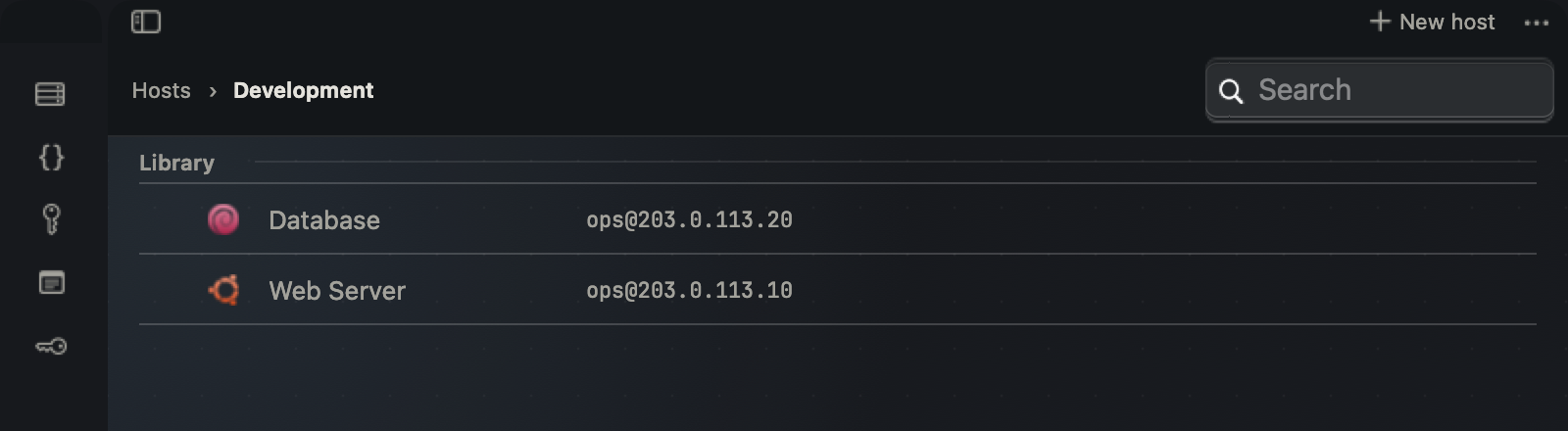
Each host card shows an icon, a name, an address and a status line:
- The icon shows the detected operating system (once you have connected and it is known) or a generic server glyph otherwise. Hover it to see the platform name.
- The name is the host's alias, or its connection string if you never gave it one.
- The second line is
user@host:port(the port is omitted when it is the default, 22). - The third line names the folder (while searching), the authentication method
("Password login" or "Key login"), and the detected platform, joined with
·. - A green dot and "Connected" appear on a host with a live session; while a connection attempt is in progress the card shows a spinner and "Connecting…" instead.
- Once connected, a host with reachable system stats shows a compact CPU/memory line — this only appears when real numbers have arrived, never as a placeholder.
- A host without a saved counterpart — one picked up from a local SSH config, for example — carries an "Unsaved connection" badge and can only be connected to, not edited.
- A host managed by the server carries a "Read-only" badge and can't be edited, moved or deleted here either.
Hovering a card reveals its primary action button (Connect) and a ··· menu with the
rest: Edit, Move to…, Delete. A single click selects a card; double-click, or
Return on a focused card, opens it (see Connecting).
Switch to the list view with the view-mode button next to sort for a denser, single-line layout of the same information.
How the grid sizes itself
Cards are laid out in as many columns as fit at no less than 240pt and no more than 320pt each; the window keeps at least 3 columns at 1080pt of width and at least 2 at 820pt. On a very wide window the grid caps its own width and centers itself instead of stretching cards edge to edge. Cards in the same row always share the height of the tallest card in that row, so a host with a two-line name never leaves its neighbors floating at a different height.
Search and sort
The search field filters the current folder's hosts by name, address, username, and (while searching across the whole page) folder path — search always looks across every folder, not just the current one, and shows each match's folder as part of its third line. Clear the search to go back to browsing by folder.
Sort with the sort button: By name, By last updated, By address. Address sort uses each host's connection string; the other resource pages fall back to sorting by name.
Press Return in the search field: if exactly one host matches, it connects immediately; if
several match, focus moves into the grid so you can pick with the arrow keys. If nothing
matches but the text reads as an address (it contains @, a dot, or a colon), a small
"⏎ Connect to …" hint appears under the field — pressing Return again connects to that
address without saving it anywhere (see Quick connect).
Creating, editing and deleting a host
New host (in the toolbar, or from the page's empty state) opens the inspector on the right with a blank form. Double-clicking an existing host you can edit, or its Edit menu item, opens the same inspector pre-filled.
The inspector has four sections:
| Section | Fields |
|---|---|
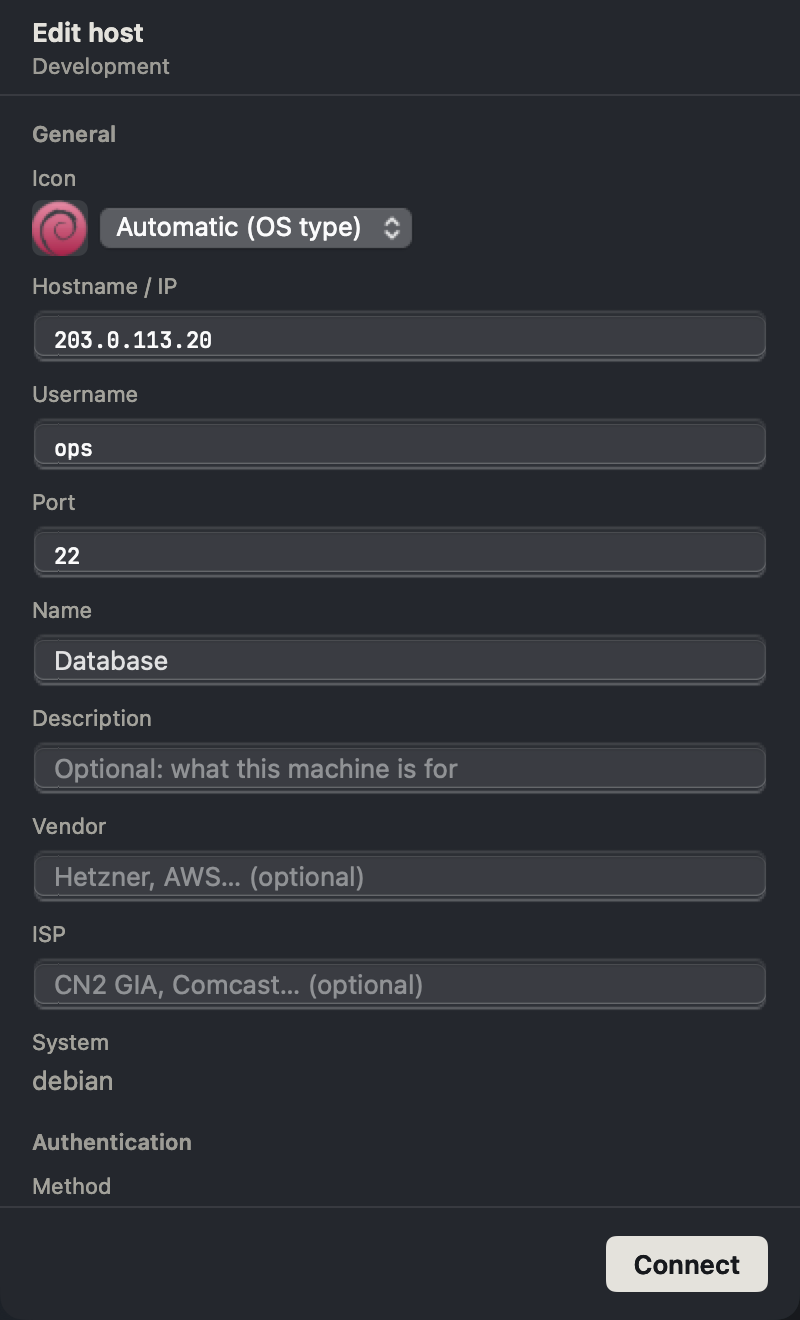
| General | Icon, hostname/IP, username, port, name, description, vendor/ISP; detected platform is read-only. |
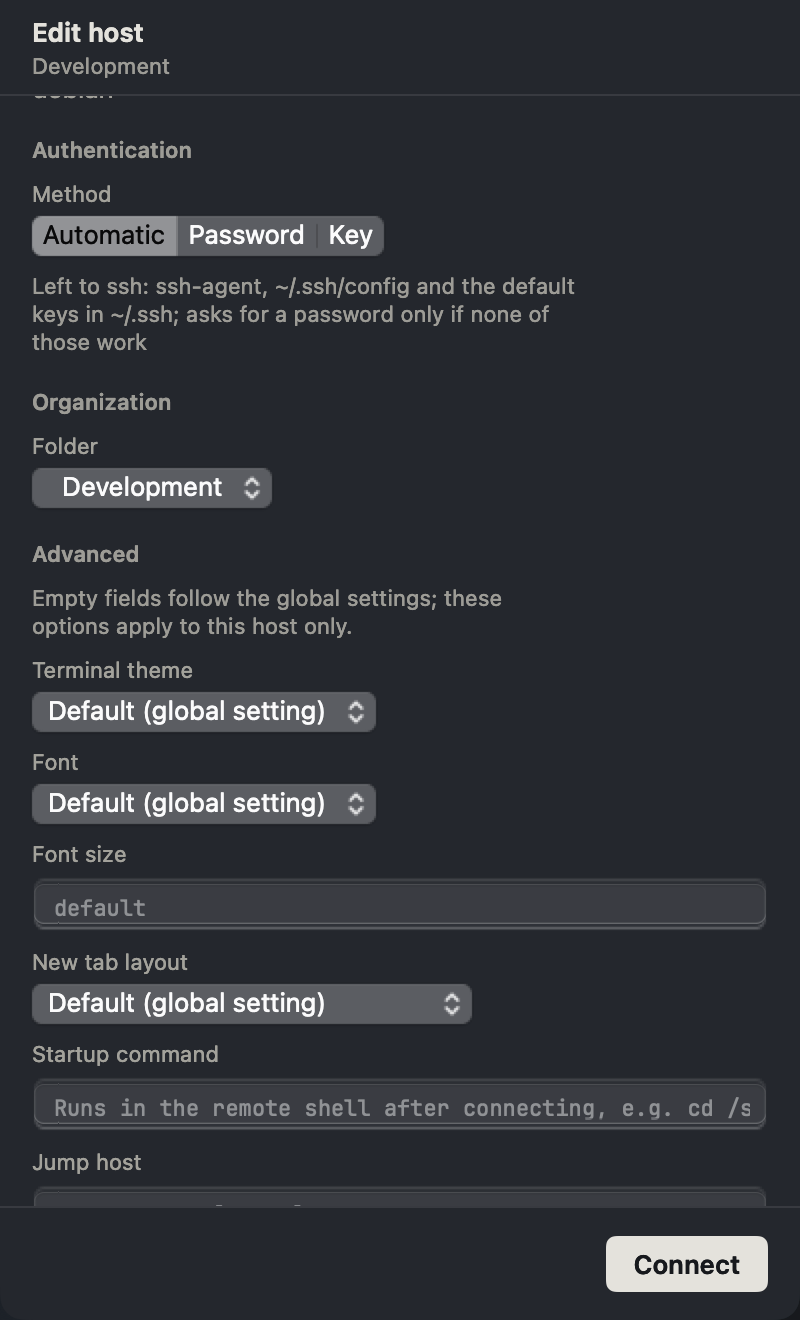
| Authentication | Auto, Password or Key; a passphrase-sealed key-library entry or a local identity file. |
| Organization | Folder. |
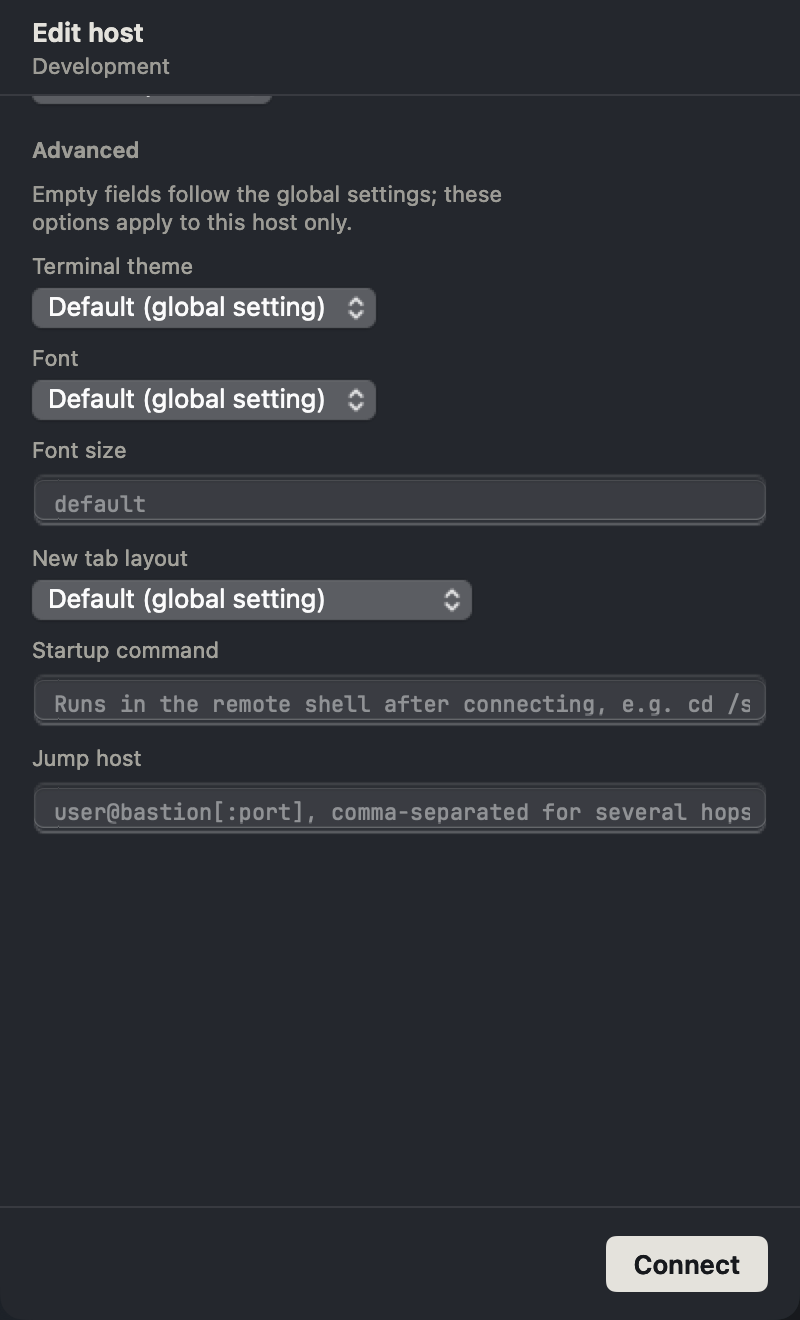
| Advanced | Per-host terminal theme, font, size, new-tab layout, startup command and ProxyJump. |
Address accepts a plain hostname or IPv4 without scheme, port suffix or spaces; this entry point's IPv6 validator is currently limited. Username defaults to root, port to 22. A blank name displays the connection string. Auto uses SSH config/agent. Password can be left blank and requested at connect time. Key mode requires a valid key/file. Duplicate host/user/port combinations are flagged.
Stored passwords are never revealed; blank retains the value. Unreadable credentials show a warning and keep their ciphertext. Restore the corresponding master key or enter a replacement password. Changing an unreadable credential's host identity without a replacement is refused. Settings → Security → Host password security shows migration status and offers local master-key rotation; see Account and Sync.
RDAP lookup can fill empty vendor/ISP fields. Empty theme/font/size/layout overrides follow global settings. Startup commands execute at session startup, so confirm they fit the target host. ProxyJump specifies the jump chain; ProxyCommand and a user tunnel manager are unsupported.
While the form is open, the status area above the buttons shows Unsaved, Saving…,
Saved, or a failure with a Retry button that resubmits the same attempt without
losing what you typed. The single primary button changes with context: Save and connect
for a new or edited host, Connect once it is saved and unchanged. The ··· menu adds
Save only, Connect without saving (for editing an existing host), and Discard
changes whenever there is something to discard. ⌘S always saves, regardless of what the
primary button currently says.
Closing the inspector (or navigating away) with unsaved changes prompts you to Save and leave, Discard changes, or Keep editing — a draft that fails validation drops the save option, since there is nothing valid to save yet.
Deleting
Delete a host from its ··· menu or right-click menu. After you confirm ("This cannot be
undone"), the host disappears from the grid immediately and a banner appears at the bottom
of the page: Deleted "<name>" with an Undo button. You have 8 seconds to undo before
the deletion reaches the server; undoing at any point during that window cancels it and
restores the card. Deleting a folder works the same way, with the same undo window.
The inspector
Opening the inspector (for a new host, an edit, or any resource item) narrows the card grid to make room for it — the grid keeps a workable minimum width, and once the window is too narrow to fit both, the inspector floats over the grid instead of sitting beside it. Selecting a different host while the inspector is open loads that host into the same panel rather than opening a second one.
Press Escape anywhere on the page — a card, the grid, a sidebar row, or a form field — to
close the inspector. If it has unsaved changes you get the same save/discard/keep-editing
choice as closing it any other way. Closing it always returns keyboard focus to the grid.
General: identify the target
Check the address, user and port first. A readable name helps distinguish hosts with similar addresses. Save only valid identity fields; a connection must target the server you intended.
Authentication: choose the SSH source
Use Auto for SSH config/agent, Password for a saved or connect-time password, or Key for a stored key or identity file. A blank field keeps an existing saved password; a warning means the preserved credential must be recovered or replaced.
Advanced: apply per-host behavior
Leave theme, font and layout overrides empty to follow the global settings. Review any startup command because it runs after the session starts. Use ProxyJump for the supported jump-host chain.
Quick connect and ad-hoc addresses
The same search field doubles as a quick-connect box. Type an address in the form
[user@]host[:port] and press Return: if it doesn't match any saved host, Termia connects
to it directly without creating a saved entry. An invalid address shows an inline error right
under the field instead of silently doing nothing — for example a bare word with no @, dot
or colon in it is treated as a search term, not an address, so typing "prod" and finding
nothing never tries to connect to a host literally named "prod".
Connecting
Double-click a host card (or press Return with one focused, or use its Connect button)
to open it. Every connection attempt opens a brand-new tab dedicated to that connection —
connecting to a host that is already open in another tab does not switch to that tab, it
starts a second one.
The first time a host asks about an unrecognized host key, or whenever it needs a password
that isn't already stored, Termia shows a sheet with the question. An unknown host key's
question is rendered as its SHA-256 fingerprint (the same string ssh-keygen -lf prints)
rather than the raw key blob, so you can compare it against the host's own fingerprint before
choosing Add and continue. A host-key or password question left unanswered for 60
seconds is dropped and the connection attempt is cancelled.
When a connection fails
A failure surfaces as a notification with a one-sentence explanation of the likely cause tied to what actually went wrong, for example:
- Connection refused — something is listening on the host but not that port; check the
port or whether
sshdis running. - Unknown host — the hostname can't be resolved; check the spelling or use the IP.
- Timeout — no answer in time; check the network, a firewall, or a VPN.
- Authentication failed — check the username, password or key.
- Host key changed — the host's key differs from what was seen last time; confirm it's the same machine before trusting it.
- Unreachable — check the address and the network.
The raw error text from the connection attempt stays visible underneath the one-line explanation, so nothing is lost if the summary doesn't match what actually happened. The notification's Retry button reconnects to the same address; a disconnected pane also offers an Edit address button next to its own retry action, which takes you straight to that host's entry in the inspector (or, for an address that was never saved, back into the search field with the text selected so you can fix a typo and try again).
Reconnect
A remote tab that has lost its connection — after a restart, or because the remote side
dropped — shows an overlay in place of the terminal: "Not connected to <host>" with a
Reconnect button, or "Reconnect failed" with the same one-sentence explanation described
above if the last attempt didn't work. Termia does not assume the remote process is still
running after a disconnect (unless you were using tmux or screen on that host) —
reconnecting starts a fresh shell. While a reconnect attempt is underway, the overlay reads
"Connecting to <host>…".
Tab status
A remote tab's title carries a small dot that is not shown on local tabs: amber while connecting, green once connected, and red once the session is down. Hovering the dot (or checking its tooltip) spells out the same state in words.