wsh Reference
This is the complete reference for wsh in the macOS build. For the guided introduction —
where the binary comes from, how it lands on remote hosts, and how -b/--block addresses a
pane, tab, or window — read The wsh Command first; this page does not repeat that.
wsh talks to the same wavesrv backend as the Windows/Linux app, so most commands here create
or read plain backend objects (panes, metadata, variables, files) and work identically no matter
which app is running. A few commands instead ask the running app to do something directly —
show a notification, read a web pane's DOM, report an update channel. macOS answers exactly the
set covered in How wsh talks back to the app; task now uses a registered per-pane route to start TT Agent. The legacy chat-style ai command has its own limitation, marked below.
Every command block here is preceded by an On macOS line stating what was actually checked,
against macnative/Sources/TermiaNative/PlatformIntegration.swift (the callback router) and the
relevant pane-building code in AppModel.swift, not just against Electron behavior.
Opening panes
view, edit, term, run, and launch all end up creating a pane through the same low-level
primitive (createblock, hidden — see Internal commands). A pane opens
successfully on macOS as long as its view value is one macOS knows how to render: term,
preview, web, gitstatus, or sysinfo/cpuplot. Anything else still gets created in
wavesrv (the backend object exists, and Windows/Linux would render it), but macOS shows it as a
placeholder pane reading "Unsupported pane type: <view>" instead of a blank or broken pane.
view / edit
wsh view [-m] {file|directory|url}
wsh edit [-m] {file}
Opens a file or directory in a preview pane, or a URL in a web pane. view (aliased to preview
and open) opens for viewing; edit opens the same preview pane already in edit mode.
Flags:
-m,--magnified— open the pane already magnified.
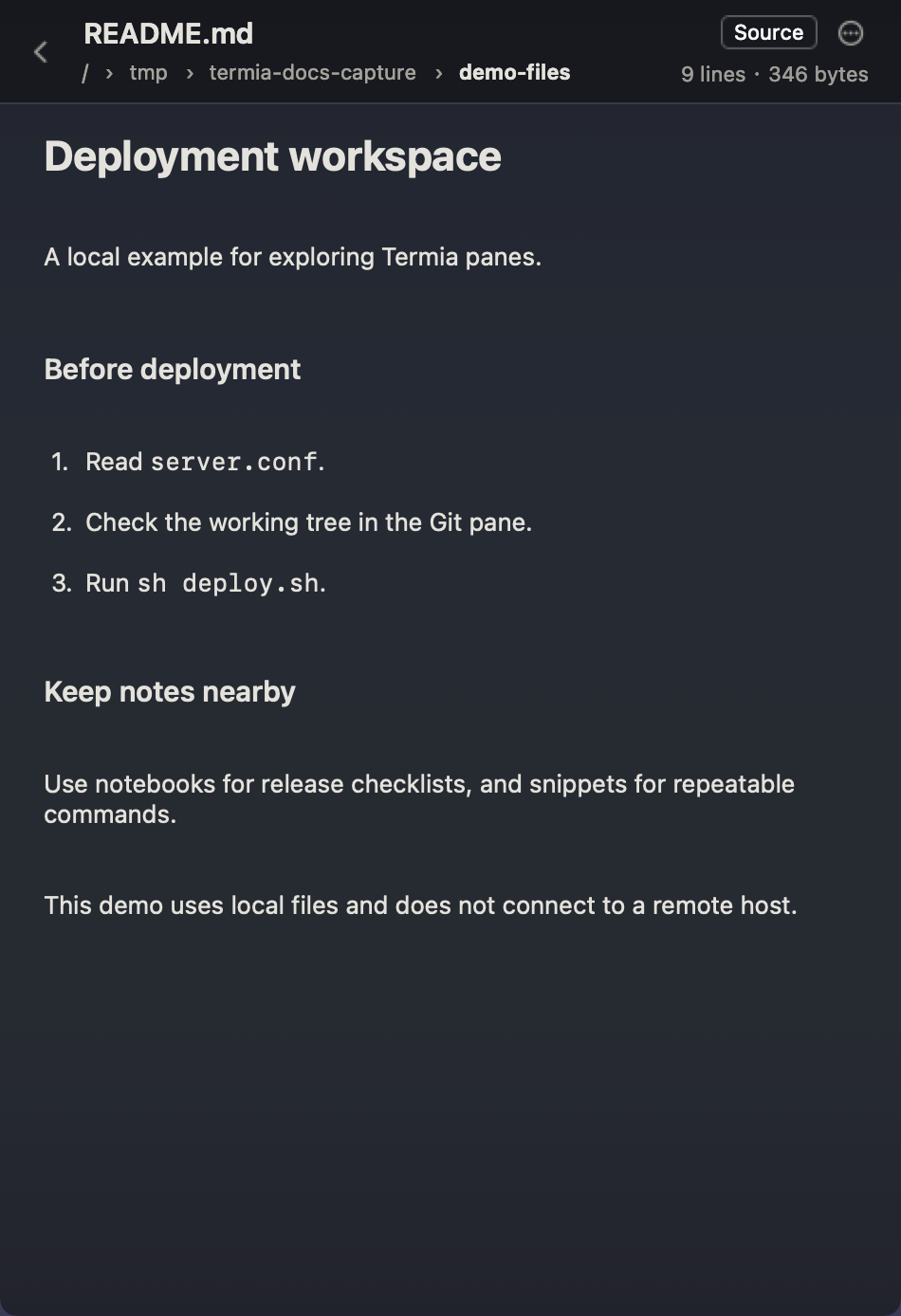
On macOS: works. Text, code, markdown, and images render through the same preview pane described in Files and Transfers; directories open as the same file browser SFTP panes use.
wsh view .
wsh view ./screenshot.png
wsh edit ./config.json
wsh view https://example.com
editor
wsh editor [-m] <file>
Opens a file for editing and blocks until the pane is closed, unlike view/edit which
return immediately — a drop-in $EDITOR.
Flags:
-m,--magnified— open the pane already magnified.
On macOS: works. It waits on a backend blockclose event tied to the new pane's id, which
fires the same way whether you close the pane from the mac app or the Electron app.
export EDITOR="wsh editor"
git commit
term
wsh term [-m] [directory]
Opens a new terminal pane. With no argument it opens in your current working directory;
otherwise it opens in the given directory (~ is expanded). Run it from a pane connected to a
remote host and the new terminal opens on that same connection.
Flags:
-m,--magnified— open the pane already magnified.
On macOS: works, identically.
wsh term ~/projects/termia-terminal
run
wsh run [flags] -- command [args...]
wsh run [flags] -c "shell command string"
Runs a command in a new terminal pane. Give it a command after -- (run directly, no shell) or
a shell command string with -c (run through a shell) — not both.
Flags:
-m,--magnified— open the pane already magnified.-c, --command <string>— run this string in a shell instead of a--command.-x, --exit— close the pane automatically once the command exits successfully (stays open on error).-X, --forceexit— close the pane once the command exits, regardless of exit status.--delay <ms>— with-x/-X, how long to wait before closing (default2000).-p, --paused— create the pane without starting the command; you start it manually.--cwd <path>— working directory for the command (default: your current directory).-a, --append— append output across restarts instead of clearing the pane first.
On macOS: works. It is still a term-view pane under the hood, so the auto-close and
auto-append behavior come from the same terminal-controller logic macOS's terminal panes run.
wsh run -x -- npm test
wsh run -m -- npm run dev
wsh run -c "docker compose up -d"
launch
wsh launch [-m] <widget-id>
Creates a pane from a widget defined in widgets.json or the shipped default widgets, by its id.
Flags:
-m,--magnify— open the pane already magnified.
On macOS: works for any widget whose view is one of the types macOS renders (a sysinfo
widget, for instance). A widget targeting a view macOS has no renderer for still creates a pane —
just an "Unsupported pane type" placeholder, never a silently-started shell. See
Plugins for the custom-widget catalog macOS reads the same widgets.json from.
wsh launch sysinfo
Closing a pane
deleteblock
wsh deleteblock -b <ref>
Deletes a pane. Takes no positional arguments — target it with -b (defaults to the current
pane, so running it bare closes the terminal you typed it in).
On macOS: works. Deletion is a backend object removal; macOS drops the pane from its layout the moment it observes the deletion, the same as it does when you self-heal a pane whose backend object has already vanished.
wsh deleteblock -b 4
Metadata
getmeta
wsh getmeta [-b <ref>] [-v] [--raw] [--clear-prefix] [key...]
Prints a pane or tab's metadata as JSON. With no keys, prints everything. With one key, prints
just that value. A key ending in :* is a prefix match, returning every key that starts with it
plus the bare key without the trailing colon if it exists.
Flags:
-v,--verbose— also print the resolved pane/tab id to stderr.--raw— for a single string value, print it unquoted instead of as a JSON string.--clear-prefix— with akey:*pattern, also include the special clearing key.
On macOS: works, identically — pure metadata read, no rendering involved.
wsh getmeta
wsh getmeta -b 2 file
wsh getmeta -b tab "bg:*"
setmeta
wsh setmeta [-b <ref>] [--json file.json] key=value ...
Sets one or more metadata keys on a pane or tab. Values are parsed as JSON where possible
(true/false/null, numbers, [...]/{...}/"..."), falling back to a plain string. A key
containing / sets a nested path (a/b=1 sets {"a": {"b": 1}}). Setting a key to null
removes it.
Flags:
--json <file>— load a base metadata object from a JSON file (-reads stdin); values given on the command line override keys from the file.
On macOS: works, including the cases that matter most in practice — setting connection
rebuilds the pane's view against the new host (the same "write meta, then rebuild" path the pane
settings menu uses), and setting bg/bg:* on a tab repaints its background (see
setbg below for a caveat on positioning).
wsh setmeta -b 3 file=~/notes.txt
wsh setmeta -b tab bg=blue bg:opacity=0.3
wsh setmeta -b tab --json -
Variables
getvar/setvar read and write a small key-value store per pane (or client-wide by default),
built on the same file storage file addresses as wavefile://. Both are pure backend
operations with no rendering, so they behave identically on macOS.
getvar
wsh getvar [-l] [--varfile name] <key>
wsh getvar [-l] --all [-0] [-n|-N]
Reads a variable previously stored with setvar. Without --all you must give a key; the value
is written to stdout with no trailing newline unless stdout is a terminal (or -n forces one).
Exits with status 1 if the key does not exist.
Flags:
--varfile <name>— variable file name (defaultvar).--all— print every variable instead of one key.-0,--null— with--all, separate entries with a null byte instead of a newline.-l,--local— read from the current pane instead of the client-wide scope.-n,--newline— always print a trailing newline.-N,--no-newline— never print a trailing newline.
Without -b or -l, getvar reads client-wide (global) variables, not the current pane's.
On macOS: works, identically.
wsh setvar API_TOKEN=abc123
curl -H "Authorization: $(wsh getvar API_TOKEN)" https://example.com
wsh getvar --all
setvar
wsh setvar [-l] [--varfile name] KEY=VALUE...
wsh setvar [-l] -r KEY...
Stores one or more variables. Defaults to client-wide scope unless -l/--local or -b is
given.
Flags:
--varfile <name>— variable file name (defaultvar).-l,--local— store on the current pane instead of client-wide.-r,--remove— remove the given keys instead of setting them.
On macOS: works, identically.
wsh setvar DEPLOY_ENV=staging
wsh setvar -l BUILD_NUM=42
wsh setvar -r DEPLOY_ENV
Files
wsh file <subcommand> [flags] <uri>...
Manages files across three storage systems, addressed by URI: wsh://[connection]/[path] (a
path reachable through wsh, local or remote), wavefile://[zoneid]/[path] (Termia's internal
pane/tab/client file storage — what setvar/getvar are built on), and s3://[bucket]/[path]
(optionally [profile]:s3://...). All file subcommands accept -t/--timeout <ms> (default
15000).
On macOS: every file subcommand works, identically. None of them render anything — they
read and write through the same Go fileshare backend the SFTP pane in
Files and Transfers uses, so the underlying transfer code is shared even though
that page's UI is macOS-specific.
file ls
wsh file ls [-r] [-l] [-1] [-f] [uri]
Lists a directory (current directory if omitted). -r recurses, -l uses a long listing, -1
prints one name per line (automatic when piped), -f lists files only.
wsh file ls wsh://myuser@myhost/home/myuser/
wsh file ls -l wavefile://client/
file cat
wsh file cat <uri>
Prints a file's contents to stdout.
wsh file cat wavefile://client/notes.txt
file info
wsh file info <uri>
Prints a file's name, mode, modification time, size, and any stored metadata.
wsh file info wsh://myhost/etc/nginx/nginx.conf
file write
echo "..." | wsh file write <uri>
Writes stdin into a file, replacing its contents (10MB limit for a single write on backends without append support).
echo "hello" | wsh file write wavefile://client/greeting.txt
file append
tail -f app.log | wsh file append <uri>
Appends stdin to a file, creating it if needed (10MB total file size limit).
echo "deploy finished" | wsh file append wavefile://workspace/deploy.log
file rm
wsh file rm [-r] <uri>
Removes a file. -r/--recursive removes a directory and its contents.
wsh file rm wavefile://client/greeting.txt
file cp / file mv
wsh file cp [-m] [-f] <source-uri> <dest-uri>
wsh file mv [-r] [-f] <source-uri> <dest-uri>
Copies or moves a file, including between storage systems. mv deletes the source once the copy
succeeds.
-m,--merge(cponly) — merge into an existing destination directory.-r,--recursive(mvonly) — move directories recursively.-f,--force— overwrite an existing destination.
wsh file cp wavefile://client/config.txt ./local-config.txt
wsh file cp ./local-config.txt wsh://myhost/etc/myapp/config.txt
wsh file mv -f ./draft.md wavefile://workspace/notes.md
readfile
wsh readfile <filename>
Reads a file from the current pane's internal storage and prints it to stdout. Predates file;
prefer wsh file cat wavefile://<paneid>/<filename> for new scripts.
On macOS: works, identically.
wsh readfile var
Connections and hosts
conn
wsh conn <subcommand>
Manages raw SSH connections, as stored in connections.json.
wsh conn status— show every connection and whether it is connected.wsh conn list [--json]— list every connection defined in config, with status.wsh conn connect <connection>— connect.wsh conn disconnect <connection>— disconnect.wsh conn disconnectall— disconnect every currently-connected connection.wsh conn ensure <connection>— make surewshis installed on the connection, installing it if necessary.wsh conn reinstall <connection>— force a fresh install ofwshon the connection.wsh conn add <connection> [-i identityfile]...— add a connection (user@host[:port]).wsh conn set <connection> [-i identityfile]... [--host h] [--user u] [--port p]— edit fields of an existing connection; only flags you pass are changed.wsh conn rm <connection>— remove a connection from config.wsh conn open <connection>— open a new terminal pane already attached to the connection (best-effort connects first).
On macOS: works, identically, and this is the same mechanism behind the Reinstall remote
wsh… pane-settings menu item — see The wsh Command. macOS reads
the install binaries from the same dist/bin layout as the Windows/Linux build (bundled inside
the .app for a real install), so there is nothing macOS-specific about which wsh gets pushed
to a host.
wsh conn status
wsh conn add myuser@myhost -i ~/.ssh/id_ed25519
wsh conn open myuser@myhost
wsh conn reinstall myuser@myhost
ssh
wsh ssh [-i identityfile]... [-n] <user@host>
Connects a terminal to a remote host over SSH. By default it switches the current terminal
pane's connection; with -n it opens a brand-new terminal pane for the connection instead.
Flags:
-i,--identityfile <path>— identity file for public-key authentication (repeatable).-n,--new— open a new terminal pane instead of switching the current one.
On macOS: works, identically. Switching an existing pane's connection (no -n) writes the
connection metadata key and reconnects the pane's session in place, same as switching hosts
from the Hosts sidebar.
wsh ssh myuser@myhost
wsh ssh -n -i ~/.ssh/id_ed25519 myuser@myhost
wsl
wsh wsl [-d <distribution>]
Switches the current terminal pane's connection to a local WSL distribution.
On macOS: not applicable. WSL is a Windows-only concept; there is no wsl:// connection type
to switch to on macOS, independent of anything wsh or macnative implement.
server
wsh server <subcommand>
Server management that unifies saved hosts (macOS calls these Vault entries; see
Hosts) with connections.json: saved hosts are the durable, credentialed list;
connections.json is the runtime layer wsh ssh/wsh conn use.
wsh server list [--json]— list every server (saved host and/or connection), its status, and whether it's saved.wsh server rename <server> [--name n] [--desc d]— rename or re-describe a saved host. Only works on hosts already saved; does not touch credentials.wsh server rm <server>— remove a server: deletes its saved-host entry and itsconnections.jsonentry, whichever exist.wsh server save-to-vault <server>— register an existing unsaved connection as a saved host. Never stores a password this way (key-based auth only) — open the host's form to add a password.wsh server open <server>— open a terminal connected to the server. If it is a saved host with a password, the password is supplied at connect time; it is never written intoconnections.json.
On macOS: works, identically — this is the same Go code and the same saved-host storage the Hosts sidebar reads and writes.
wsh server list
wsh server save-to-vault myuser@myhost
wsh server open myuser@myhost
wsh server rename myuser@myhost --name "staging box" --desc "us-east"
TT Agent from the command line
task
wsh task <user@host> <task description...>
Ensures the target connection is up and installs wsh if needed, opens a remote terminal pane, then starts TT Agent through that pane's feblock:<id> route with the task description as its initial interactive prompt.
On macOS: works. The native client now registers per-pane routes and handles termiaagentstart. A valid model configuration and working remote wsh are required. Creating a pane successfully does not mean its Agent task has completed. This is not a remote headless background runner.
Web panes
web open
wsh web open [-m] [-r <ref>] <url>
Opens a URL in a new web pane, or searches if given a bare search term instead of a URL.
Flags:
-m,--magnified— open the pane already magnified.-r,--replace <ref>— replace an existing pane's content with this URL instead of creating a new one (mutually exclusive with-m).
On macOS: works, identically — creates a web-view pane, which macOS renders the same as any
other web pane. See Git, Monitor and Web Panels.
wsh web open github.com
wsh web open "termia terminal"
wsh web open -r 3 https://example.com/dashboard
web get (hidden)
wsh web get [--inner] [--all] [--json] css-selector
Queries a web pane's page content by CSS selector and prints the matches. Hidden from --help
because it is meant for scripting, not everyday use. Requires -b pointing at a web pane (or
defaults to the current pane, which must be one).
Flags:
--inner— get inner HTML instead of outer.--all— get all matches (querySelectorAll) instead of the first.--json— output as JSON.
On macOS: works. This is the webselector command in
How wsh talks back to the app — one of the exact four
the mac callback router implements — evaluated against the real web pane's page content, the same
as on Windows/Linux.
wsh web get -b 3 "h1"
wsh web get --all --json ".product-price"
Workspaces
workspace list
wsh workspace list
Lists open workspaces across all windows, with each one's name, icon, and color.
On macOS: works. A "workspace" here is a window's identity, the same object
The wsh Command means by -b workspace.
Configuration
editconfig
wsh editconfig [configfile]
Opens a Termia configuration file in a preview pane, set to edit mode. Defaults to
settings.json; other common files are presets.json and widgets.json. Resolved relative to
your config directory (wsh wavepath config).
On macOS: works — it is a preview-view pane like any other, so it opens in the same code
editor wsh view/wsh edit use.
wsh editconfig
wsh editconfig presets.json
setconfig
wsh setconfig key=value ...
Sets configuration keys directly, using the same value parsing and nested a/b=value path syntax
as setmeta.
On macOS: works. Configuration is a single shared file both apps read; macOS also picks up
the change live, the same config hot-reload path that redraws every open window when
settings.json changes from any source.
wsh setconfig term:fontsize=13
Tab backgrounds
setbg
wsh setbg [--opacity value] [--tile|--center] [--size value] (image-path|"#color"|color-name)
Sets a tab's background. Accepts a path to an image (jpg, png, gif, webp, svg), a
quoted hex color, or a CSS color name.
Flags:
--opacity <0.0-1.0>— background opacity (default0.5). Usable alone to change just the opacity of an existing background.--tile— tile the image (mutually exclusive with--center).--center— center the image without scaling it (good for logos).--size <px|%|auto>— size for a centered image (defaultauto).--clear— remove the background.--print— print the metadata that would be applied, without applying it.
On macOS: the background itself works — image or color, with opacity — but --tile and
--center/--size have no effect. wsh setbg writes the image reference and positioning as a
single CSS background string (url('...') repeat for --tile, url('...') no-repeat center/<size> for --center); macOS's background renderer parses that string for the image URL
only and always paints it the way --center/--size are absent — scaled to fill the tab, the
same as the default. There is no fix on the wsh side to reach for: it is writing standard CSS
that only the Electron renderer's CSS engine interprets in full.
wsh setbg ./wallpaper.jpg
wsh setbg --center --size 200px ./logo.png   # sets the pane, but macOS still renders it filled/scaled
wsh setbg "#1a1a2e"
wsh setbg --opacity 0.2
wsh setbg --clear
Notifications
notify
wsh notify <message> [-t title] [-s]
Sends a desktop notification through Termia.
Flags:
-t,--title <text>— notification title (defaultWsh Notify).-s,--silent— suppress the notification sound.
On macOS: works — this is the notify command in
How wsh talks back to the app. It posts a native macOS
notification banner (suppressed while Termia is the active app, since you'd just be seeing the
same text twice) and the same event also lands in the in-app Notifications panel.
long-build.sh && wsh notify "Build finished" || wsh notify -t "Build failed" "check the log"
Version and paths
version
wsh version [-v] [--json]
Prints the wsh version. Plain wsh version only prints the version number and does not need a
running connection to wavesrv; -v/--json additionally connect and report your client id,
config/data directories, and update channel.
Flags:
-v,--verbose— print full version information.--json— print that information as JSON.
On macOS: works. -v/--json always report update channel none — this build has no
auto-update channel yet, so none is a genuine, current answer rather than an error or a stub.
wsh version
wsh version -v
wavepath
wsh wavepath {config|data|log} [-o] [-O] [-t]
Prints the absolute path to your config directory, data directory, or log file.
Flags:
-o,--open— also open the path in a new pane.-O,--open-external— also open the path in your OS's default external application.-t,--tail— print the last 100 lines instead of the path (only valid withlog).
On macOS: works, identically, including -o (opens a preview pane on the path).
wsh wavepath config
wsh wavepath log --tail
wsh wavepath data --open
AI — not available
ai
wsh ai [-] [message...] [-n] [-f file]...
Flags:
-n,--new— create a new AI pane instead of using the current/default one.-f,--file <path>— attach file content (repeatable;-reads stdin).
Not available on either app. wsh ai is still compiled into the binary, but it targets an
AI-chat pane type that no longer exists in this app, and its send-message command has no
server-side handler at all — there is no matching pane component in the Electron frontend and no
matching case in the backend's command dispatch. Running it fails with a command-not-implemented
error regardless of which app you're running; this is not a macOS-specific gap. Use
TT Agent (type tt in a pane, or wsh task) for AI work
instead.
Internal commands
These exist in the binary but are hidden from wsh --help and are not meant to be typed
directly — entry points wavesrv and the remote connection process use internally. They run
identically regardless of which app is driving wavesrv, since none of them touch app-specific
rendering:
createblock— low-level pane creation by view name;view,term,run,web open, and the rest of Opening panes are the user-facing wrappers around it.connserver— the process that runs on a remote host to power panes over that connection.debug— internal inspection commands (debug block,debug gettab,debug send-telemetry).remoteexec/remoteexec-json— used internally to run a single command over an established SSH connection.rcfiles— (re)generates the shell integration files described in The wsh Command.shell— prints the current user's login shell.test— a no-op used in development.token— exchanges a short-lived swap token for an initialization script; used when a new shell session bootstraps itswshconnection.