Settings
Open Settings from the app menu (Settings…, ⌘, in both keyboard presets). The window has
a sidebar grouped into Basics (General, Appearance, Terminal, Window), Capabilities
(Web, AI, Sync) and System (Security, Privacy, Updates, Advanced, About).
This page walks every page in that sidebar. General, Appearance, Window, Terminal, Web and Privacy are built from plain configuration keys, and every row below names its key, type, default and effect. AI and Sync don't add configuration keys of their own — they mostly point you to where their behavior is documented, on TT Agent and Account and Sync. Security's one button opens a small settings store of its own that isn't documented anywhere else, so it gets full treatment here. About is a read-only summary. The Terminal page also ends with a Keyboard section; its keymap preset, Option-as-Alt switch and full shortcut table are documented on their own page — see Keyboard Shortcuts — and are not repeated here.
How to read the tables below
Each row gives the label exactly as it appears in the window, the key it writes in
settings.json, its type and allowed values, its default when the key is absent, and when the
change takes effect:
- Immediately — every open window picks it up right away.
- New terminal / New pane / New window — only something created after the change uses the new value; anything already open keeps what it started with.
- Restart — takes effect the next time Termia starts.
Every setting on this page is a global default — the value a new connection, pane or terminal is created with. Two more specific layers can override a global default without touching this page at all:
- A per-connection value, set on that host's entry in the connection editor.
- A per-pane value, set from that pane's own right-click (or gear) menu — terminal theme, font, font size and transparency can all be overridden this way.
When the same key is set at more than one layer, the most specific one wins: pane beats connection, and connection beats the global default set here.
General
Language
| Label | Key | Type / values | Default | Applies |
|---|---|---|---|---|
| Language | termia:lang | choice: System, 中文, English, 日本語, Español | System (follows the Mac's own language) | Immediately |
Each language is shown in its own script, not translated — so you can always find your language even if the interface is currently showing one you don't read. Changing it re-localizes every open window and the menu bar at once; there is no restart.
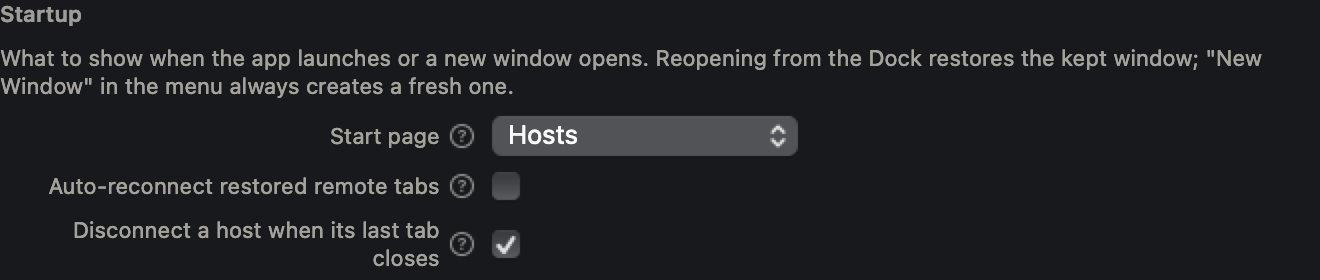
Startup
| Label | Key | Type / values | Default | Applies |
|---|---|---|---|---|
| Start page | native:startpage | choice: Local terminal, Restore last session, Hosts | Local terminal | New window |
| Auto-reconnect restored remote tabs | native:autoreconnect | boolean | Off | Restart |
What each start page choice shows in a new window:
- Local terminal — a local shell, ready for input right away.
- Restore last session — the tab, pane focus, layout and window position you had last time; no command is re-run.
- Hosts — the host list comes up first.
Auto-reconnect controls what happens to remote tabs that come back from Restore last
session: on, Termia tries to reconnect them automatically; off (the default), a restored
remote tab sits at "Not connected" until you click Reconnect. Either way, a disconnected
remote's process does not survive — reconnecting always starts a fresh shell unless you were
running tmux or screen on that host. See Troubleshooting for what a
dropped or failed connection looks like.
User center
| Label | Key | Type / values | Default | Applies |
|---|---|---|---|---|
| Server URL | termia:centerurl | string (URL) | empty | Restart |
This is the address Termia signs in and forwards AI requests through. Changing it switches accounts and quota, so you need to restart the app and sign in again after saving. Typing an address that can't be parsed as a URL is rejected outright with an error; a well-formed address is probed for reachability and saved either way — if it doesn't answer right now, Termia still saves it and tells you it's unreachable rather than silently discarding what you typed.
Appearance
Theme
| Label | Key | Type / values | Default | Applies |
|---|---|---|---|---|
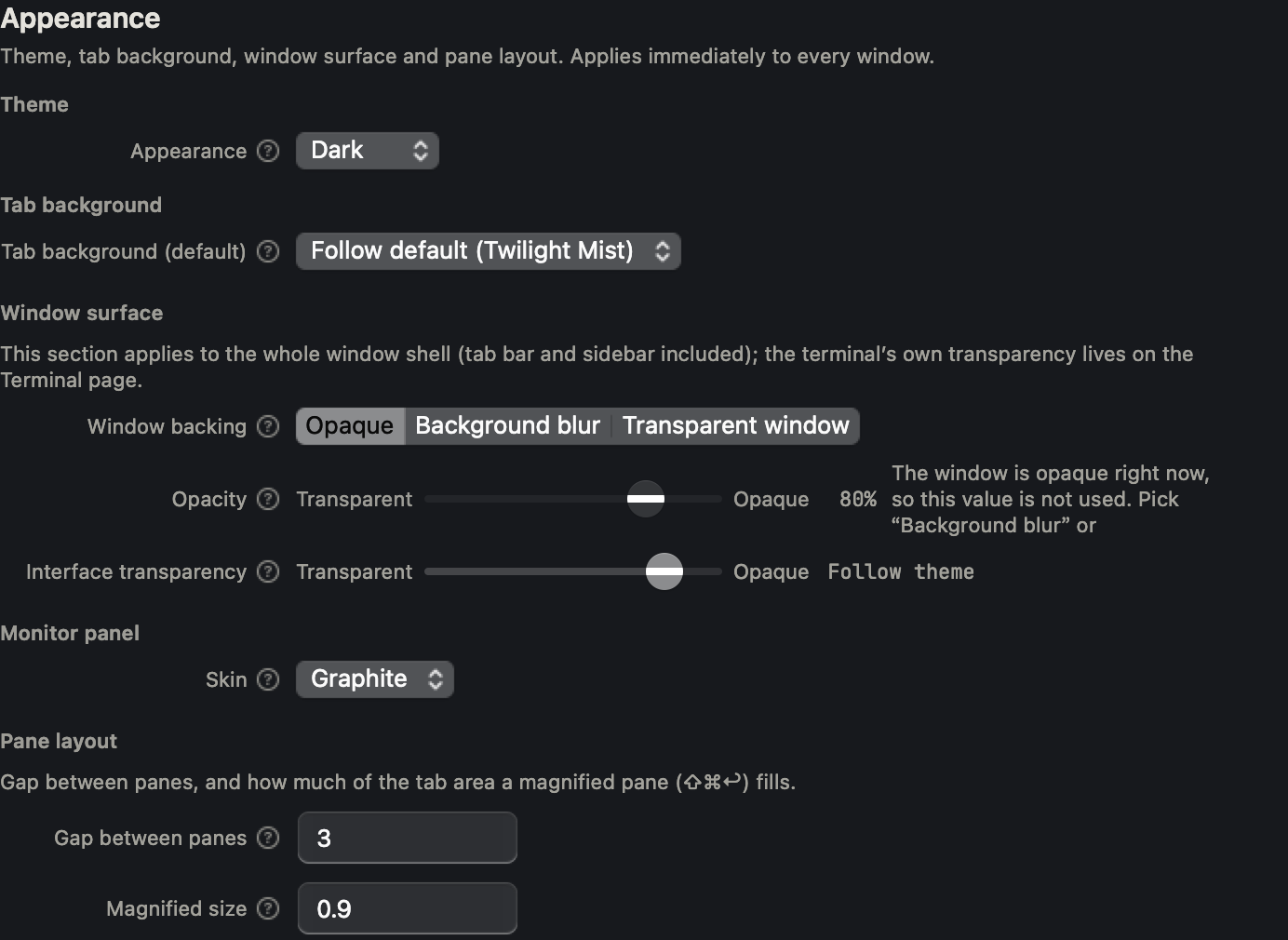
| Appearance | termia:theme | choice: System, Dark, Light | System | Immediately |
System means the app follows the Mac's current light/dark setting; explicitly choosing Dark or Light pins it regardless of what the system does.
Tab background
| Label | Key | Type / values | Default | Applies |
|---|---|---|---|---|
| Tab background (default) | tab:preset | choice: Follow default, or any background preset | empty (Follow default) | Immediately |
"Follow default" resolves to the built-in Sage preset in light appearance and Twilight Mist in dark appearance. This sets the default for every tab; a single tab's own background is set from that tab's context menu, which overrides this default for that tab only.
Window surface
| Label | Key(s) | Type / values | Default | Applies |
|---|---|---|---|---|
| Window backing | window:transparent, window:blur | 3-way choice: Opaque, Background blur, Transparent window | Opaque (both booleans false) | Immediately |
| Opacity | window:opacity | number, 0.1 – 1 | 0.8 | Immediately |
| Interface transparency | style:transparency | number, 0 – 1 | 0.5 | Immediately |
Window backing is one control that writes both booleans explicitly, so the three choices can never conflict with each other. It decides which of the other two rows actually does anything:
- Opaque — the window's backing color comes from Interface transparency; Opacity is grayed out because nothing reads it in this mode.
- Background blur or Transparent window — the backing comes from Opacity instead; Interface transparency is grayed out.
A grayed-out row always shows the reason next to it, so it never looks like the control is simply broken.
Pane layout
| Label | Key | Type / values | Default | Applies |
|---|---|---|---|---|
| Gap between panes | window:tilegapsize | integer, 0 – 20 px | 4 | Immediately |
| Magnified size | window:magnifiedblocksize | number, 0.5 – 1 | 0.9 | Immediately |
"Magnified size" is how much of the tab's content area a magnified pane fills — see Keyboard Shortcuts for the shortcut that magnifies a pane.
Window
Opening and closing
| Label | Key | Type / values | Default | Applies |
|---|---|---|---|---|
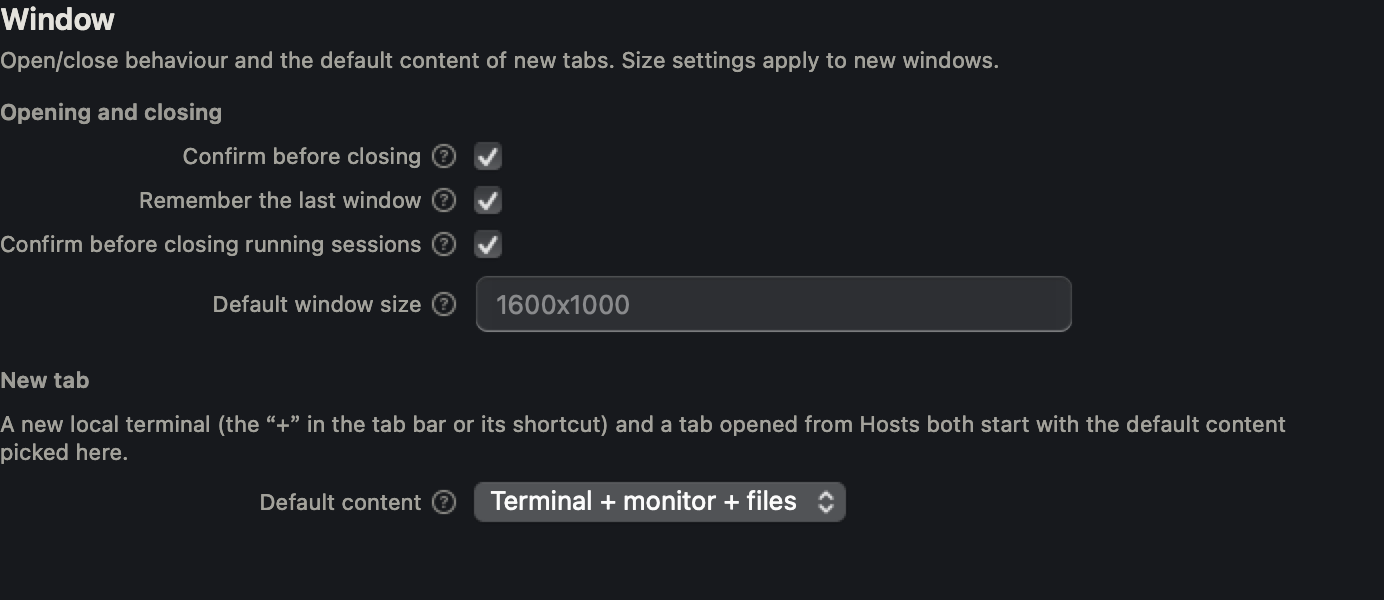
| Confirm before closing | window:confirmclose | boolean | On | Immediately |
| Remember the last window | window:savelastwindow | boolean | On | Immediately |
| Confirm before closing running sessions | term:confirmcloserunning | boolean | On | Immediately |
| Default window size | window:dimensions | string, widthxheight (e.g. 1600x1000) | empty (system default size) | New window |
Confirm before closing running sessions, when on, asks first whenever you close a pane, tab
or window — or quit the app — while a command, an SSH connection, TT Agent or an unsaved
full-screen program is still running in it; an idle terminal always closes without asking.
Typing anything other than widthxheight into Default window size is rejected with an
error rather than silently ignored.
New tab
| Label | Key | Type / values | Default | Applies |
|---|---|---|---|---|
| Default content | native:newtablayout | choice: Terminal + monitor + files, A single terminal | Terminal + monitor + files | Immediately |
This decides what New Local Terminal (⌘L) and opening a tab from Hosts create. In the three-pane layout, the
monitor and file panes share the same connection as the terminal and their paths stay bound to
it both ways. Tabs that are already open are never changed by this setting — it only applies the
next time a tab is created. The tab bar's "+" always opens Hosts, regardless of this setting.
Terminal
Colors and font
| Label | Key(s) | Type / values | Default | Applies |
|---|---|---|---|---|
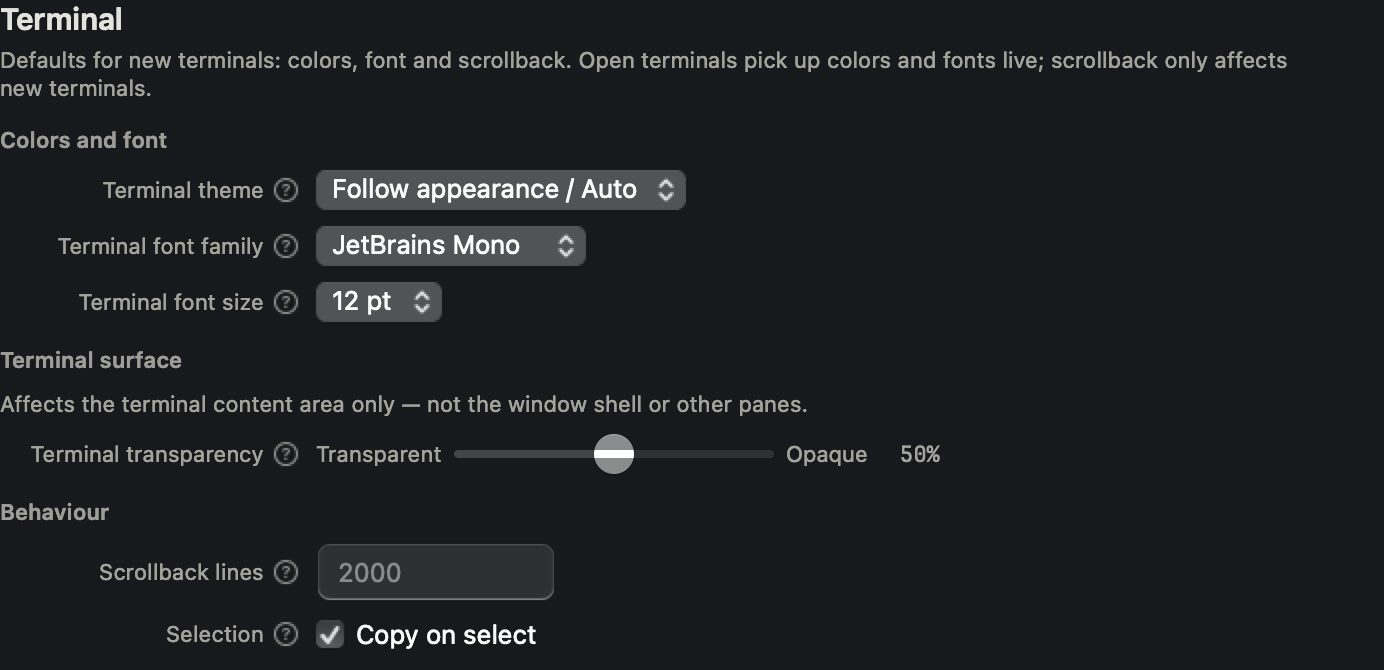
| Terminal theme | term:theme (reads termia:termtheme only if term:theme is unset) | choice: Follow appearance / Auto, or any terminal palette | empty (Follow appearance) | Immediately |
| Terminal font family | term:fontfamily | choice: JetBrains Mono, Fira Code, Cascadia Code, Source Code Pro, IBM Plex Mono, Roboto Mono, Inconsolata, Ubuntu Mono, Hack | JetBrains Mono | Immediately |
| Terminal font size | term:fontsize | choice, 6 – 18 pt | 12 pt | Immediately |
With Follow appearance, a terminal switches to a default dark or light palette whenever the app's own appearance changes; once you pick an explicit palette here, it stops following and stays fixed until you change it back.
Terminal surface
| Label | Key | Type / values | Default | Applies |
|---|---|---|---|---|
| Terminal transparency | term:transparency | number, 0 – 1 | 0.5 | Immediately |
This is the default for every terminal's own content area — separate from the window-level transparency on the Appearance page. A single terminal can be tuned from its own pane menu; once you do, that pane stops following this default.
Behavior
| Label | Key | Type / values | Default | Applies |
|---|---|---|---|---|
| Scrollback lines | term:scrollback | integer, 0 – 100000 | 2000 | New terminal |
| Copy on select | term:copyonselect | boolean | On | Immediately |
Scrollback lines commits when you press Return or move focus away from the field; leaving it empty is treated as "no change," never as zero.
Opening a directory from outside the app
The bottom of the Colors-and-font area also lists three read-only ways to open a directory in a
new local terminal tab, none of which are configuration keys: a Finder service (right-click a
folder → Services → "New <App> Tab Here" / "New <App> Window Here" — enable both once under
System Settings → Keyboard → Keyboard Shortcuts → Services → Files and Folders), a command-line
form (open -a "Termia" /path/to/dir), and a termia://open?dir=... URL scheme.
Keyboard
The rest of this page is a Keyboard section — keymap preset, Option-as-Alt, conflict and reserved-key warnings, and the full shortcut table with restore-defaults and import/export. See Keyboard Shortcuts for all of it.
Web
Default addresses
| Label | Key | Type / values | Default | Applies |
|---|---|---|---|---|
| Home page | web:defaulturl | string (URL) | empty | New pane |
| Search URL | web:defaultsearch | string (URL, with {query} as a placeholder) | empty | New pane |
Opening links
| Label | Key | Type / values | Default | Applies |
|---|---|---|---|---|
| Open links inside the app | web:openlinksinternally | boolean | Off | Immediately |
When this is off, a link clicked inside the terminal opens in your system default browser instead of a web pane.
AI
| Row | Shows / does |
|---|---|
| Active model | The provider and model currently in use, e.g. "OpenAI · gpt-4o"; if you're signed out and the active provider needs an account, it appends "Logged out · built-in providers need login." |
| Provider | A Manage providers & models… button that opens the provider and model manager. |
This page holds no settings.json keys of its own. Provider credentials — including your own
BYOK keys — and the model list are documented on TT Agent.
Sync
| Row | Shows / does |
|---|---|
| Sync | A Sync & history… button that opens the sync panel, where cloud sync, the sync interval and local Git versioning for your Vaults library are configured. |
Sync only happens between this device and your own account. See Account and Sync for how it works.
Security
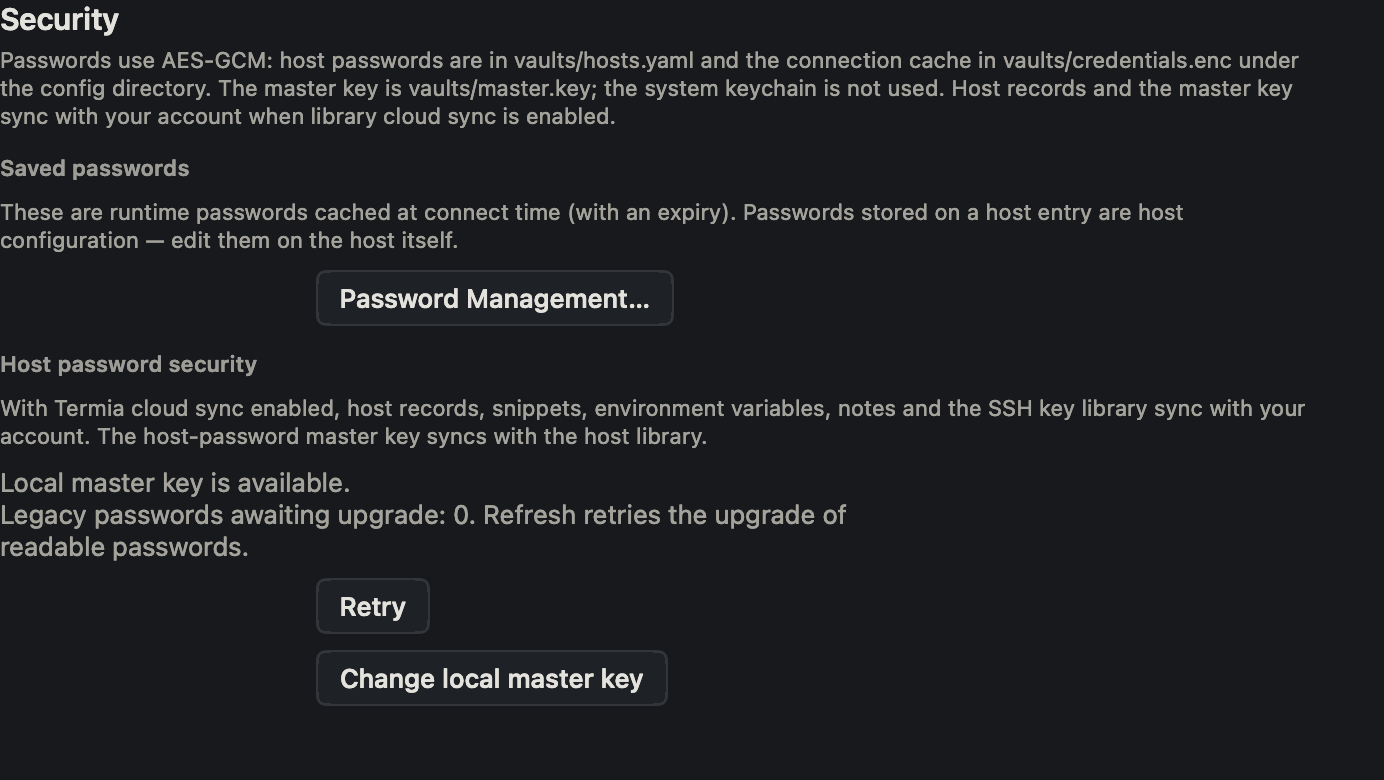
Host password security
Shows local master-key status, legacy-password and unreadable-password counts. Refresh/Retry checks again and upgrades readable legacy values; unreadable ciphertext is retained. Changing the local master key requires confirmation and is refused if old credentials cannot be read. Host records and their master key sync with your account when library cloud sync is enabled. See Account and Sync.
Password Management
Password Management… opens a sheet for a smaller, separate store: the passwords Termia caches at connect time after you type them into a connection prompt, each with its own expiry, so you aren't asked again on every reconnect. Its own hint text says this plainly — passwords saved on a host entry are host configuration, edited on the host itself, not here.
| Section | Control | Notes |
|---|---|---|
| Saving policy | Save passwords after a successful connection | Boolean toggle; written immediately. |
| Saving policy | Keep for | Choice: 1 day, 7 days, 30 days, 90 days; default 30 days. Grayed out until saving is turned on. If the underlying value isn't one of these four, the dropdown appends a read-only "Custom (N days)" entry showing it instead of silently rounding it to the nearest preset. |
| List | one row per cached password | user@host:port, the connection's name, an "Active connection" badge if a live session is using it right now, and its expiry — a plain date, a date with an "Expires within 24h" badge, or an "Expired" badge. |
| List | Delete (per row) | Confirms, then forces the next connection to that host to ask for the password again; deleting the password for a connection with an active session does not disconnect it. |
| List | Clear all… | Confirms, then deletes every cached password the same way; grayed out with a "No passwords have been saved yet" reason when the list is empty. |
An empty list reads "No saved passwords," with a hint that passwords show up here once you connect to a host and choose to save it. If the list fails to load, you get an error state with a Retry button instead of an empty one.
Privacy
Usage data
| Label | Key | Type / values | Default | Applies |
|---|---|---|---|---|
| Send anonymous usage statistics | telemetry:enabled | boolean | Off | Immediately |
This affects anonymous usage statistics only. Terminal contents, credentials and Vaults data are never reported, whichever way this is set.
Updates
Opening this page shows a banner explaining that auto-update isn't wired into the native client in this build, and every control below it stays grayed out as a result. To get a newer version today, download it yourself and install it over the current app.
Advanced
The Advanced page is the fallback for every key the pages above don't cover — including
Electron-only keys the native app doesn't act on (it just leaves them in the file), and any
brand-new key added before a Settings page catches up to it. All of settings.json's keys are
editable here; there is no schema autocomplete, unlike the Electron app's editor.
| Control | What it does |
|---|---|
| Open settings.json… | Opens a small built-in editor over settings.json, with line numbers and syntax highlighting. |
| Import Termia data… | Re-imports hosts, settings and workspaces from an older Electron install — see Migrating from the Electron App. |
Opening the editor and using its Reveal in Finder button is the fastest way to see exactly
where your settings.json lives on disk; it sits alongside connections.json,
termthemes.json and presets.json in the app's config folder — see
Getting Started for the folder layout.
Before it writes anything, the editor checks that the text is strict JSON — no comments, no trailing commas, an object at the top level — and refuses to save if it isn't, pointing the cursor straight at the line and column with the problem instead. After a successful save it also warns you, without blocking the save, about:
- Duplicate top-level keys — only the last one written is ever used.
- Keys Termia doesn't recognize — they're saved as-is but silently ignored when read back.
If the file changed on disk since you opened it (edited elsewhere, or by another Termia client) and you still have unsaved changes, saving asks whether to overwrite those changes. Closing the window with unsaved changes asks whether to save, discard, or cancel — closing after choosing Save only succeeds once the file passes the syntax check.
An empty file is valid — Termia treats it as "no configuration set" and every key falls back to its default. Selecting everything in the editor, deleting it, and saving is the fastest way to reset every setting on this page back to its default in one step.
About
| Label | Shows |
|---|---|
| Version | The running backend's version string. |
| Account | Your signed-in email, or "Not signed in." |
| Diagnostics | An Open data directory button that reveals the folder holding your local database and logs in Finder — see Troubleshooting for when you'd reach for it. |
Nothing on this page is editable — it's a read-only summary.