The Terminal
Every terminal pane is rendered by a GPU-accelerated engine (Metal), the same kind of engine full-screen terminal applications expect. That means the terminal understands the complete keyboard and escape-sequence surface a shell or a TUI program relies on: cursor movement, alternate screens, mouse reporting, bracketed paste, 256-color and true-color output, and the redraw speed those programs assume. Editors, pagers, monitors, and multiplexers behave the same way here as they do in any other GPU-rendered terminal.
Typing and IME input
Keystrokes go straight to the shell. Standard macOS input-method composition works normally: typing pinyin, kana, or any other multi-byte input method shows a preedit (marked text) anchored to the current cursor cell, and the candidate window follows the cursor as you type. Only the text you actually commit — by picking a candidate or pressing Return — is sent to the shell; the characters you're still composing never reach the PTY.
If you turn on Option key as Alt in Keyboard Shortcuts (term:macosoptionasalt,
off by default), Option plus a letter sends an Esc prefix instead of typing an accented
character — the Meta convention Emacs and readline expect. Turning it on for the left key, the
right key, or both trades away macOS's built-in accent input (⌥e and similar) for that terminal.
Selecting text and using the mouse
Drag with the left mouse button to select text; the selection follows normal macOS conventions.
If Copy on select is on (the default, term:copyonselect), releasing the drag copies the
selection to the system clipboard immediately — you don't need to press ⌘C.
A foreground program that turns on mouse reporting (an editor with mouse support enabled, a
process monitor, a multiplexer) captures clicks and drags for itself instead of the pane's own
selection. Right-clicking while a program has captured the mouse sends the click to that program
rather than opening the pane's menu; hold ⇧ while right-clicking to force the pane's own
context menu open regardless of what the foreground program wants.
The mouse pointer's shape also follows what the foreground program requests: a program can turn it into a pointing hand, a crosshair, a resize arrow, an open hand, a "not allowed" symbol, or hide it entirely (full-screen programs commonly hide the pointer while they own the screen).
Copy and paste
| Action | Shortcut |
|---|---|
| Copy selection | ⌘C or ⌃⇧C |
| Paste | ⌘V or ⌃⇧V |
⌘C/⌘V and the ⌃⇧C/⌃⇧V variants all reach the same copy/paste path — the Ctrl+Shift
forms exist for programs and keyboard layouts where ⌘C/⌘V aren't practical to send. Copy
does nothing if there's no selection; paste, the right-click menu's Paste, and the Edit menu
all go through the same coordinator described below.
Bracketed paste and the confirmation sheet
If the foreground program has turned on bracketed paste (the mode editors and shells use so a paste isn't mistaken for typed keystrokes), pasted text is wrapped in the bracketed-paste sequence and delivered as a single block — newlines inside it are never treated as a Return.
If the program hasn't turned bracketed paste on and the clipboard content contains more than one
line, pasting shows a confirmation sheet first: "Paste into the terminal?", the target
pane, a one-line description of the risk, a preview of the content (control characters are shown
as ^X, up to 12 lines), and a line/byte count. Unbracketed multi-line paste is confirmed
because every line break in it becomes a Return the moment it reaches the shell — that's the
one case that can't be undone. Any control characters found in the pasted text (stray Esc,
Ctrl characters copied from a web page, and similar) are replaced with spaces before sending,
whether or not the paste needed confirming.
The sheet has a "Don't ask again for this terminal" checkbox; checking it and confirming
turns off future paste confirmation for that one pane (term:pasteconfirm, block-level only).
You can turn confirmation back on for that pane from its gear menu — see below. A program that
asks to read the clipboard on its own (rather than through your ⌘V) gets the same confirmation
sheet before the read is allowed to complete.
Snippets and other content inserted from elsewhere in the app (see Snippets, Notes and Environment Variables) go through this same paste logic, so a multi-line snippet is bracketed the same way a clipboard paste would be. Commands accepted from the command-history overlay or run directly are typed in as if you had entered them yourself and never trigger the confirmation sheet.
Scrollback
Each terminal keeps a scrollback buffer you can scroll or search. The number of lines is
controlled by Scrollback lines in Settings → Terminal (term:scrollback,
default 2000). The field accepts 0–100,000, but the terminal itself keeps at most 50,000 lines
regardless of what you enter — a larger value is silently capped. A per-pane override is not
available from the UI; the field sets the value every terminal uses unless a connection profile
overrides it.
Clearing and restarting a terminal
The pane's gear menu (see The pane title bar below) has three destructive actions, plus two related startup toggles:
| Menu item | What it does |
|---|---|
Clear Scrollback (⌘K) | Clears the terminal's display and scrollback. The shell process keeps running. |
| Clear and restart | Restarts the shell process and clears the scrollback. If TT Agent was running in the pane, it's stopped first. |
| Force restart | Restarts the shell process without clearing the scrollback. |
| Clear on restart | Toggle (off by default). When on, every restart of this pane's shell clears the screen automatically. |
| Start automatically | Toggle (on by default). Controls whether the shell starts as soon as the pane opens. |
Restarting always resets the pane back to plain Terminal mode — if Claude Code or a detected TUI program was occupying the pane, restarting the shell kills it and the mode indicator returns to Terminal.
There's also Startup command…, a per-pane command that runs in the shell every time the
terminal starts (leave it empty to run nothing); the Startup command and restart-time behavior are
independent of Start automatically.
Finding text in the terminal
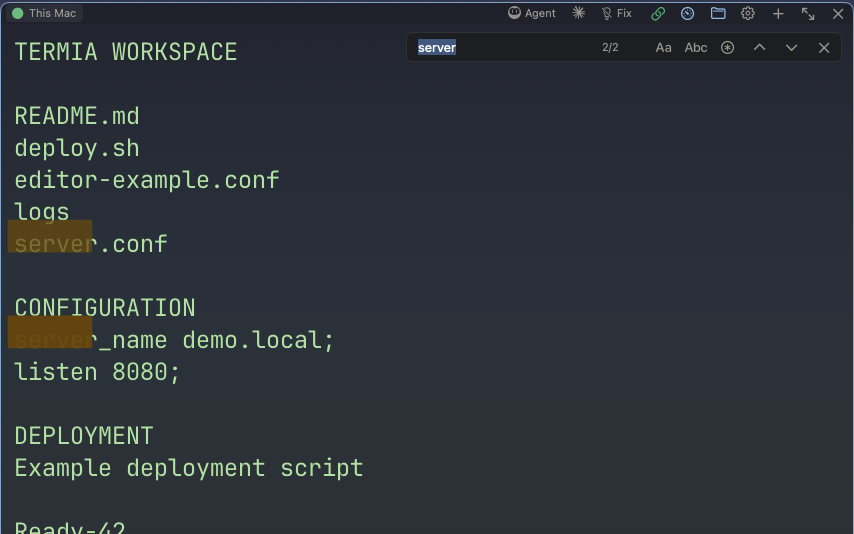
Press ⌘F, use the right-click menu's Find…, or use the same action from the
Command Palette to open the find bar. It has a text field, a match counter, three toggles (case sensitive, whole
word, regular expression — all off by default), previous/next buttons, and a close button.
While typing, matches are searched across the entire scrollback (not just the visible screen),
with a short debounce so large scrollbacks don't get re-scanned on every keystroke. The counter
shows current/total, "No results" when nothing matches, or "Invalid regex" if you have the
regex toggle on and the pattern doesn't compile — that's shown instead of "No results" so a typo
in your pattern doesn't look like a search that simply found nothing.
Press Return (or ⌘G) for the next match, ⇧Return (or ⇧⌘G) for the previous one, and Esc
to close the bar. The current match and the other matches on screen are highlighted differently.
Opening the find bar remembers where you were in the scrollback; closing it scrolls back to that
same spot, or to the bottom if you were already there or the terminal produced new output while
you searched — you never end up stranded in the middle of the scrollback with no idea where your
prompt went.
Links
URLs printed by a program are recognized and clickable — hover to see the link, click to open it.
By default, clicking a link opens it in your system browser. Turning on Open links inside the
app in Settings → Web (web:openlinksinternally, off by default) instead opens
it in a new web panel split next to the terminal pane, without leaving the app.
What the terminal reacts to automatically
Programs can drive several things about the pane just by printing the right escape sequence:
- Window/tab title — a title escape sequence renames the pane. If nothing has changed the title back by the time you leave a mode (see below), the pane's own title-restore logic puts the original name back for you.
- Current directory — the shell's
OSC 7current-directory report keeps the terminal's known working directory in sync, both for local shells and over SSH. This is what lets a new split or a grouped file panel start in the same folder. - Bell — an unanswered bell either beeps (if the app is frontmost) or requests your attention in the Dock (if it isn't), matching how you'd expect a terminal bell to behave when you're not looking at it.
- Desktop notifications — a program can post a notification (for example, when a long build finishes). It always appears in the app's own notification center; it also shows as a system notification banner unless you're actively looking at that terminal's window right now.
- Mouse cursor shape — described above, under selection and mouse.
Switching modes
Every terminal pane is in exactly one mode at a time: Shell (an ordinary shell), TT Agent, Claude Code, or a detected TUI program. The mode buttons sit in the function-button group on the right side of the pane's title bar (see The pane title bar below). TT Agent is always available; Claude Code only appears once Termia has detected that Claude Code is actually installed for the pane's current connection — there's no button for it otherwise. A TUI pill (an editor, a process monitor, a Git TUI, and similar) appears automatically next to them only while that program is actually running, showing the exact command you typed.
Switching to TT Agent or Claude Code does the same thing a person typing at the prompt would do:
it clears the current input line and types the command for you (Claude Code always launches with
its permission-confirmation prompts skipped, since it's already running on your own machine).
Switching back to Shell from Claude Code or a detected TUI sends that program's normal exit
keys first — not a blind Ctrl+C for everything. q for a process monitor or a Git TUI, Esc
then :q for a Vim-family editor (deliberately without !, so unsaved changes still stop on
their own prompt instead of being discarded silently), Ctrl+C twice for Claude Code. The button
shows a spinner while it waits (up to 10 seconds) for the prompt to come back; clicking it again
while it's spinning cancels the wait instead of resending the exit keys a second time — sending
them twice in a row is what used to land on top of a program's own "save changes?" dialog. If the
program still hasn't exited after 10 seconds (typically because it's waiting for you to answer a
prompt of its own), a notification tells you so and the mode stays put until you close the
program yourself.
TT Agent is Termia's built-in shell assistant; see TT Agent for setup and operation.
Command Fix
Command Fix (term:smartmonitor, on by default — the lightbulb button in the pane's title bar)
watches for a command that fails and offers a way to correct it. It's suspended automatically
while TT Agent, Claude Code, or a detected TUI program is occupying the pane, and resumes on its
own once you're back at a plain shell prompt.
When a command exits with an error, up to two suggestions can appear above the prompt: a fast
rule-based suggestion (a bolt icon) and, a little later, an AI suggestion (a sparkles
icon) that can show "Analyzing the error…" while it's still working. Use ↑/↓ to switch
between them when both are present, Tab (or clicking the suggestion) to insert the selected one
into the input line, and Esc to dismiss. Pressing Return without ever having pressed ↑/↓
runs your own typed command as normal and quietly dismisses any pending suggestion — it does not
accept it. Typing a new character clears a stale suggestion the same way.
Turn Command Fix off or on from the lightbulb button in the pane's title bar; toggling it makes an RPC round trip, so the button spins briefly and reverts if the change fails rather than claiming a state it never reached.
Command history
As you type at a plain shell prompt (not while TT Agent, a TUI, or Claude Code has the pane, and
not while a paste is in progress), a small overlay near the cursor suggests matching commands
from this connection's history — prefix matches first, then substring matches, most recent first.
↑/↓ moves through the list (leaving it at the top hands the arrow key back to the shell's own
history), Tab fills in the selected entry without running it, Return fills it in and runs it,
and Esc dismisses the overlay.
History is stored per connection — a local shell and each remote host you connect to keep
separate history — so a command from one machine never turns up as a suggestion on another.
Commands shorter than three characters or longer than 4KB aren't recorded, and anything that
looks like it contains a credential (API keys, Authorization headers, --password=-style
flags, database client -p passwords, connection strings with an embedded password, and similar
patterns) is filtered out before it's written to disk — including a one-time cleanup pass over
history files written before this filtering existed. Clear a single connection's history or all
of it from the pane's gear menu, under Command history.
The pane title bar
A terminal pane's title bar shows, from the left: a connection pill (for remote panes), the pane's mode buttons (TT Agent, Claude Code, the TUI indicator, Command Fix), then the add-pane, gear, and close buttons.
The connection pill shows the host name and a status dot — filled when connected, hollow when not. Clicking it lets you switch this pane to a different host (or choose Switch connection… from the File menu or Command Palette); there's no default keyboard shortcut for it. Switching a terminal's connection restarts its shell against the new host.
The gear menu holds everything covered above that isn't a button of its own, plus a few connection-related items for remote panes:
- Theme, Font size, Font family, Transparency — per-pane overrides, described below.
- Startup command…, Clear on restart, Start automatically — see Clearing and restarting, above.
- Connection debug (Off / Info / Verbose) — raises SSH connection logging verbosity for this pane; see Troubleshooting.
- Export environment variables — copies
export KEY='value'lines for the shell's current environment to the clipboard. - Command history — clear this connection's history, or all of it.
- Confirm multi-line paste — checkbox; unchecking it is the same "don't ask again" you can set from the paste sheet, and this is where you turn it back on.
- Clear and restart, Force restart — see above.
- Reinstall remote wsh… (remote panes only) — re-deploys the shell-integration helper on that host; see Hosts.
Fonts, themes and other terminal settings
Terminal appearance is controlled by a small family of term:* keys, resolved in this order for
every pane: this pane's own override (set from the gear menu) beats the connection's
profile setting beats the global default (set in Settings → Terminal).
Choosing Default in the gear menu clears the pane's own override rather than pinning it to
today's global value, so it keeps following the global setting if you change that later.
| Setting | Key | Global default |
|---|---|---|
| Terminal theme | term:theme | Follows light/dark appearance |
| Font family | term:fontfamily | JetBrains Mono |
| Font size | term:fontsize | 12 |
| Transparency | term:transparency | 0.5 |
| Copy on select | term:copyonselect | On |
| Scrollback lines | term:scrollback | 2000 (see above) |
The font family list (in both the gear menu and Settings) offers JetBrains Mono, Fira Code, Cascadia Code, Source Code Pro, IBM Plex Mono, Roboto Mono, Inconsolata, Ubuntu Mono, and Hack. If a font isn't actually installed, the menu marks it "(not installed)" rather than silently falling back to something else, so it's clear why a choice didn't change anything.
Choosing Follow appearance for the theme switches each pane between its default dark and default light palette as the app's own appearance changes; an explicitly chosen theme does not follow. If the theme you pick is a light theme while the app itself is in dark mode (or the other way around), transparency for that pane is ignored — otherwise the pane's background would blend partway toward the app's own background and turn into unreadable middle gray.
The right-click menu
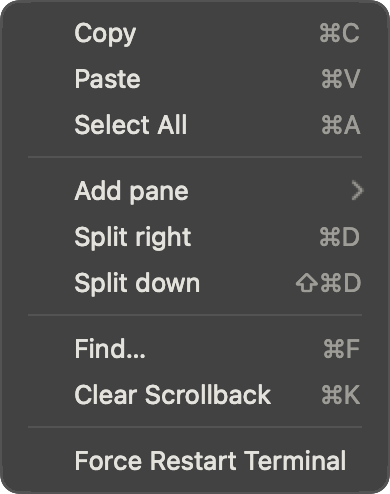
Right-clicking a terminal shows Copy, Paste, Select All, an Add pane submenu with split shortcuts (see Tabs, Panes and Windows), Find…, Clear Scrollback, and Force Restart Terminal — each showing whatever key is currently bound to it, since that depends on your keymap preset.
If a foreground program has captured the mouse for its own use (an editor or monitor with mouse
reporting on), a plain right-click is sent to that program instead of opening this menu. Hold
⇧ while right-clicking to force this menu open regardless.
Keyboard shortcuts and presets
⌘C/⌘V and ⌃⇧C/⌃⇧V for copy/paste are fixed and don't change with your keymap preset. The
rest of the terminal's shortcuts come from whichever preset you've chosen in
Keyboard Shortcuts:
| Action | macOS / Terminal (default) | Termius Ops |
|---|---|---|
| Find in terminal | ⌘F | ⌘F |
| Next match | ⌘G | ⌘G |
| Previous match | ⇧⌘G | ⇧⌘G |
| Clear Scrollback | ⌘K | Not bound (use the menu; ⌘K opens the Command Palette instead) |
Both presets scope these shortcuts to whichever terminal pane currently has keyboard focus.