Connections
A connection points a block at a shell somewhere other than your local machine: a remote host
over SSH, or a local WSL distribution (Windows only). Once a terminal block is connected, file
preview, the system monitor widget, and the in-terminal Agent can all follow it to the remote
side too, provided the remote helper (wsh) is running there.
This page covers SSH and WSL connections. AWS S3 connections are a third, unrelated connection type — they only work in file preview blocks (S3 has no shell to run a terminal in) and are not covered here.
Opening a connection
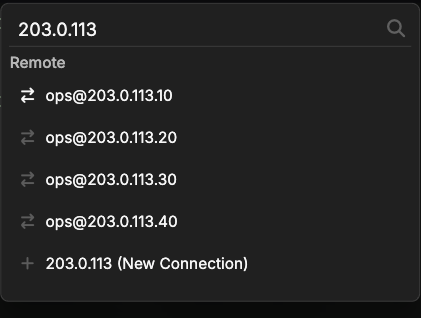
Every terminal block header shows a connection indicator (a computer icon and the connection's name, or Local for your own machine). Click it to open the connection switcher.
The switcher is a type-ahead list with a few groups:
- Local — your own machine, plus any WSL distributions Termia found (Windows only).
- Remote — SSH hosts, sourced from your saved Vaults host entries (not
parsed live from
~/.ssh/config; see below). - A Disconnect entry, shown only while the block's current connection is connected.
- A reconnect entry, shown only when the block's current connection is disconnected or in an error state and you haven't typed anything.
Use the arrow keys and Enter to pick an item, or type to filter. Escape closes the switcher
without changing anything.
Adding a brand-new SSH connection from the switcher
If what you type doesn't match anything in the list, the switcher offers to create it as a new
connection — but only if it looks like `user@203.0.113.10` (a literal IPv4 or IPv6 address).
Typing a bare hostname or an alias from ~/.ssh/config that isn't already known to the switcher
is rejected with "Invalid format. Use user@ip (IPv4 or IPv6)."
To connect to a host by name (an ~/.ssh/config alias, or a hostname you haven't saved anywhere
yet), use one of these instead, all of which accept any hostname:
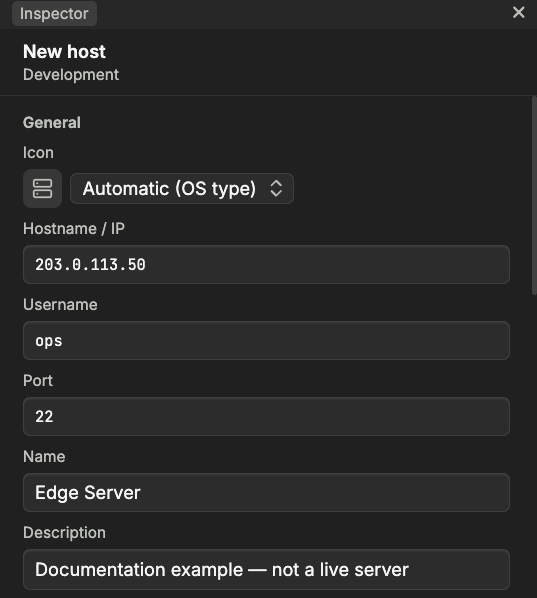
- Save the host in Vaults — it then appears in the switcher's Remote list.
- Run
`wsh ssh user@host`in an existing terminal (add-nto open a new block instead of switching the current one). - Add it directly to
connections.json— see Per-connection configuration below — or with`wsh conn add user@host`.
Once a host has connected successfully (by any of these paths), it also shows up in the switcher
from then on, because Termia writes it back into connections.json and, separately, into Vaults
(see Password reuse below).
WSL distributions
On Windows, Termia reads the list of installed WSL distributions from the Windows Registry every
time you open the switcher — there's nothing to configure. Pick one from the Local group, or
run `wsh wsl -d <distribution-name>` from a terminal; with no -d, it uses your WSL default
distribution. WSL support does not exist on macOS or Linux (there is no distro registry to read).
How ~/.ssh/config is read
Once you connect to a host — whether from the switcher, Vaults, wsh ssh, or wsh conn connect
— Termia resolves its connection settings from three layers, in this order (later layers win):
- Your
~/.ssh/config(and/etc/ssh/ssh_config, or%PROGRAMDATA%\ssh\ssh_configon Windows). - That connection's entry in
connections.json, if`conn:ignoresshconfig`is not set (the default). If it is set, step 1 is skipped entirely and only built-in OpenSSH defaults plusconnections.jsonapply. - Identity files are handled separately and are additive rather than overriding — see Authentication below.
The parser ignores Match directives; conditional settings in those sections are not applied. A file containing Match does not fail as a whole. ProxyJump is supported, but ProxyCommand and a user-facing local/remote/SOCKS tunnel manager are not implemented. Test configurations that depend on those features before relying on this client. Only the following supported keywords affect connection setup:
| Keyword | What Termia does with it |
|---|---|
Host | Only patterns without *, ?, or ! are listed as connections; wildcard patterns are still consulted when resolving values for a specific host. |
User | Defaults to your local OS username if unset. |
HostName | Defaults to the Host pattern itself if unset. |
Port | Defaults to 22. |
IdentityFile | May repeat; each is tried in order (see Authentication). |
BatchMode | yes disables all interactive prompts (password, passphrase, keyboard-interactive). Anything else is treated as no. |
PubkeyAuthentication | Anything other than no is treated as enabled — including unbound and host-bound, which Termia does not otherwise distinguish. |
PasswordAuthentication | Anything other than no is treated as enabled. |
KbdInteractiveAuthentication | Anything other than no is treated as enabled. |
PreferredAuthentications | Comma-separated order to try publickey, keyboard-interactive, password. gssapi-with-mic and hostbased are not implemented and are skipped if listed. |
AddKeysToAgent | Only literal yes adds a decrypted key to your local SSH agent; confirm or a time value behaves like no. |
IdentityAgent | Path to the agent socket. If unset, Termia reads $SSH_AUTH_SOCK from your local shell. |
IdentitiesOnly | yes/no; restricts auth to the identity files listed (plus the ones Vaults or connections.json add — see below). |
ProxyJump | Comma-separated list of jump hosts (or none to disable). See Jump hosts. |
UserKnownHostsFile / GlobalKnownHostsFile | Space-separated lists of known_hosts files. Defaults to ~/.ssh/known_hosts ~/.ssh/known_hosts2 and /etc/ssh/ssh_known_hosts /etc/ssh/ssh_known_hosts2. If you're root, only the global files are consulted. |
Any other keyword in your config file is ignored, even though the parser still reads past it.
Authentication
Termia builds the list of auth methods to try from PreferredAuthentications (default
publickey,keyboard-interactive,password), skipping any method that resolved to disabled above.
Keys
Identity files come from four sources, tried in this order for each connection attempt, with duplicates removed (first occurrence wins):
- Your local SSH agent (
$SSH_AUTH_SOCK, or the socket named byIdentityAgent) — every signer the agent already offers is tried first. Skipped entirely ifIdentitiesOnlyisyes. - The key(s) chosen on a matching host entry in Vaults — either a key file path, or a key held in Termia's own encrypted key store (unlocked with a passphrase prompt the first time it's needed in a session).
`ssh:identityfile`values you set directly inconnections.jsonfor that connection.IdentityFilelines from~/.ssh/config(or the OpenSSH default key filenames if none are set and`conn:ignoresshconfig`is on).
Each candidate is tried one at a time — Termia deliberately does not hand the SSH library the
whole batch at once, so a passphrase prompt appears only for the key actually being tried, and a
key that fails to parse is silently skipped rather than aborting the whole list. If a key file
needs a passphrase, you're prompted for it (unless BatchMode is on, which disables the prompt
and skips that key). With `AddKeysToAgent yes`, a successfully decrypted key file is added
to your local agent so you aren't asked again this session.
Passwords
If you type a password to authenticate, and the connection succeeds, Termia saves it into a Vaults host entry for that IP + user automatically. The next time you connect, the password callback checks Vaults first and reuses it silently — you're only prompted again if no saved password matches. This lookup happens by exact IP and username match, not by SSH config alias.
If neither an agent, Vaults, nor a config-supplied key resolves, and password/keyboard-interactive auth is enabled, you're prompted through a dialog. Keyboard-interactive questions from the server are shown one at a time, honoring the server's request to mask or echo each answer.
Host key prompts
Termia checks the host key against your known_hosts files (UserKnownHostsFile /
GlobalKnownHostsFile, resolved as described above) using the same verification logic as
OpenSSH:
- Unknown host (no matching entry anywhere): you're shown the key's fingerprint and asked to
confirm. Confirming appends it to the first
known_hostsfile Termia can write to, creating the file (and its parent directory) if none exist. - Changed host key (an entry exists but doesn't match): the connection is refused outright,
with an error describing which files and keys are involved. Termia does not offer an in-app way
to accept a changed key — you resolve it the same way you would with OpenSSH, by removing the
stale line from the listed
known_hostsfile(s) yourself (or by removing and re-adding the host in Vaults, which purges the app's own cached session for that host+port). - Revoked key: refused outright, no prompt.
Agent forwarding
Termia does not implement OpenSSH-style agent forwarding (ForwardAgent) — there is no
option to forward your local agent socket into a remote session so that host can authenticate
onward to a third host using your local keys. What it does support is using your local agent to
authenticate to the host you're connecting to (see Keys above), and jump hosts (next
section), which is a different mechanism.
Jump hosts
ProxyJump (a comma-separated list of hosts) chains connections via TCP forwarding: Termia
connects to the first jump host directly, then dials the next hop through that already-open SSH
client, and so on until it reaches the real target. Each hop in the chain is resolved purely from
~/.ssh/config/connections.json for that hop's own name — flags or keywords you passed for the
final destination are not applied to intermediate jumps. Chains longer than 10 hops are rejected.
Per-connection configuration (connections.json)
Beyond ~/.ssh/config, Termia keeps its own per-connection settings file, connections.json, in
the app's config directory. Find the exact path with:
wsh wavepath config
(the file is connections.json inside that directory). It's a JSON object keyed by the
connection's display name — the same string you'd type to connect, e.g. `myuser@myhost` or
`wsl://Ubuntu` — each holding any of these keys:
| Key | Type | Meaning |
|---|---|---|
conn:wshenabled | bool | Whether the remote helper (wsh) is used for this connection. Written automatically the first time you answer the install prompt; defaults to the global conn:wshenabled setting (true) until then. |
conn:askbeforewshinstall | bool | Whether to prompt before installing wsh on this connection. Once a connection object exists (after any successful connect) and this key is absent, Termia treats it as already answered and stops asking — this is why re-installs after an update happen silently. |
conn:wshpath | string | Override path to the wsh binary on the remote. Defaults to `~/.termia/bin/wsh`. |
conn:shellpath | string | Override shell to launch on the remote. Defaults to the remote's $SHELL. |
conn:ignoresshconfig | bool | Skip ~/.ssh/config entirely for this connection; only OpenSSH built-in defaults plus this file apply. Default false. |
display:hidden | bool | Hide this connection from the switcher. Default false. |
display:order | number | Sort position in the switcher (ascending). Default 0. |
term:fontsize, term:fontfamily, term:theme | number / string / string | Per-connection terminal overrides; block-level metadata still wins over these. |
cmd:env | object | Extra environment variables injected into shell sessions on this connection (requires wsh). |
cmd:initscript, cmd:initscript.sh, cmd:initscript.bash, cmd:initscript.zsh, cmd:initscript.pwsh, cmd:initscript.fish | string | A script, or a path to one, run once wsh initializes the session. The most shell-specific one that applies wins (requires wsh). |
ssh:user, ssh:hostname, ssh:port | string | Override the matching ~/.ssh/config value, or set it outright if conn:ignoresshconfig is on. |
ssh:identityfile | string[] | Additional identity files, tried before ~/.ssh/config's. `wsh ssh -i <file>` on a successful connect appends here automatically. |
ssh:identitiesonly, ssh:batchmode, ssh:pubkeyauthentication, ssh:passwordauthentication, ssh:kbdinteractiveauthentication, ssh:addkeystoagent | bool | Same meaning as the matching ~/.ssh/config keyword. |
ssh:preferredauthentications | string[] | Same meaning as PreferredAuthentications. |
ssh:identityagent | string | Same meaning as IdentityAgent. |
ssh:proxyjump | string[] | Same meaning as ProxyJump. |
ssh:userknownhostsfile, ssh:globalknownhostsfile | string[] | Same meaning as the matching ~/.ssh/config keyword. |
Example — hide a connection you only keep around for Git operations, and give another one its own theme:
{
    "git@github.com": {
        "display:hidden": true
    },
    "myuser@myhost": {
        "term:theme": "warmyellow",
        "term:fontsize": 16
    }
}
Or manage individual fields from a terminal instead of hand-editing the file — see the
wsh conn reference for add / set / rm.
What gets installed on the remote (~/.termia)
When wsh is enabled for a connection (it is by default; see below for when it's asked), a
successful connect does the following on the remote host, all under its home directory:
- Detects the remote OS/architecture (
uname -sm) and copies the matchingwshbinary to`~/.termia/bin/wsh`over the SSH/WSL session (no separate file-transfer channel is used). - Starts
`wsh connserver`on the remote over that same session, and opens a Unix domain socket (SSH: an SSH-forwarded Unix socket; WSL:`~/.termia/wave-remote.sock`) that carries the RPC connection back to your local Termia. - Writes shell integration files for whichever shells it finds under
`~/.termia/shell/{zsh,bash,fish,pwsh}`, plus supporting state under`~/.termia/shell-cwd`and`~/.termia/env-updates`. These are what let a remote shell report its current directory back to the preview/file widgets and restore it on reconnect. - Adds
`~/.termia/bin`toPATHfor that session, and injects a handful of environment variables (TERM_PROGRAM=termia,TERMIA=1,TERMIA_BLOCKID,TERMIA_CLIENTID,TERMIA_CONN,TERMIA_TABID,TERMIA_VERSION,TERMIA_WORKSPACEID), plus any`cmd:env`entries and`cmd:initscript*`fromconnections.json.
Only bash, zsh, fish, and pwsh are supported for shell integration. If the remote's
default shell is something else, integration is skipped for that session; you can point
`conn:shellpath` at one of the supported shells instead.
If any of this fails, Termia falls back to a plain SSH/WSL session without wsh — the terminal
still works, but file preview, the system monitor widget, and the remote Agent are unavailable
for that connection until it's fixed.
The first-time install prompt
The very first time Termia connects to a host with conn:wshenabled true and no
conn:askbeforewshinstall recorded yet for it (both true by default), you're asked to confirm
before anything is installed, with an option to stop asking for every future connection. Your
answer is written back to connections.json as conn:wshenabled, so:
- Decline, and that connection never gets
wsh(or the prompt) again unless you flipconn:wshenabledback totrueyourself. - Accept, and
wshinstalls; the connection object now exists, so every later reconnect (and every version update — see below) proceeds silently, with no further prompts.
Keeping the remote helper up to date
Every connect (and reconnect) runs `wsh version` on the remote first. Termia compares that
version against its own build version with semver:
- Remote version older than the local app →
wshand its shell integration files are re-pushed automatically, with no prompt (per the rule above). A short "Transferring wsh…" / "Installing shell scripts…" progress bar appears in the block while this happens. - Remote version equal or newer → left alone. Termia never downgrades a remote
wsh. - Remote reports "not-installed" → treated the same as "older": full install runs.
You can force a fresh reinstall regardless of version — useful if a remote binary got corrupted
or you changed conn:wshpath — with:
wsh conn reinstall <connection>
or from a terminal block, the same eye-off/"Wsh is not installed" icon that appears next to the
connection indicator whenever wsh failed to come up on a connected session; clicking it
re-enables conn:wshenabled, connects if needed, reinstalls, then reconnects.
Connection status and errors
The connection indicator's color and the block's status overlay reflect the connection's current state:
- Connecting — an animated indicator while the SSH/WSL handshake and (if enabled)
wshinstall are in progress. - Connected — normal state; the indicator uses one of a rotating set of colors, one per distinct active connection, so you can tell blocks on different hosts apart at a glance.
- Disconnected — shown after a clean close, with a Reconnect action in the block.
- Error — the SSH/WSL connection itself failed (auth, network, host key, etc.). The error text is shown in the block, with a copy button, and a Reconnect action to retry.
Separately, a connection can be connected but without wsh — the terminal works, but the
banner explains why the remote helper isn't available, with one of several distilled hints
depending on the underlying error: the remote disk is full, the install directory isn't
writable, the remote filesystem is read-only, or the remote OS/architecture isn't supported. A
button on that banner lets you permanently disable wsh for the connection (writes
`conn:wshenabled: false` to connections.json) if you'd rather stop seeing the warning than
fix the underlying problem; another dismisses the current error without changing the setting.
Debugging a connection
The block's gear menu has a Debug Connection submenu (Off / Info / Verbose). Turning it on
logs the SSH/WSL handshake, key attempts, and wsh install steps directly into that terminal
block while it (re)connects — this is the fastest way to see which identity file or auth method
is actually being tried. The full daemon log is also always available:
wsh wavepath log --tail   # last 100 lines
wsh wavepath log -o       # open it in a new block
Disconnect and reconnect
Closing a connection (the switcher's Disconnect item, `wsh conn disconnect`, or the
remote end dropping the session) tears down the SSH client or WSL command, the domain socket, and
the remote connserver process. Only the switcher's Disconnect item also resets the block
back to your local shell (ConnDisconnectCommand on its own never touches which connection a
block points at).
An unexpected drop — network blip, remote reboot, the OS suspending your laptop — is treated as
"disconnected," not "error," so the block simply shows the reconnect action rather than a scary
error state. Reconnecting re-runs the entire flow from scratch: SSH/WSL handshake, auth, host key
check, and the version-gated wsh update check above — nothing about a prior session is assumed
to still be valid.
If several terminal blocks in the same tab were opened together as a synchronized group, changing one block's connection through the switcher carries the new connection over to the rest of that group automatically; disconnecting or reconnecting a single block does not.