Workspaces
A workspace is a named collection of tabs — its own set of pinned and unpinned tabs, each with its own block layout, plus a name, an icon, and a color. Every window displays exactly one workspace at a time, and you can switch which workspace a window is showing without closing anything.
Window vs. workspace
These are two different persisted objects, and it matters which one owns a given piece of state:
| Belongs to the window | Belongs to the workspace |
|---|---|
| Screen position and size | Name, icon, color |
| Which workspace it's currently showing | The list of tabs and pinned tabs, and which one is active |
| — | Every tab's block layout and the blocks themselves |
Only one window can display a given workspace at a time. If you try to switch a second window to a workspace that's already open elsewhere, that other window is focused instead of duplicating the workspace.
The workspace switcher
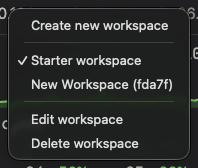
Right-click Home at the left of the tab bar to open the workspace menu. It lists saved workspace names with a checkmark for the active workspace, plus Create new workspace, Edit workspace and Delete workspace. The top-level Workspaces application menu also lists saved workspaces and a creation action.
There is no separate workspace-switcher button or hover-pencil popover in the current tab bar. Left-clicking Home opens the host library; right-clicking it opens the workspace menu.
Creating a workspace
Choose Create new workspace from Home’s context menu, or Workspaces → Create Workspace from the application menu. This creates a workspace using the configured new-tab layout and switches the current window to it. It immediately receives a default name such as New Workspace (<id>), an icon and a color; creation does not open a naming dialog.
To open a separate window, use File → New Window. Its starting view follows your startup settings. Use Edit workspace afterward to give the workspace a useful project or operations name.
Saving a workspace
Workspaces created through the creation menu are already named and saved. If an existing profile or window has an unnamed workspace, opening Edit workspace assigns the missing default name, icon and color before showing the editor. There is no separate Save workspace button in the current menu.
An unnamed workspace can still be temporary; preserve it with Edit workspace before closing or switching away from work you want to keep. Window-close confirmation and last-window reopening behavior do not provide a backup of its contents.
Switching workspaces
Choose a workspace name from Home’s context menu or the Workspaces application menu. Menu shortcuts use your effective keyboard preset and overrides; review the displayed shortcut rather than assuming a fixed key combination.
- If the target workspace is already open in another window, that window is focused — your current window doesn't change.
- Otherwise, if your current workspace is saved, this window switches to the target workspace in place.
- If your current workspace is still unsaved, switching normally still happens in place — unless that workspace already has more than one pinned tab or more than one regular tab open (a fresh window's single pinned starter tab doesn't count). In that case the target workspace opens in a brand-new window instead, so your unsaved tabs are never silently discarded.
Editing a workspace
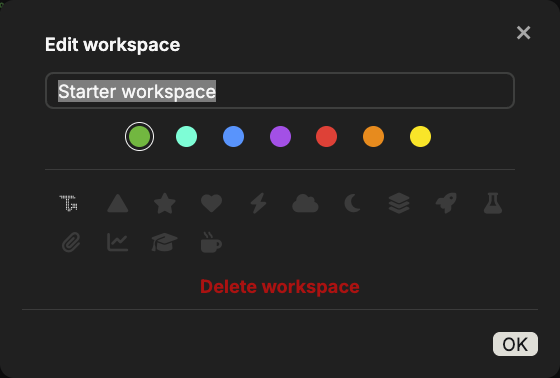
Choose Edit workspace from Home’s context menu. The editor has a name field, color swatches, icon choices and Delete workspace. Changes to a nonempty name, color or icon save automatically; there is no separate Save action. A blank name is invalid and does not replace the stored name.
Colors and icons come from the backend’s available choices. The current menu identifies workspaces by name and active checkmark rather than displaying each chosen icon as a separate glyph. Give workspaces distinctive names so that you can identify them in the list.
Deleting a workspace
Choose Delete workspace from Home’s context menu or the editor. The app asks for confirmation because deleting a workspace also deletes its tabs and blocks. Check the workspace name and any active work before confirming. Opening or closing a temporary unnamed workspace is a different operation; do not treat it as a replacement for this explicit deletion action.
What persists
A workspace's tabs, pinned tabs, active tab, and every block inside those tabs (a terminal's running process and scrollback, an editor's open file, and so on, for as long as the process stays alive) are all persisted as part of the workspace and restored the next time it's opened. Window position and size are not part of this — they belong to the window, not the workspace, so the same workspace can be opened at a different size or position in a different window.