wsh Reference
This is the complete reference for wsh, generated against the commands wsh actually ships in
this build. For a guided introduction and the block-reference syntax (-b) shared by most of
these commands, read wsh Command first.
Commands are grouped by what they operate on. Each one shows its syntax, its flags, and a working example.
Global flag
Every command that acts on a block, tab, or workspace accepts:
-b, --block <ref> for commands which require a block id (default "this")
See Referring to blocks in the overview for the full list of
shorthand forms <ref> accepts (this, tab, workspace, client, a block number, a view
name, a truncated or full id).
view / edit
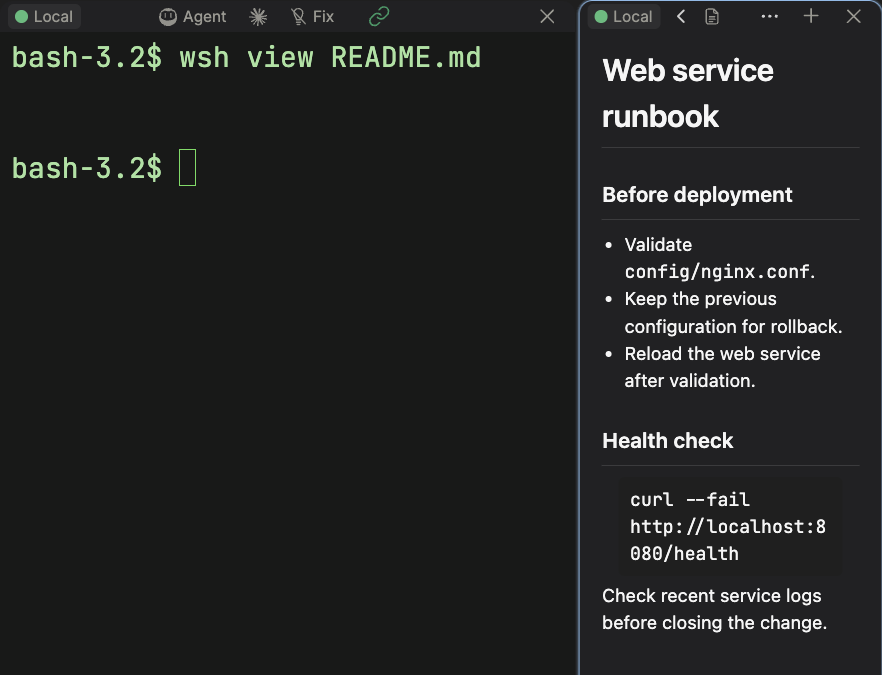
wsh view [-m] {file|directory|url}
wsh edit [-m] {file}
Opens a file or directory in a preview block, or a URL in a web block. view (aliased to
preview and open) opens a file for viewing; text and code files open in the embedded code
editor, images and markdown render directly, and directories open as a file browser. edit opens
the same preview block but also sets it into edit mode.
Flags:
-m,--magnified— open the block already magnified.
wsh view .
wsh view ./screenshot.png
wsh edit ./config.json
wsh view https://example.com
editor
wsh editor [-m] <file>
Opens a file for editing and blocks until the block is closed, unlike view/edit which
return immediately. This makes it a drop-in $EDITOR: set EDITOR="wsh editor" in your shell
profile and commands like git commit will open the file in Termia's graphical editor and wait
for you to close it before continuing.
Flags:
-m,--magnified— open the block already magnified.
export EDITOR="wsh editor"
git commit
term
wsh term [-m] [directory]
Opens a new terminal block. With no argument it opens in your current working directory;
otherwise it opens in the given directory (~ is expanded). If you run it from a block connected
to a remote host, the new terminal opens on that same connection.
Flags:
-m,--magnified— open the block already magnified.
wsh term ~/projects/termia-terminal
run
wsh run [flags] -- command [args...]
wsh run [flags] -c "shell command string"
Runs a command in a new terminal block. Give it either a command after -- (run directly, no
shell) or a shell command string with -c (run through a shell) — not both. The new block
inherits your current environment and working directory.
Flags:
-m,--magnified— open the block already magnified.-c, --command <string>— run this string in a shell instead of a--command.-x, --exit— close the block automatically once the command exits successfully (stays open on error).-X, --forceexit— close the block once the command exits, regardless of exit status.--delay <ms>— with-x/-X, how long to wait before closing (default2000).-p, --paused— create the block without starting the command; you start it manually.--cwd <path>— working directory for the command (default: your current directory).-a, --append— append output across restarts instead of clearing the block first.
wsh run -x -- npm test
wsh run -m -- npm run dev
wsh run -c "docker compose up -d"
launch
wsh launch [-m] <widget-id>
Creates a block from a widget defined in widgets.json or the shipped default widgets, by its
id.
Flags:
-m,--magnify— open the block already magnified.
wsh launch sysinfo
deleteblock
wsh deleteblock -b <ref>
Deletes a block. Takes no positional arguments — target it with -b (defaults to the current
block, so running it bare closes the terminal you typed it in).
wsh deleteblock -b 4
getmeta
wsh getmeta [-b <ref>] [-v] [--raw] [--clear-prefix] [key...]
Prints a block or tab's metadata as JSON. With no keys, prints everything. With one key, prints
just that value. A key ending in :* is treated as a prefix match and returns every key that
starts with it, plus the bare key without the trailing colon if it exists.
Flags:
-v,--verbose— also print the resolved block/tab id to stderr.--raw— for a single string value, print it unquoted instead of as a JSON string.--clear-prefix— with akey:*pattern, also include the special clearing key in the output.
wsh getmeta
wsh getmeta -b 2 file
wsh getmeta -b tab "bg:*"
setmeta
wsh setmeta [-b <ref>] [--json file.json] key=value ...
Sets one or more metadata keys on a block or tab. Values are parsed as JSON where possible
(true/false/null, numbers, [...]/{...}/"..."), and fall back to a plain string
otherwise. A key containing / sets a nested path (a/b=1 sets {"a": {"b": 1}}). Setting a key
to null removes it.
Flags:
--json <file>— load a base metadata object from a JSON file (-reads stdin); values given on the command line override keys from the file.
wsh setmeta -b 3 file=~/notes.txt
wsh setmeta -b tab bg=blue bg:opacity=0.3
wsh setmeta -b tab --json -
setbg
wsh setbg [--opacity 0.5] [--tile|--center] [--size auto] [--clear] [--print] [image-path|"#rrggbb"|color-name]
Sets a tab's background. Accepts a path to an image (jpg, png, gif, webp, svg), a quoted
hex color, or a CSS color name.
Flags:
--opacity <0.0-1.0>— background opacity (default0.5). Can be used alone to change just the opacity of an existing background.--tile— tile the image (mutually exclusive with--center).--center— center the image without scaling it (good for logos).--size <px|%|auto>— size for a centered image (defaultauto).--clear— remove the background.--print— print the metadata that would be applied, without applying it.
wsh setbg ./wallpaper.jpg
wsh setbg --center --size 200px ./logo.png
wsh setbg "#1a1a2e"
wsh setbg --opacity 0.2
wsh setbg --clear
getvar
wsh getvar [-l] [--varfile name] <key>
wsh getvar [-l] --all [-0] [-n|-N]
Reads a variable previously stored with setvar. Without --all you must give a key; the value
is written to stdout with no trailing newline unless stdout is a terminal (or -n forces one).
Exits with status 1 if the key does not exist.
Flags:
--varfile <name>— variable file name (defaultvar); lets you keep separate named sets of variables on the same block.--all— print every variable instead of one key.-0,--null— with--all, separate entries with a null byte instead of a newline.-l,--local— read from the current block instead of the client-wide scope.-n,--newline— always print a trailing newline.-N,--no-newline— never print a trailing newline.
Without -b or -l, getvar reads client-wide (global) variables, not the current block's.
wsh setvar API_TOKEN=abc123
curl -H "Authorization: $(wsh getvar API_TOKEN)" https://example.com
wsh getvar --all
setvar
wsh setvar [-l] [--varfile name] KEY=VALUE...
wsh setvar [-l] -r KEY...
Stores one or more variables. Like getvar, it defaults to client-wide scope unless -l/--local
or -b is given.
Flags:
--varfile <name>— variable file name (defaultvar).-l,--local— store on the current block instead of client-wide.-r,--remove— remove the given keys instead of setting them.
wsh setvar DEPLOY_ENV=staging
wsh setvar -l BUILD_NUM=42
wsh setvar -r DEPLOY_ENV
file
wsh file <subcommand> [flags] <uri>...
Manages files across three storage systems, addressed by URI:
wsh://[connection]/[path]— a path on a local or remote connection, reachable throughwsh. A bare path or//host/pathis shorthand for the current or a named connection.wavefile://[zoneid]/[path]— Termia's internal block/tab/client file storage (whatsetvar/getvarare built on).zoneidis a block/tab id or one ofclient/global.s3://[bucket]/[path](optionally[profile]:s3://...oraws:[profile]:s3://...) — an S3-compatible bucket, using credentials from your AWS CLI config orprofiles.json.
All file subcommands accept:
-t,--timeout <ms>— timeout for the operation (default15000).
file ls
wsh file ls [-r] [-l] [-1] [-f] [uri]
Lists a directory (current directory if omitted). -r recurses, -l uses a long listing with
size and modification time, -1 prints one name per line (automatic when piped), -f lists
files only.
wsh file ls wsh://myuser@myhost/home/myuser/
wsh file ls -l wavefile://client/
file cat
wsh file cat <uri>
Prints a file's contents to stdout.
wsh file cat wavefile://client/notes.txt
file info
wsh file info <uri>
Prints a file's name, mode, modification time, size, and any stored metadata.
wsh file info wsh://myhost/etc/nginx/nginx.conf
file write
echo "..." | wsh file write <uri>
Writes stdin into a file, replacing its contents (10MB limit for a single write on backends without append support).
echo "hello" | wsh file write wavefile://client/greeting.txt
file append
tail -f app.log | wsh file append <uri>
Appends stdin to a file, creating it if needed (10MB total file size limit).
echo "deploy finished" | wsh file append wavefile://workspace/deploy.log
file rm
wsh file rm [-r] <uri>
Removes a file. -r/--recursive removes a directory and its contents.
wsh file rm wavefile://client/greeting.txt
file cp / file mv
wsh file cp [-m] [-f] <source-uri> <dest-uri>
wsh file mv [-r] [-f] <source-uri> <dest-uri>
Copies or moves a file, including between different storage systems (local disk, wsh://,
wavefile://, s3://). mv deletes the source once the copy succeeds.
-m,--merge(cponly) — merge into an existing destination directory.-r,--recursive(mvonly) — move directories recursively.-f,--force— overwrite an existing destination.
wsh file cp wavefile://client/config.txt ./local-config.txt
wsh file cp ./local-config.txt wsh://myhost/etc/myapp/config.txt
wsh file mv -f ./draft.md wavefile://workspace/notes.md
readfile
wsh readfile <filename>
Reads a file from the current block's internal storage and prints it to stdout. This predates
file; prefer wsh file cat wavefile://<blockid>/<filename> (or -b plus a plain filename) for
new scripts, since file also works across connections and S3.
wsh readfile var
conn
wsh conn <subcommand>
Manages raw SSH and WSL connections, as stored in connections.json.
wsh conn status— show every connection and whether it is connected.wsh conn list [--json]— list every connection defined in config, with status.wsh conn connect <connection>— connect.wsh conn disconnect <connection>— disconnect.wsh conn disconnectall— disconnect every currently-connected connection.wsh conn ensure <connection>— make surewshis installed on the connection, installing it if necessary.wsh conn reinstall <connection>— force a fresh install ofwshon the connection (use this after an update if a remote host seems to be running a stalewsh).wsh conn add <connection> [-i identityfile]...— add a connection.<connection>isuser@host[:port]orwsl://<distro>.wsh conn set <connection> [-i identityfile]... [--host h] [--user u] [--port p]— edit fields of an existing connection; only flags you pass are changed.wsh conn rm <connection>— remove a connection from config.wsh conn open <connection>— open a new terminal block already attached to the connection (best-effort connects first).
wsh conn status
wsh conn add myuser@myhost -i ~/.ssh/id_ed25519
wsh conn open myuser@myhost
wsh conn reinstall myuser@myhost
ssh
wsh ssh [-i identityfile]... [-n] <user@host>
Connects a terminal to a remote host over SSH. By default it switches the current terminal
block's connection; with -n it opens a brand-new terminal block for the connection instead.
Flags:
-i,--identityfile <path>— identity file for public-key authentication (repeatable).-n,--new— open a new terminal block instead of switching the current one.
wsh ssh myuser@myhost
wsh ssh -n -i ~/.ssh/id_ed25519 myuser@myhost
wsl
wsh wsl [-d <distribution>]
Switches the current terminal block's connection to a local WSL distribution. With no
-d/--distribution, uses your default distribution.
wsh wsl -d Ubuntu
server
wsh server <subcommand>
Server management that unifies Vault hosts (see Hosts and Vaults) with
connections.json: Vault hosts are the durable, credentialed list; connections.json is the
runtime layer wsh ssh/wsh conn use. A "server" here means either kind, merged into one list by
user@ip[:port].
wsh server list [--json]— list every server (Vault host and/or connection), its status, and whether it's saved in a Vault.wsh server rename <server> [--name n] [--desc d]— rename or re-describe a Vault host. Only works on servers that are already in a Vault; does not touch credentials.wsh server rm <server>— remove a server: deletes its Vault host entry and itsconnections.jsonentry, whichever exist.wsh server save-to-vault <server>— register an existing unsaved connection as a Vault host. Never stores a password this way (key-based auth only) — open the host's form in the Vaults view to add a password.wsh server open <server>— open a terminal connected to the server. If it is a Vault host with a saved password, the password is supplied at connect time; it is never written intoconnections.json.
wsh server list
wsh server save-to-vault myuser@myhost
wsh server open myuser@myhost
wsh server rename myuser@myhost --name "staging box" --desc "us-east"
task
wsh task <user@host> <task description...>
Opens a new terminal block connected to <user@host> (ensuring wsh is installed there first)
and immediately starts Termia Agent in it with the rest of the arguments as its initial prompt.
This is the scriptable equivalent of opening a terminal and typing tt followed by a task.
wsh task myuser@myhost "tail the last 200 lines of /var/log/app.log and summarize any errors"
web
wsh web open [-m] [-r <ref>] <url>
Opens a URL in a new web block, or does a search if given a bare search term instead of a URL.
Flags:
-m,--magnified— open the block already magnified.-r,--replace <ref>— replace an existing block's content with this URL instead of creating a new block (mutually exclusive with-m).
wsh web open github.com
wsh web open "termia terminal"
wsh web open -r 3 https://example.com/dashboard
workspace
wsh workspace list
Lists open workspaces across all windows, with each one's name, icon, and color.
editconfig
wsh editconfig [configfile]
Opens a Termia configuration file in the graphical editor. Defaults to settings.json; other
common files are presets.json and widgets.json. The path is resolved relative to your config
directory (see wsh wavepath config).
wsh editconfig
wsh editconfig presets.json
setconfig
wsh setconfig key=value ...
Sets configuration keys directly from the command line, using the same value parsing and nested
a/b=value path syntax as setmeta.
wsh setconfig term:fontsize=13
version
wsh version [-v] [--json]
Prints the wsh version. Plain wsh version only prints the version number and does not need a
running connection to wavesrv; -v/--json additionally connect and report your client id,
config/data directories, and update channel.
Flags:
-v,--verbose— print full version information.--json— print that information as JSON.
wsh version
wsh version -v
wavepath
wsh wavepath {config|data|log} [-o] [-O] [-t]
Prints the absolute path to your config directory, data directory, or log file.
Flags:
-o,--open— also open the path in a new block.-O,--open-external— also open the path in your OS's default external application.-t,--tail— print the last 100 lines instead of the path (only valid withlog).
wsh wavepath config
wsh wavepath log --tail
wsh wavepath data --open
notify
wsh notify <message> [-t title] [-s]
Sends a desktop notification through Termia.
Flags:
-t,--title <text>— notification title (defaultWsh Notify).-s,--silent— suppress the notification sound.
long-build.sh && wsh notify "Build finished" || wsh notify -t "Build failed" "check the log"
ai — not available in this build
wsh ai is still present in the binary (ai [-] [message...], with -n/--new and
-f/--file flags to attach files or stdin), but it targets a chat block type that does not
exist in Termia and has no server-side handler in this build — running it returns a "command not
implemented" error. Use Termia Agent (type tt in a terminal, or
wsh task) for AI work instead.
Internal commands
These exist in the binary but are hidden from wsh --help and are not meant to be typed
directly — they are entry points wavesrv and the remote connection process use internally:
connserver— the process that runs on a remote host to power blocks over that connection.createblock— low-level block creation by view name; the commands above (view,term,run,web open, ...) are the user-facing wrappers around it.debug— internal inspection commands (debug block,debug gettab,debug send-telemetry).remoteexec/remoteexec-json— used by the app to run a single command over an established SSH connection.rcfiles— (re)generates the shell integration files described in wsh Command.shell— prints the current user's login shell.test— a no-op used in development.token— exchanges a short-lived swap token for an initialization script; used when a new shell session bootstraps itswshconnection.