Widgets
A block/pane is one independent view in a tab: a terminal, file, web page, monitor or local Git view. The current UI creates panes from Add Pane (+) in the pane header or tab bar. It no longer uses the older left widgets rail.
Opening and organizing panes
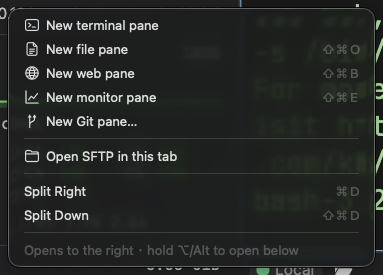
Open Add Pane and choose Terminal, File, Web, Monitor, Git or a custom widgets.json entry. A new pane splits to the right; hold Alt/Option while choosing to split downward. Terminal/File/Monitor inherit the target connection, and terminals also inherit the working directory. Git always uses a local repository.
Drag headers to move panes and dividers to resize; use pane controls to magnify or close. Shortcuts come from the selected preset and platform: see Key Bindings. The old rule “replace every Mac Cmd with Alt on Windows/Linux” no longer applies.
The launcher remains available via block:launcher (default Ctrl+Shift+K): search the widgets.json grid in the focused pane, move with arrow keys and press Enter to open. Custom entries also appear as tab-bar tool buttons. See Custom Widgets.
Workbench sidebar
The resident right sidebar has six pages: Snippets, Hosts, Toolkit, Env vars, History and Themes. Its target follows terminal focus. Drag its left edge to resize; it collapses automatically in narrow windows.
- Insert snippets/variables into the current terminal, confirming execution as needed. Creation opens an inline editor or library inspector.
- Hosts opens saved connections. Toolkit supplies templates and structured service, Docker, port and process views.
- History is per connection. Click to paste, double-click or use the confirm shortcut to run; delete, clear or save a command as a snippet. Common credential patterns are filtered, which cannot guarantee detection of every custom secret.
- Themes offers palettes for the current light/dark mode.
Terminal
The default pane runs a shell. Mode controls enter TT Agent or an installed Claude Code; other CLIs can run directly in the shell. TT Agent is Termia's built-in assistant. Claude Code, Codex and Gemini are separate terminal tools. See Termia Agent.
Terminals support find, scrollback, selection/paste and contextual settings. Command correction proposes a fix after failure; shell history suggests previous commands at a normal prompt. Input owned by a TUI or Agent is not handled as shell text. Broadcast input uses explicitly selected terminals in this tab, without buffering/replaying input for disconnected members.
File Preview
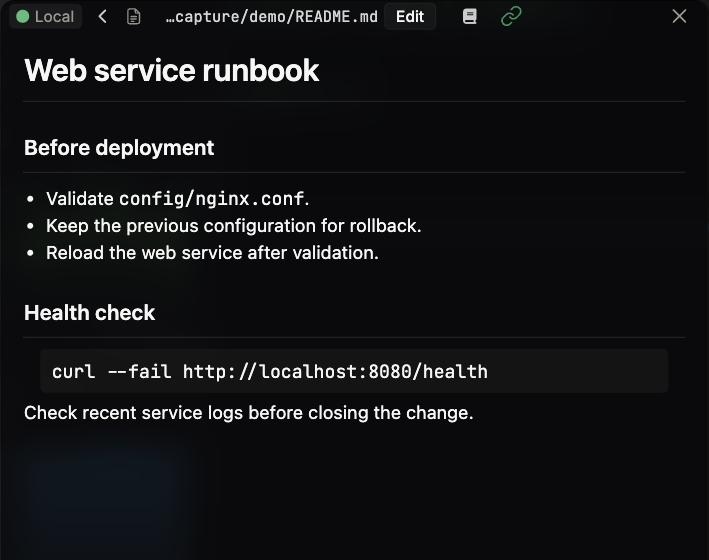
Opens a file or directory. This is the same view whether you click a file, use the Add Pane menu to open a file pane at your home directory, or run wsh view <path> from a terminal.
Directory View
Looking at a directory shows a sortable file table.
- Open a file or subdirectory: double-click its row, or select it with the arrow keys and
press
Enter. - Go up a directory: open the
..row, or press⌘↑(Cmd:ArrowUp). - Go back / forward:
⌘←/⌘→, or the back arrow in the header. - Filter by name: type while the list is focused — it filters as you type;
Escapeor backspacing to empty clears the filter. - Sort: click a column header; click again to reverse the sort order.
- Show/hide hidden files: the eye icon at the right of the header (setting
preview:showhiddenfiles, on by default). - Refresh: the refresh icon at the right of the header.
- Jump to a common folder: click-and-hold the folder icon at the left of the header for a menu of Home, Desktop, Downloads and Root.
- Create a file or folder, rename, or delete: right-click empty space or a row.
- Copy a file between hosts: drag a row from one directory Preview block and drop it onto another — this works across different connections and shows progress in the Transfer Center.
- Right-click a row for context actions: reveal in Finder/Explorer (local files) or Download File (remote files), open the default application (local files), Open Preview in New Block, and Open Terminal in New Block (opens a shell at that directory; unavailable on AWS connections).
- Quick Look (macOS, local files only): select a row and press
Spaceto preview it; pressSpaceagain to close.
Viewing a File
- Markdown files render read-only, with a table-of-contents toggle (book icon) in the header.
- Images and video open with pan/zoom controls (zoom in, zoom out, reset).
- Most other text files open in the Code Editor.
- Click the path in the header to open a fuzzy-find "Open File…" dialog, or press
⌘O.
Code Editor
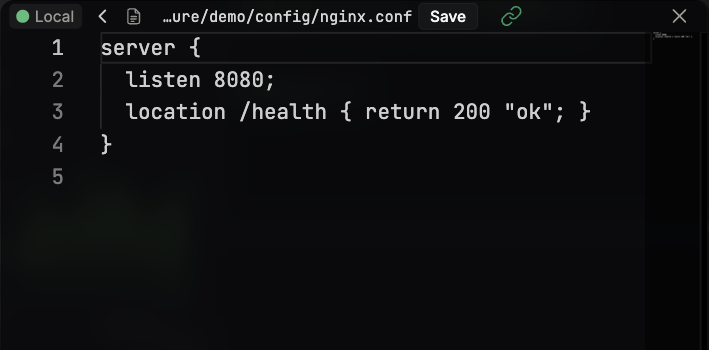
Opening a text file that isn't Markdown, an image, or another special type opens the Monaco-based Code Editor. It's a mode of the File Preview block, not a separate pane type.
- Files under known config paths (
settings.json,connections.json,presets/ai.json,widgets.json) get JSON-schema-backed autocomplete and validation as you type. - Switch to edit mode: click Edit in the header, or press
⌘E. A file the app cannot write shows a Read Only badge instead. - Save: click Save in the header, or press
⌘S/Ctrl+S. - Revert / exit edit mode without saving: press
⌘R, or click Preview in the header to leave edit mode. - Right-click the header for editor font size, Word Wrap, Copy Full Path, Copy File Name, and block-grouping options.
Web Browser
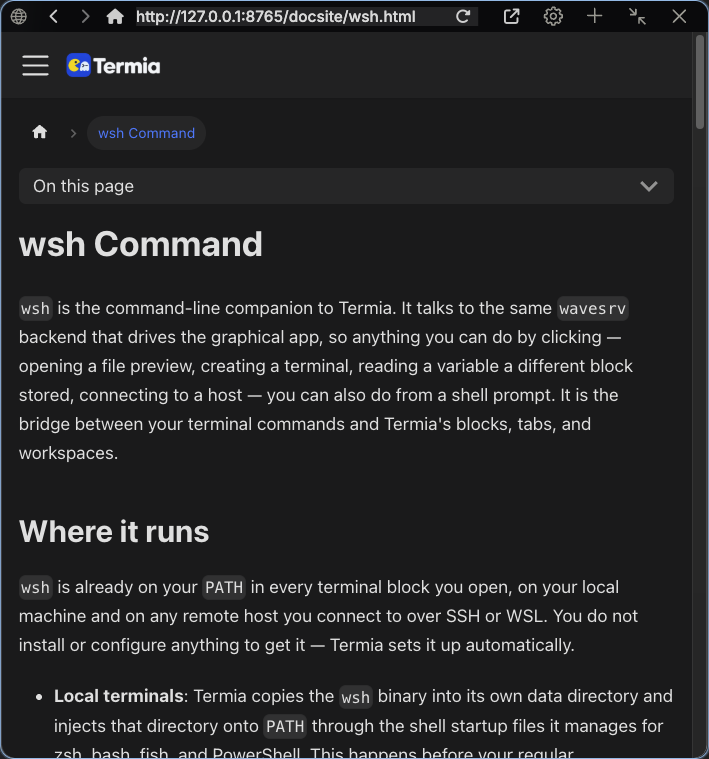
Open from Add Pane. The address bar provides back, forward, home, refresh and opening in an external browser, useful for documentation next to a shell. web:openlinksinternally controls whether terminal links open internally.
System Info
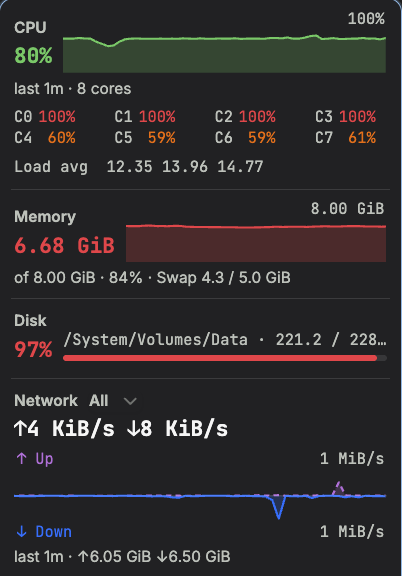
The monitor also adapts to a minimal vertical rail or horizontal strip, and can minimize to a live terminal bottom bar with hover details. See the illustrated monitoring guide for these layouts, restoration, history and Graphite/Neon skins.
Open a monitor from Add Pane or the terminal's companion-pane controls. CPU, memory, network, disks, processes, host facts and a full overview are available. The overview offers 1m/5m/30m/12h, preserving average and peak values in aggregate buckets. History persists locally every minute and on orderly shutdown; there are no new samples with the app closed or disconnected. Remote monitoring requires wsh.
Compact monitoring and hover details
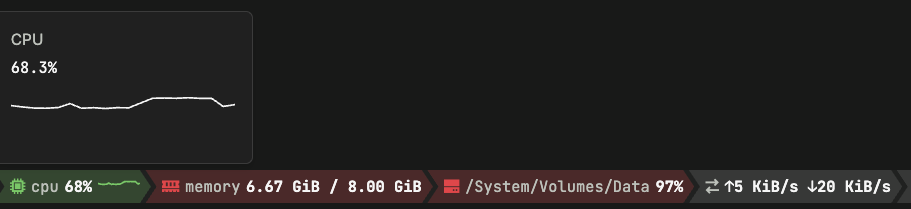
The same All monitor adapts to a horizontal or vertical icon strip as the pane becomes shallow or narrow. Minimize it to a terminal bottom bar to recover pane space, then hover over CPU, memory, disk or network for available details. Restore with the bar control or a double-click. See Monitoring for all seven illustrated scenes.

Git Status
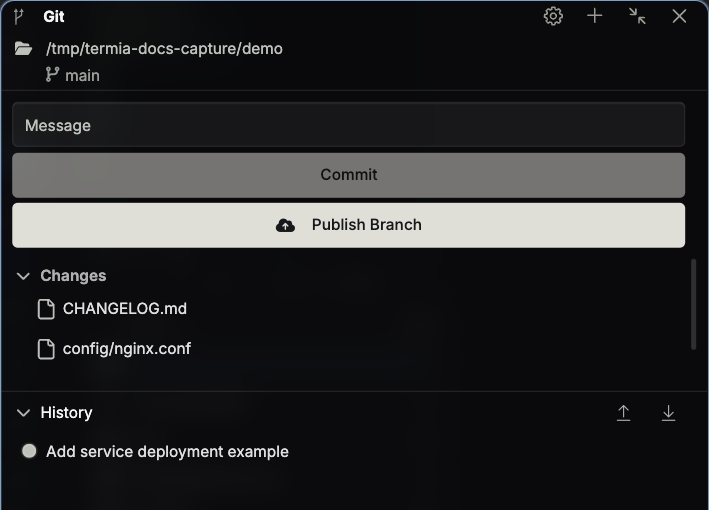
Operates a local repository with status, stage/unstage, discard, commits, history and unified/split diffs. Remote push/pull uses local Git credentials; this does not operate the working tree on an SSH server. Library versioning is documented in Vaults Sync and Versioning.
Dual-pane files and Transfer Centre
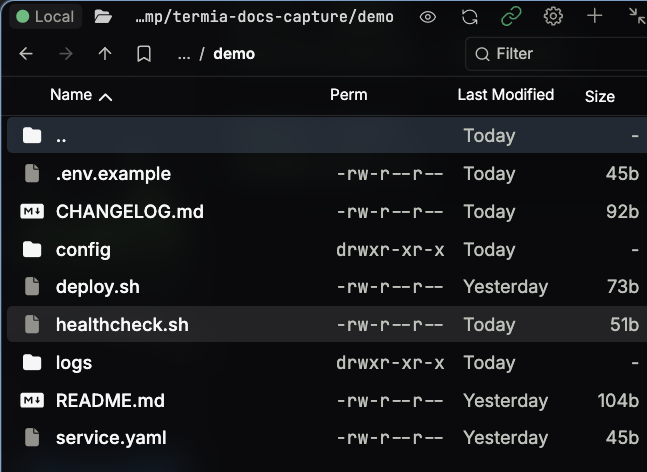
SFTP in Add Pane is a tab-level file mode that can return to the previous layout. It uses the wsh file channel, not a standalone standard SFTP client. The two panes support upload/download, directory operations and conflict handling.
The transfer indicator is in the tab bar; the Add Pane button's right-click menu also opens the transfer centre. It lists active and finished jobs, progress, speed, cancel controls and failures, without resumable copies or automatic queue restoration after restarting.
Host library and help
Home in the tab bar opens Hosts and Vaults. An embedded help view can be opened with a widgets.json entry using view: help; it is a configured entry, not a default left-hand help icon.