Hosts and Vaults
Vaults stores SSH hosts, keys, snippets, environment variables and notes for reuse in terminal workspaces. Files live in the local configuration directory's vaults folder. Cloud sync includes the saved host library and its master key; see Sync and Versioning.
Opening and browsing
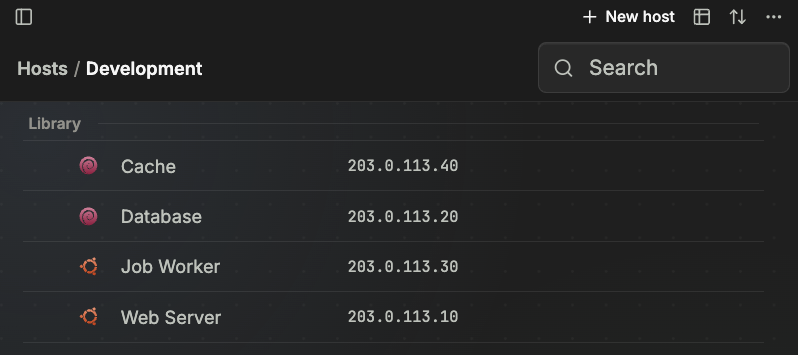
Click Home in the tab bar. Escape or switching tabs returns to the workbench without closing underlying terminals. The sidebar selects Hosts, Keys, Snippets, Env vars and Notes, with separate folder trees. Sync and versions opens the library repository's Git page.
Hosts defaults to a dense list, with table and card alternatives; view and sidebar collapse are remembered locally. Rows combine connected hosts, saved entries, local SSH config and connection history with source/read-only distinctions. An unsaved address is not presented as a stored credential. Search filters across folders, and sorting uses names, addresses or corresponding tags. Metrics only appear when a connection supplies data.
Enter user@host:port in search to quick-connect without automatically saving an entry. Bare names filter/select entries. The host-page IPv6 validator is currently limited; use the connection switcher or system SSH for those addresses. New items use the selected category/folder. Host menus offer edit, duplicate, move and delete; read-only sources cannot be rewritten locally.
Creating and editing hosts
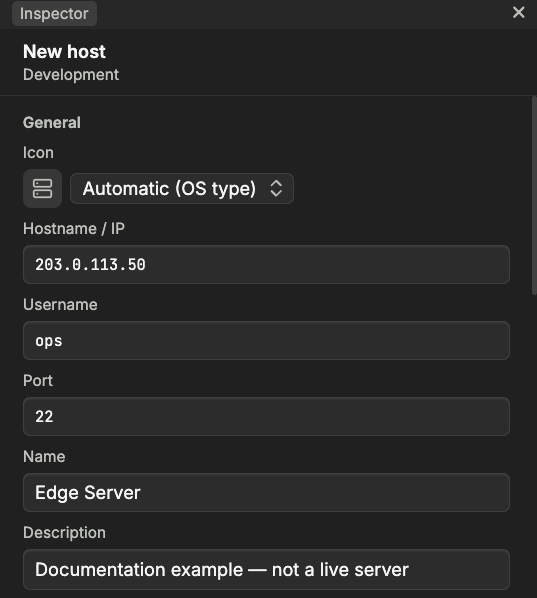
New host opens the right-hand inspector. Double-click a host to connect; use its menu to edit. Validation and Unsaved/Saving/Saved/Failed states stay visible, and a failure keeps the draft for retry.
| Section | Fields |
|---|---|
| General | Icon, address, username, port, name, description, vendor/ISP; platform is detected from the connection. |
| Authentication | Auto, Password or Key; use the separate key library or a local identity file. |
| Organization | Folder. |
| Advanced | Per-host theme, font, size, new-tab layout, startup command and ProxyJump. |
Address and username are required; port defaults to 22. Auto authentication uses SSH config/agent. A blank password can be requested at connect time rather than stored in advance. Key mode requires a valid key/file. Vendor/ISP lookup uses RDAP and only fills empty fields; it is not guaranteed asset identification.
Save and connect stores the host and opens a terminal. An unchanged saved host shows Connect. More offers Save only, Connect without saving and Discard changes. Leaving a dirty draft asks you to save, discard or keep editing.
Saved passwords
The password field does not reveal the value; blank retains the existing ciphertext. Readable legacy values upgrade automatically. An unreadable value shows a warning and keeps its original data. Restore its master key or enter a new password to recover use. Changing host identity without a replacement password is refused when the old credential cannot be read. Check status or change the key at Settings → Security → Host password security; see credentials.
SSH key library
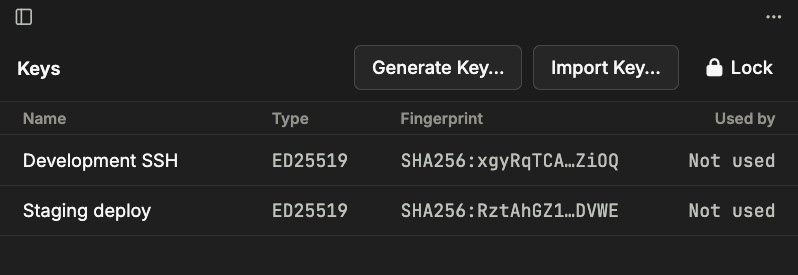
Keys seals private keys under a separate passphrase. Set that passphrase, then generate/import keys and unlock them for host authentication. This is independent of the local host-password master key. Lists normally show public keys and fingerprints; revealing a private key is an explicit action. Deleting a referenced key affects the next login, so replace host references first. Disk identity files and system ssh-agent remain valid SSH sources.
Snippets, notes and environment variables
Create and apply a snippet
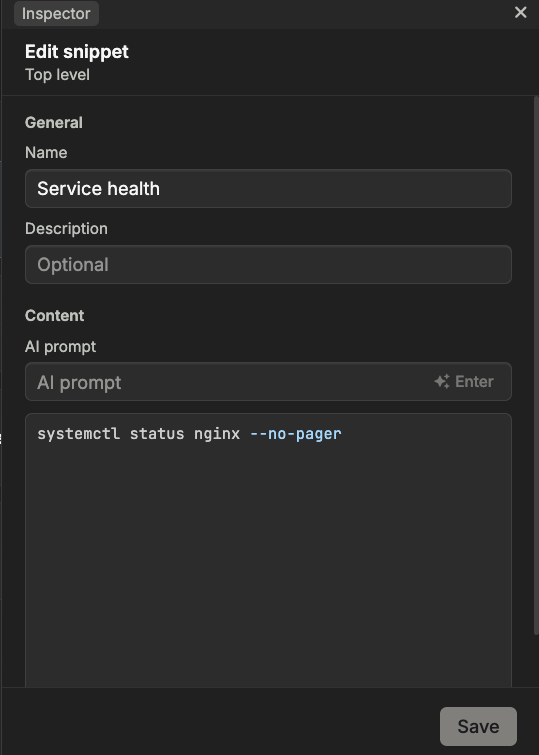
Choose Snippets and create an entry in the intended folder. Give it a descriptive name and command text, then save it. Focus the destination terminal before inserting the snippet; check its connection and review destructive arguments before executing.
Create an environment group
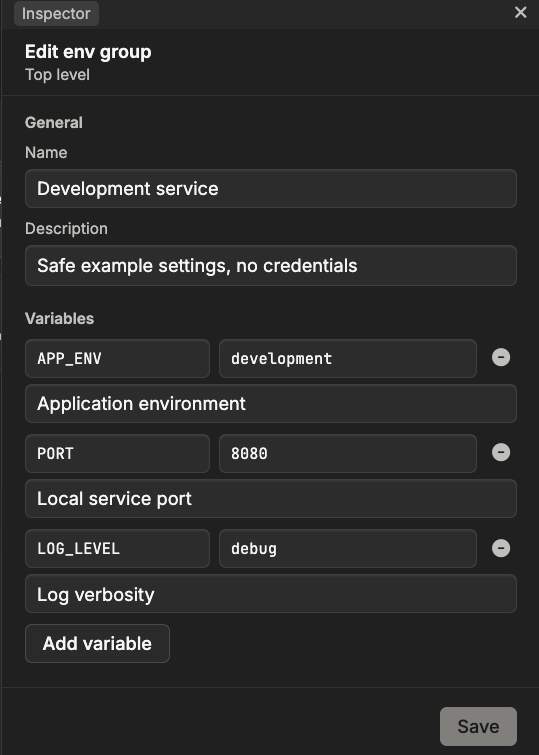
Choose Env vars, name the group and enter its key/value rows. Save it, then apply or bind it to the intended terminal scope. Inspect the resulting shell statements before running them. Keep reusable non-secret settings here; values are not automatically encrypted.
Keep operational notes
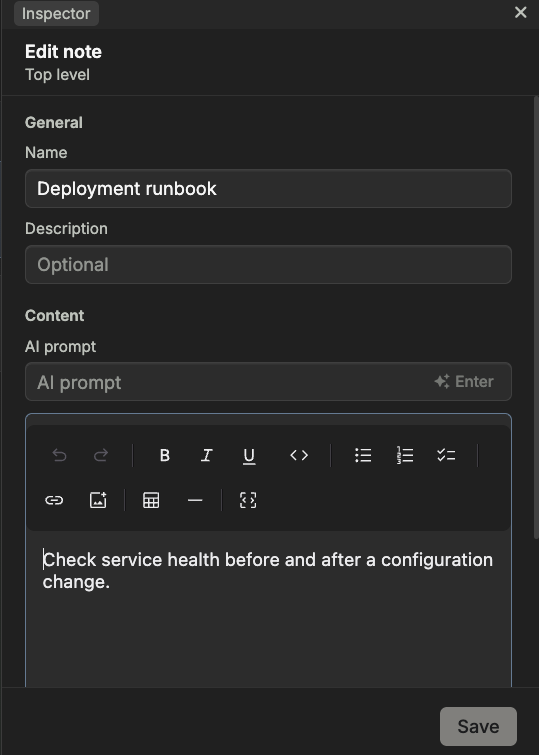
Choose Notes and write the steps, paths or context needed for a recurring task, then save. Open the entry to edit it later, or bind it as Agent context for the appropriate scope. Saving a note does not run its text as a shell command.
- Snippets store command text, name and description. Insert, review and execute deliberately.
- Notes store text/Markdown for editing or binding as Agent context.
- Env vars store named key/value groups. Applying inserts shell-appropriate statements; bindings can support new-session injection and live updates. Values are not automatically encrypted: cloud sync is not a secrets vault.
Each kind has its own folder tree. Server-provided entries are read-only and cannot be locally edited/deleted. Deletion asks first; use an available undo window promptly. There is no general restore button after backend deletion.
Bindings and quick access
Bindings are global or per-terminal pane, not automatically per-host/group. Snippets and notes supply Agent context; variables affect the shell, with more specific pane bindings taking precedence. Pane badges/popovers list bindings, origins and unbind actions.
The right workbench sidebar supplies Snippets, Hosts, Toolkit, Env vars, History and Themes, following the focused terminal. It is a shortcut surface; full editing stays in the library inspector. A separate snippet/env quick panel searches and inserts into the current terminal.
Import and export
More exports four YAML categories as ZIP: hosts, snippets, variables and notes. Import adds/updates by ID without deleting local-only entries. The ZIP excludes SSH keys, master key, bindings, settings and workspaces. Passwords cannot decrypt on another machine without their corresponding master key. This is not a complete backup or a generic importer for other SSH clients; see sync and recovery.