wsh Command
wsh is the command-line companion to Termia. It talks to the same wavesrv backend that
drives the graphical app, so anything you can do by clicking — opening a file preview, creating
a terminal, reading a variable a different block stored, connecting to a host — you can also do
from a shell prompt. It is the bridge between your terminal commands and Termia's blocks, tabs,
and workspaces.
Where it runs
wsh is already on your PATH in every terminal block you open, on your local machine and on
any remote host you connect to over SSH or WSL. You do not install or configure anything to get
it — Termia sets it up automatically.
- Local terminals: Termia copies the
wshbinary into its own data directory and injects that directory ontoPATHthrough the shell startup files it manages for zsh, bash, fish, and PowerShell. This happens before your regular.zshrc/.bashrcruns. - Remote hosts (SSH): the first time you connect to a host, Termia probes it for an existing
wshand, if it is missing, copies the right binary for that host's OS/architecture to~/.termia/bin/wshover the same SSH session. From then on, every terminal block connected to that host haswshon itsPATHtoo. If installation ever fails or gets out of date, you can force it withwsh conn ensureorwsh conn reinstall. - WSL: the same mechanism applies to
wsl://connections.
To find where wsh and its data actually live on your machine, ask wsh itself rather than
guessing a path:
wsh wavepath config   # settings.json, presets.json, widgets.json, ...
wsh wavepath data     # the wsh binary, shell integration files, local block storage
wsh wavepath log      # the wavesrv log file
wsh wavepath log --tail   # print the last 100 lines of the log
Referring to blocks
Most wsh commands act on a block, tab, or workspace, and take a -b/--block flag to say
which one. If you leave it out, the command uses the block your terminal is running in. -b
accepts several shorthand forms:
| Value | Meaning |
|---|---|
this (default) | The block your terminal is running in |
tab | The current tab |
workspace (or ws) | The current workspace |
client (or global) | Client-wide scope, shared across every window |
5 | The 5th block in the current tab, numbered top-left to bottom-right |
tab:2 | The 2nd tab in the current workspace |
term or term:2 | The 1st (or 2nd) block whose view is term in the current tab |
a67f55a3 | A block/tab id truncated to its first 8 characters |
d6ff4966-231a-4074-b78a-20acc7226b41 | A full id |
Hold Ctrl+Shift (same physical key on macOS, Windows, and Linux) to show the block-number
overlay on every block in the current tab, or right-click a block's header and choose
Copy BlockId to get its full id for scripting.
A tour of the most useful commands
Open things
# Preview or edit a file (directories, images, markdown, and code all work)
wsh view ./README.md
wsh view .

# Force the graphical editor, and wait until it's closed (handy as $EDITOR)
wsh edit ./notes.txt

# Open a URL in a web block
wsh web open https://example.com

# Open a new terminal in a directory
wsh term ./myproject

# Run a command in its own block, and close the block once it exits cleanly
wsh run -x -- npm test
Metadata, variables, and files on a block
# See everything wavesrv knows about the block you're typing in
wsh getmeta

# See it for block number 3 instead
wsh getmeta -b 3

# Read one key
wsh getmeta file

# Change the connection a block is using
wsh setmeta -b 3 connection=myhost

# Store a value that survives restarts, scoped to the whole client
wsh setvar DEPLOY_ENV=staging

# Read it back from any terminal
echo $(wsh getvar DEPLOY_ENV)

# Stash a file that any block, local or remote, can read
echo "hello" | wsh file write wavefile://client/greeting.txt
wsh file cat wavefile://client/greeting.txt
Connections and servers
# See every SSH/WSL connection and whether it's currently connected
wsh conn status

# List saved servers (Vault hosts plus ad-hoc connections.json entries) together
wsh server list

# Connect this terminal to a remote host
wsh ssh myuser@myhost

# Open a new terminal already attached to a saved server, using its Vault password if it has one
wsh server open myuser@myhost
See Hosts and Vaults for how servers get into that list in the first place, and Connections for the connection lifecycle in more depth.
Termia Agent from the command line
# Open a new terminal on a remote host and hand it straight to Termia Agent with a task
wsh task myuser@myhost "check disk usage and clean up anything in /tmp older than a week"
Inside any terminal block, typing tt and pressing Enter starts Termia Agent interactively in
that block. wsh task does the same thing in one step for a host you haven't opened a terminal
on yet — it makes sure the connection is up, opens a terminal, and starts the agent with an
initial prompt. See Termia Agent for what the agent can do once it's
running.
Everything else
# Set a tab's background image or color
wsh setbg ./wallpaper.jpg
wsh setbg "#1a1a2e"
wsh setbg --clear

# Fire a desktop notification from a script
long-build-command && wsh notify "Build finished"

# Launch a configured widget by its id
wsh launch sysinfo
Getting help
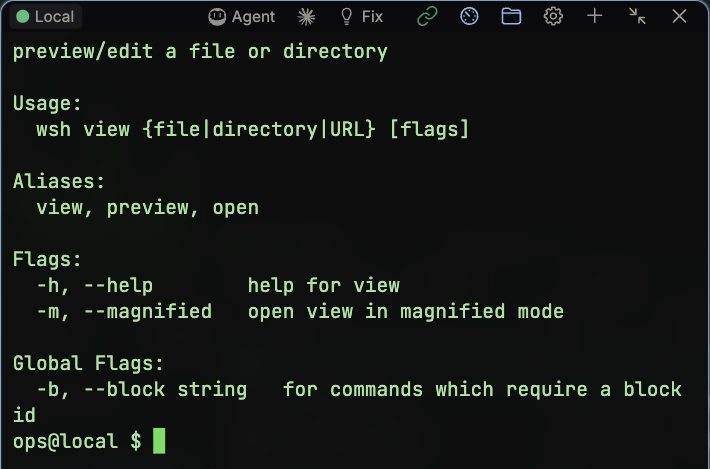
Every command supports -h/--help, and running wsh with no arguments prints the full command
list. wsh version prints the version of the CLI; wsh version -v also prints your config and
data directories and the update channel you're on.
Next steps
- wsh Reference — every command, its flags, and an example.
- wsh Architecture — how
wshtalks towavesrvunder the hood. - Hosts and Vaults — where the servers
wsh serverandwsh connoperate on come from.